Account management: User permissions
User roles control access to Zoovu’s workspaces, studios, and configuration areas. You can assign predefined roles or create custom ones for your organization.
Predefined roles
Zoovu provides several predefined roles that you can assign to users. These roles cover the most common levels of access and can be used as they are, without any setup.
These roles cannot be edited or deleted. If you need different access levels, create a custom role instead.
You can view predefined roles in Zoovu Home > Admin > Roles:

| Role | Description |
|---|---|
| Organization Admin | Full access to all studios and settings within the organization. Can manage users, roles, and configurations. |
| Organization Editor | Can view and edit content across studios but cannot manage users or organization settings. |
| Organization Viewer | Read-only access to all studios and configurations. |
| Writer | Can create and edit content but not publish or delete it. |
| Approver | Can review and approve content created by others. |
Create a custom role
- Go to Zoovu Home > Admin.
- Open the Roles section.
- Click Create new role.
- In the Role details panel, provide basic information about the new role:
Name(e.g. Regional content editor) andDescription.
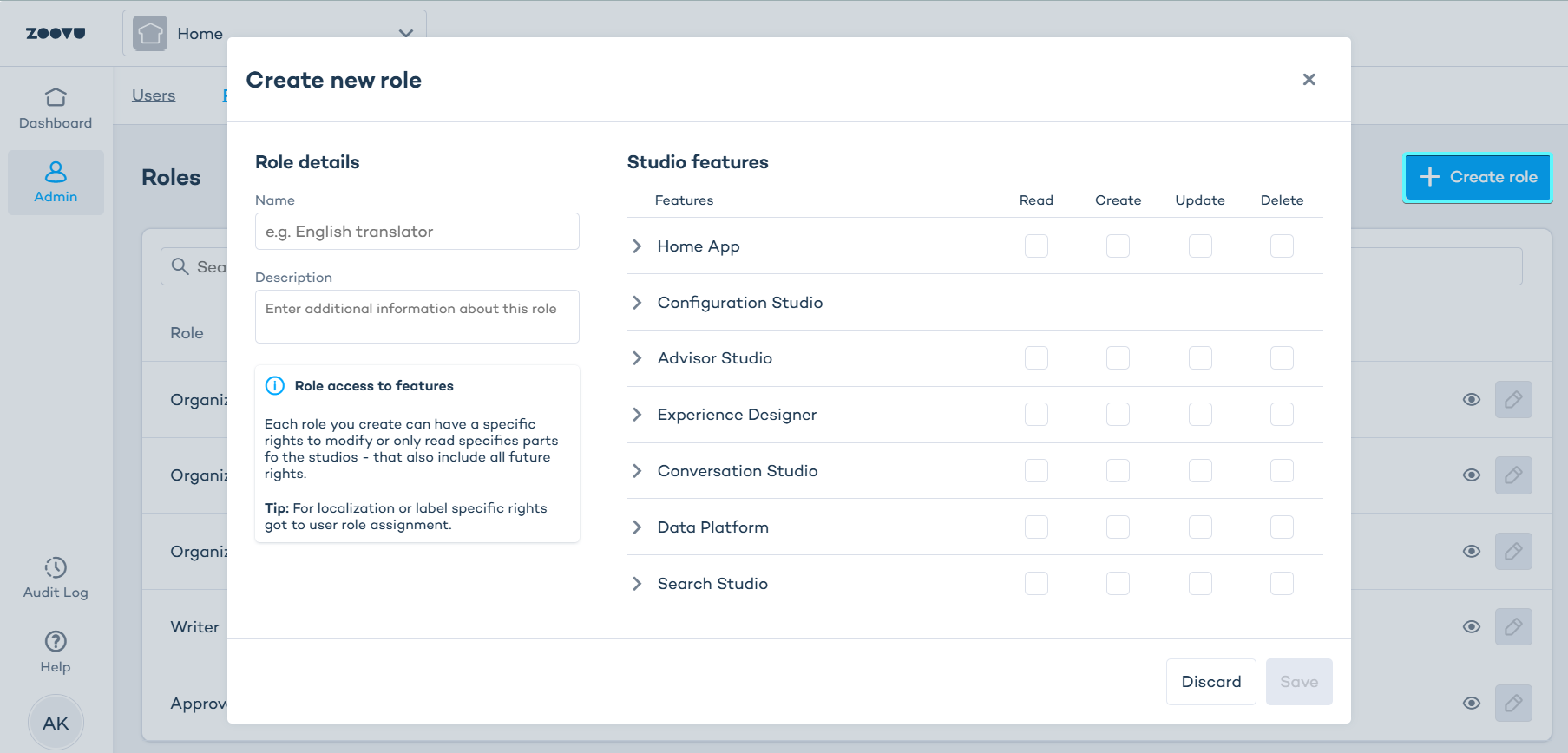
Set permissions for studios and features
Each studio includes a list of features or areas. For example, Experience Designer offers separate permissions for Themes, Design and Versioning.
For each one, you can decide what a specific role can do:
- Read – view content or settings
- Create – add new items
- Update – make changes to existing items
- Delete – remove items

- To give access to all areas in a studio, select permissions next to the studio name. All related features inside that studio will be selected automatically.
- To give access to specific features only, expand the studio and select individual items.
- You can manually check and uncheck permissions at any level.

Save and assign a role
- Click Save. The new role appears in the list in Zoovu Home > Admin > Roles.
- To assign a role, go to Zoovu Home > Users, select a user, and click the "+" icon next to Permissions.

Ask the user whose permissions were changed to log out and log back in to apply the changes immediately. Changes to roles and permissions can take up to one hour to take effect.
Examples
Example 1: Content designer role
A designer needs to manage the visual setup in Experience Designer, but shouldn’t remove existing configurations.
| Studio - Capability | Read | Create | Update | Delete |
|---|---|---|---|---|
| Experience Designer – Theme | ✓ | ✓ | ✓ | - |
| Experience Designer – Design | ✓ | ✓ | ✓ | - |
| Experience Designer – PDF Template | ✓ | - | - | - |
Result: The user can create and edit themes and designs but can’t delete them. They can also view templates but can’t change them.
Example 4: Regional content editor
An editor for a specific market can manage experiences only in Experience Designer, without access to global configuration.
| Studio | Read | Create | Update | Delete |
|---|---|---|---|---|
| Experience Designer | ✓ | ✓ | ✓ | - |
| Conversation Studio | ✓ | - | - | - |
Result: The user can manage experiences for their region but can only view shared configuration settings.