Traits
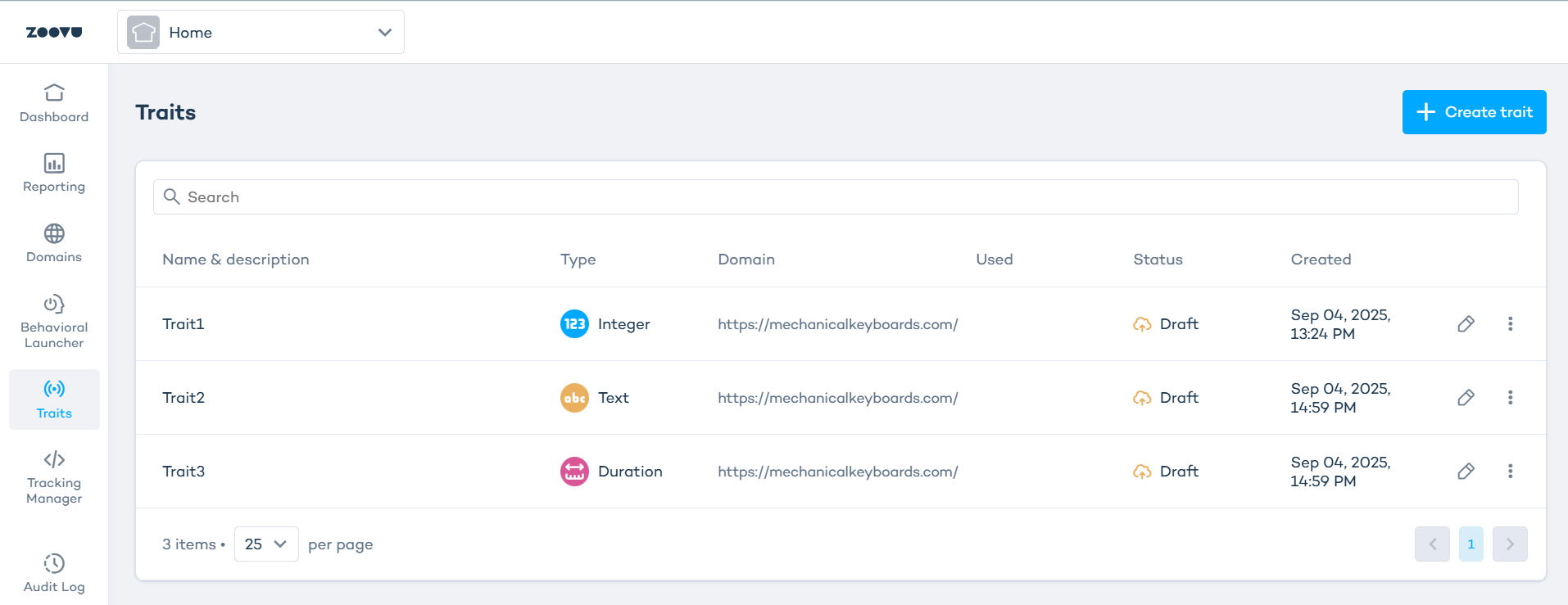
Traits let you define conditions on user journeys and get an immediate output (a score) that can be used in experiences like Behavioral Launchers. They analyze what users are doing on your site in real time.
Before you can create and use traits, make sure these basics are in place:
- Set up the Tracking Manager in Zoovu Home.
- Add at least one domain to identify the website where events are collected (Zoovu Home > Domains).
- Know how the tracking parts connect: Domain → Tracking Manager → Journey data → Trait → Launcher.
Concepts
- Trait – your real-time rule set and a score definition.
- Score – the value sent to the browser when rules pass (e.g.
TRUE,4). - Rule group – one or more rules evaluated together.
- Journey window – which part of the journey to analyze:
all,first X,last Xevents.
Create a trait
- In Zoovu Home > Traits, click "New trait". Give it a name and pick your domain (defined in Zoovu Home > Domains).
- Choose a score type:
- Boolean (true/false) — for yes/no conditions like “user added an item to cart.”
- Text — for values like “last category viewed.”
- Click "Create".
The score is returned when the group evaluates TRUE.
Build rules
Rules define the conditions that trigger the trait’s score. Use the rule editor to build them.
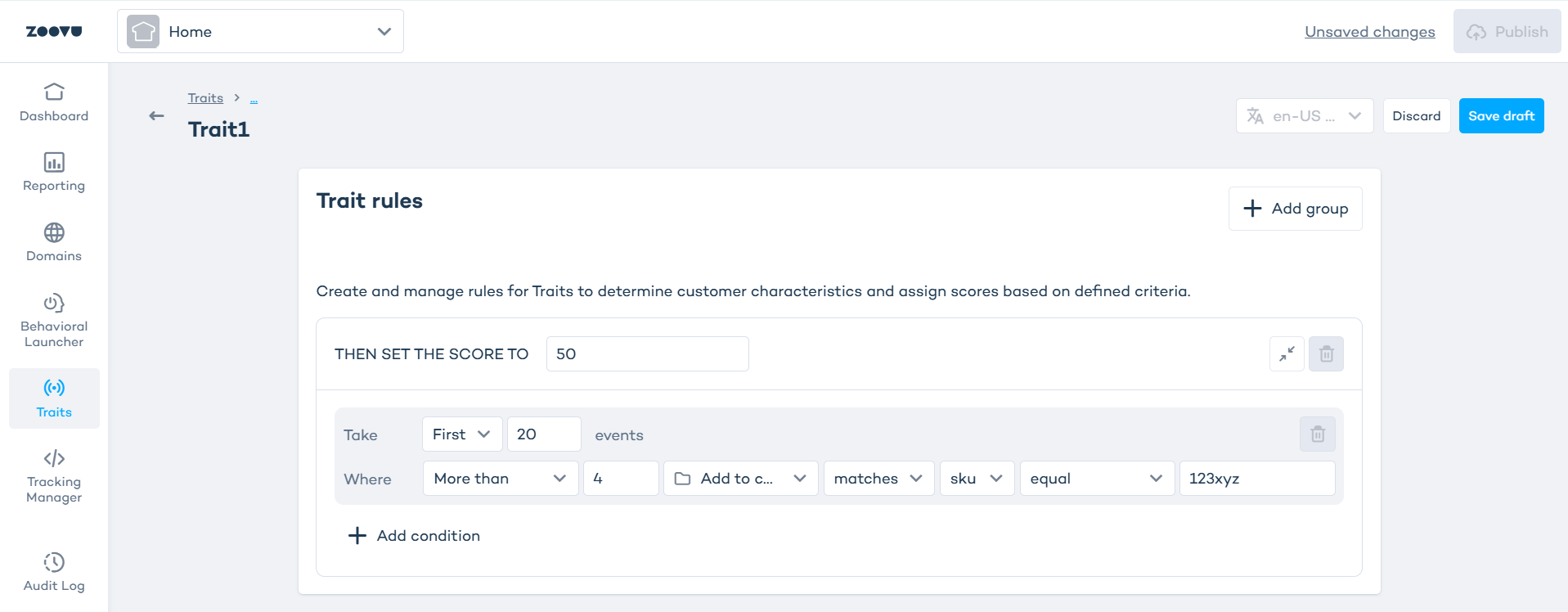
Each condition reads like a sentence:
- Quantifier: All, Some, None, More than, Less than, Equal to
- Event type: PDP visit, Add to cart, Search, Purchase, etc.
- Operator: happened or matches
- Property (when using matches): sku, path, catalog, locale…
- Comparison: equals, contains, starts with…
- Value: literal value to compare against
Take: decide how many events from the journey to use. Examples:
- All events
- First 10 events
- Last 20 events
Where: add conditions to filter the events. Examples:
- Event type = PDP view
- SKU = 123xyz
- Happened = add to cart
Example 1
- Take: all events
- Where: some events of type “add to cart” happened
- Output: TRUE if user added something to cart
Example 2
- Take: first 20 events
- Where: more than 4 add to cart events with SKU = 123xyz
- Output: TRUE if the user added at least 5 of that product in the first 20 events
Using the score
The score is the result of your trait. Examples:
-
Boolean score
- TRUE = user opened a Windows 11 laptop PDP page
- FALSE = user did not add anything to cart
-
Number score
- 10 = slightly confused (opened 5 PDP pages)
-
Text score
- “segment: deal-seeker”
Localization
If your domain has multiple locales, you can localize trait rules. Traits can vary by locale.
- Switch locale from the dropdown (requires at least two locales in the selected domain).
- In localized mode you can edit rules and operators.
- You cannot add/remove groups or change the score type.
Publishing, deactivating or deleting
- Click publish to activate a trait. The new version replaces the previous one.
- Deactivate: temporarily stop a trait via the three-dot menu in the traits table. Rules are paused, but the setup is kept. You can activate it again at any time.
- Delete: remove a trait permanently. If it is used in a launcher, unlink it first.
Traits - examples
1. Any add to cart happened
- TAKE: All events
- WHERE: Some events of type Add to cart happened
→ score TRUE when the journey contains at least one add to cart.
2. ≥5 adds for a specific SKU in first 20 events
- TAKE: First 20 events
- WHERE: More than 4 events of type Add to cart matches sku equals 123xyz
→ score TRUE when condition passes.
3. ≥6 PDP views for a specific catalog in last 20 events
- TAKE: Last 20 events
- WHERE: More than 5 events of type PDP visit matches catalog equals win11
When you publish a trait that contains intents, the new version immediately replaces the older one. The intent logic becomes active as soon as the published trait starts receiving user events.
Intents in traits
Intents (or recommendation rules) add another way to understand user behavior. They help isolate meaningful signals, such as viewing specific brands, categories, or attributes, and make trait rules more precise. Intents help refine traits when you want to detect:
- interest in a specific brand
- interest in certain product families or categories
- repeated interactions with a specific type of item
- engagement patterns linked to attributes, tags or variants
- behavior that depends on product metadata rather than URL or event count
Adding an intent to a trait rule
- When creating or editing a trait, add a new rule.
- From the dropdown, select intents as the matcher.
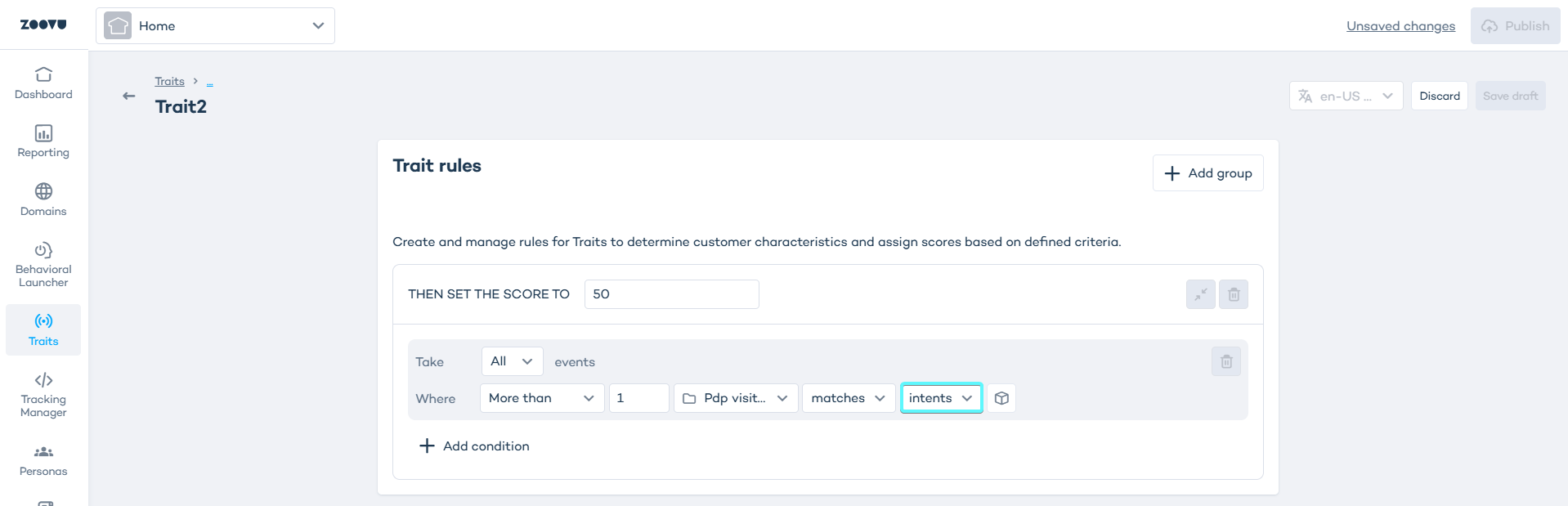
- Click Create intent (or the button displayed).
- Configure recommendation bias using your project’s available product attributes.
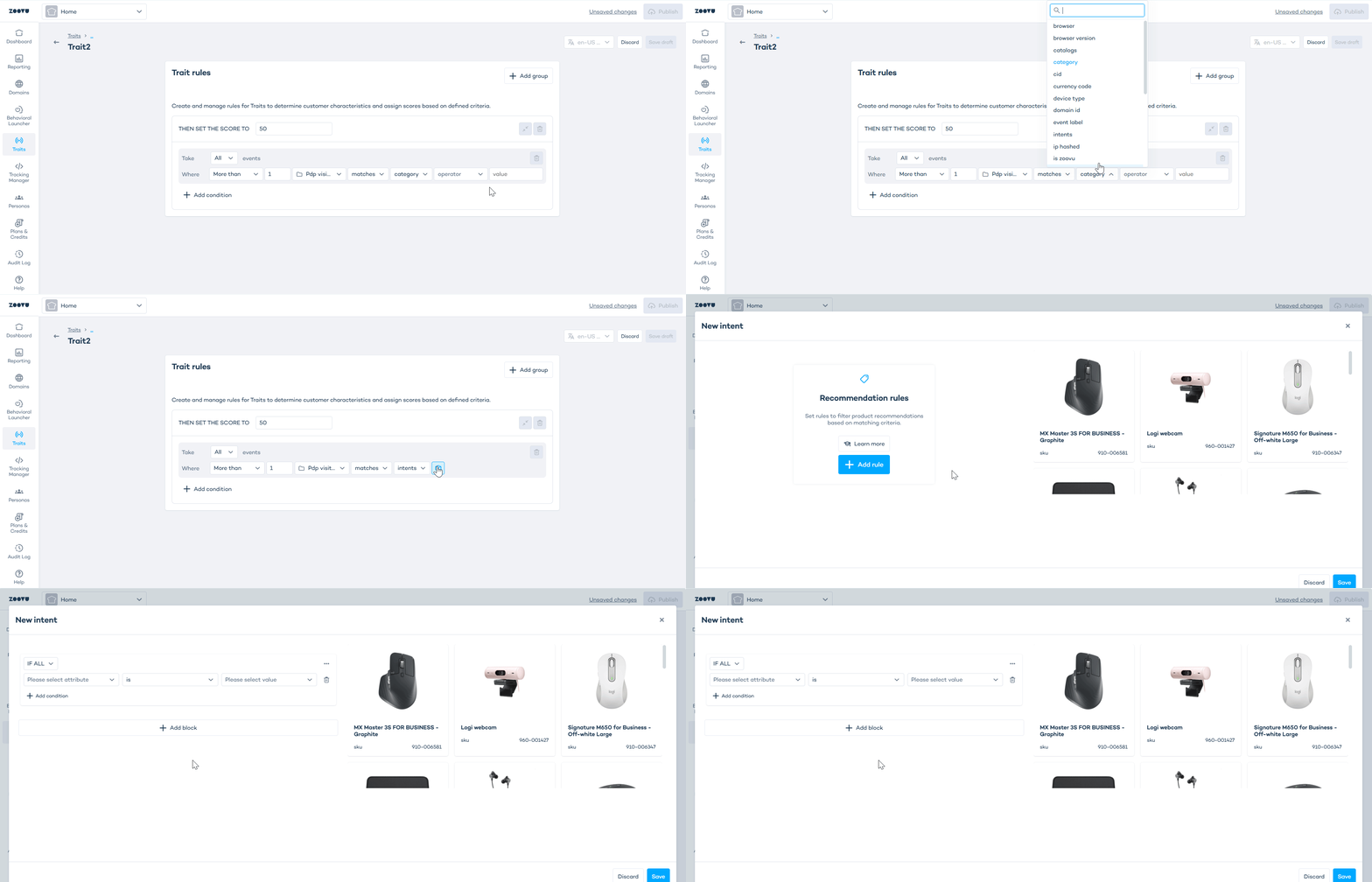
- Save the intent and return to your rule.
- You can combine it with other conditions.
It is possible to create multiple intent-based rules. Standard rule logic applies:
- rules inside a group use AND
- multiple values inside a rule use OR
Intents are built from product attributes that exist in your project’s Data Platform setup. When a user performs an action on your site, the SKU from that event is checked against the intent you defined. If the SKU matches your intent conditions, the rule evaluates as true. Only SKUs known to Zoovu (those available in the Data Platform) can match an intent.
Localization with intents
Intents follow the same localization behavior as standard rules:
- localize intent rules per locale when your domain has more than one
- localized rules override the root version for matching events in that locale
Adding or removing groups and changing score type is only possible in the root definition
Publishing changes
When you publish a trait that contains intents, the new version immediately replaces the older one. The intent logic becomes active as soon as the published trait starts receiving user events.