Integrate search on category and landing pages
Use this guide to add Zoovu Search to category and landing pages on your website. You can tailor the experience by using a query or breadcrumb configuration and specifying where results appear.
Step 1: Publish the search configuration
Before embedding search on any page, publish your configuration:
- Go to Search Studio > Design & Publish > Advanced > Plugin Configuration.
- Click Publish to generate the latest code snippet.
- Copy and embed the snippet into your website’s HTML.
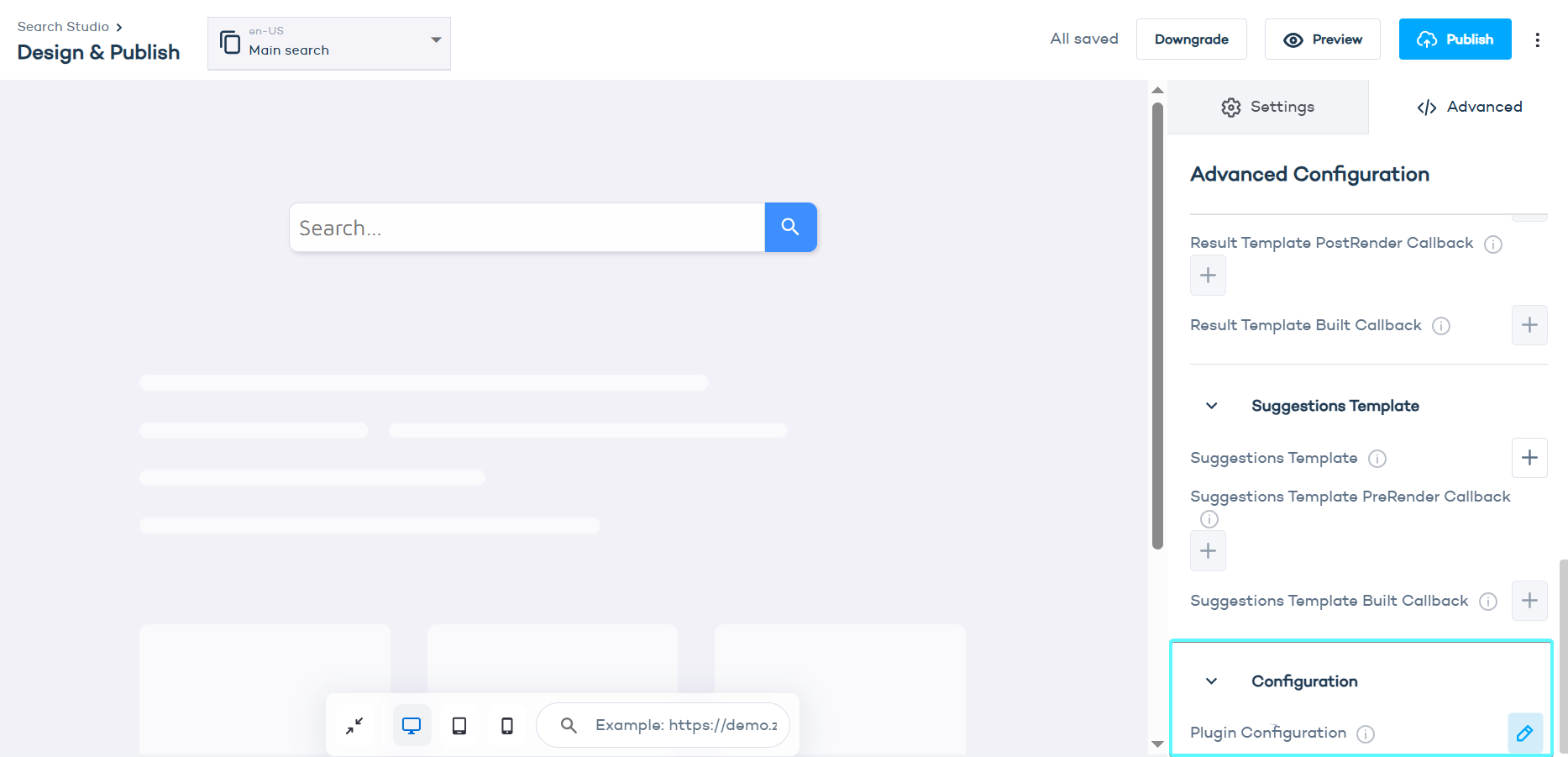
Changes made after publishing are saved as drafts. Click Publish again to apply them.
Step 2: Add Zoovu Search to category or landing pages
You can reuse your main configuration to show filtered or navigational search results on specific pages. These page-level configurations are independent but inherit the published design and logic.
Choose one of the following options:
query– Use this to display results for a keyword or filter set (recommended for landing pages).breadcrumb– Use this to show results based on the product category path (recommended for category pages).
Example 1: Show products from a specific brand
This example returns all products from the Microsoft brand and places the results inside the element with ID landing-page-content.
<script id="zoovu-search-landing-page-config" type="application/json">
{
    "query": "*",
    "results": {
        "filters": [
            {
                "name": "Brand",
                "type": "products",
                "values": [{ "name": "Microsoft" }]
            }
        ],
        "embedConfig": {
            "contentBlock": "#landing-page-content"
        }
    }
}
</script>
Example 2: Show products from a specific category
This example loads products from the Notebooks > Accessories category into the element with ID category-page-content.
<script id="zoovu-search-landing-page-config" type="application/json">
{
    "breadcrumb": ["Notebooks", "Accessories"],
    "results": {
        "embedConfig": {
            "contentBlock": "#category-page-content"
        }
    }
}
</script>
Example 3: Show the related products of a product
This example renders the products related to the product SKU-123 through every relation of type Compatible (see Relations in the Data Platform) inside the element with ID related-products. The related products become a regular result set, so the shopper can filter, sort and page through them and the filter counts only cover the related products.
Your page must put the identifier of the product currently shown into relationIdentifier. The anchor is passed as additional request parameters of the search configuration, next to the landing page config:
<script>
window.zoovuSearchConfig = {
    siteId: 1234,
    additionalRequestParams: {
        relationIdentifier: "SKU-123",
        relationTag: "Compatible"
    }
};
</script>
<script id="zoovu-search-landing-page-config" type="application/json">
{
    "query": "*",
    "results": {
        "embedConfig": {
            "contentBlock": "#related-products"
        }
    }
}
</script>
Instead of relationTag you can pass relationIds (comma-separated relation ids, e.g. "4,7"), or both. See the Relations guide for the API details and error handling.
Customize the search configuration
You can use any setting available in the standard configuration, including:
- filters – Apply filters for brand, category, attributes etc.
embedConfig– Control where and how results appear (e.g.contentBlock,layout, orloadingMode).- sorting – Define how to sort results, (e.g. by relevance or price).
The script tag must use id="zoovu-search-landing-page-config" and include a valid JSON object.
See Search plugin settings for the full list of available options.