Example extension project
This page walks through a small, practical extension example. Before you start, read the rules and follow them exactly:
In this example, we will build an answer text extension that:
- Renders the answer text
- Shows an info icon
- Opens a modal that slides in from the right
- Uses answer custom attributes (answer parameters) to decide what content to show
Before you code: Add custom attributes to answers
Custom attributes let you attach structured data to an answer. Your extension can later read this data to show icons, descriptions, modals, or special styling.
This setup happens in Conversation Studio.
1. Edit a question in your flow
In Conversation Studio:
- Go to Flow.
- In Question Bank, select the question you want to edit.
- Click the settings icon next to an answer.
2. Add custom attributes to answers
- Scroll to “Custom attributes”
- Add a JSON snippet. For example:
{"answerType": "GAMING"}
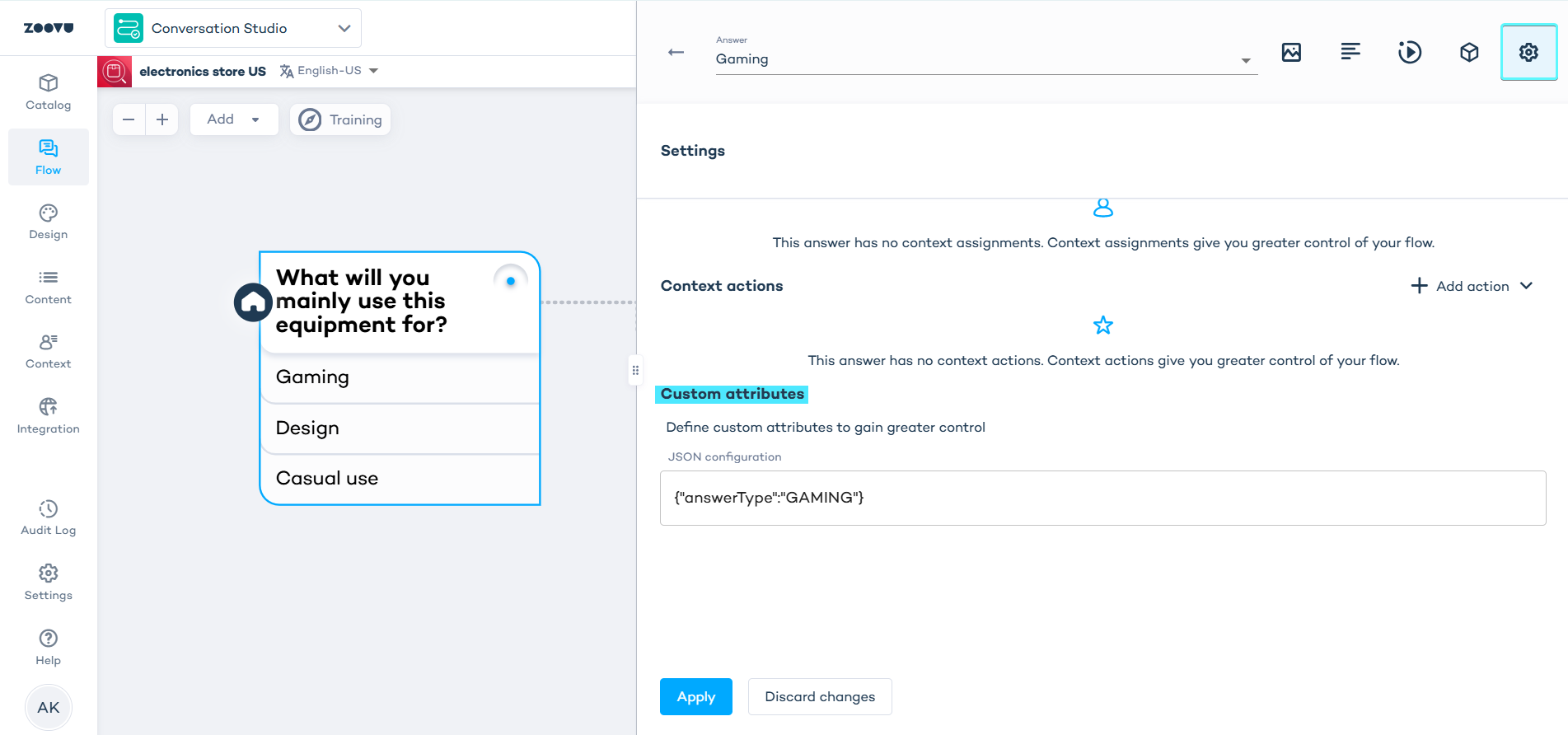
- Apply changes.
- Repeat this for other answers, using different values.
Inside your ExD extension, you can access the attributes from the selected answer. This lets your extension:
- Show different icons per answer
- Apply special styling
Generate a sample extension using the flow-step template
This example uses the CLI-based template to generate a sample extension you can inspect, modify, or use as a starting point.
This workflow does not require access to any internal Git repositories. The template is bundled with the @zoovu/create-remote-component package and works for all users.
Step 1: Open a terminal in your working directory
- Choose or create a folder where you want your extension to live, then open a terminal there.
Step 2: Generate the extension using the flow-step template
Run:
npx @zoovu/create-remote-component@latest --template flow-step
- You will be prompted for a project name. Enter a name using spinal case.
- Press Enter to confirm.
The generator expects spinal case. Use flowstep or flow-step, not FlowStep or flow_step.
Step 3: Confirm the extension folder was created
After the command finishes, a new folder is created inside your current directory.
Example folder structure:
flowstep/
├─ package.json
├─ zoovu.manifest.js
└─ src/
    ├─ flowstep.component.vue
    ├─ flowstep.configuration.ts
    ├─ flowstep.preset.ts
    ├─ flowstep.style.ts
    └─ components/
        ├─ answer/
        └─ question/
Step 4: Open the generated extension folder
Move into the new folder:
cd flowstep
This is now your extension project.
From here, you can:
- review the configuration / preset / style pattern
- modify the Vue component
- run the extension locally with
yarn dev
Step 5: (Optional) Start the local dev server
If you want to run this extension locally:
yarn install
yarn dev
- Then open Experience Designer in developer mode.
- Refresh once to connect.
From here, you can:
- modify this example to add custom UI or logic
- follow the rules in General rules for EXD extension development
- use this project as a base for generating code with an LLM
Generate with an LLM
You can use the following prompt to generate a sample Zoovu Experience Designer extension using an AI tool.
Generate an answer text extension
- You are generating code for a Zoovu Experience Designer extension (remote component) built with Vue 2.
- First, I will paste our extension rules. Read them and follow them exactly (file structure, styles pattern, function limits).
Goal:
- Create an answer text extension that:
- displays the answer text
- shows an info icon
- opens a right-side sliding modal with extra information
Modal requirements:
- slides in from the right
- full screen height, 30% width
- always on top of everything
- must use:
- position: fixed; top: 0; right: 0; z-index: 99999
- close button (top-right)
- blur overlay behind modal
- gradient background
- smooth open/close transitions
Data
The component receives:
@Prop() answerText: string;
- Render
answerText - Find the matching answer in:
this.advisor.flowStepsNavigation.currentFlowStep.questions[0].answers - Match by:
answer.answerText === answerText - Use
matchedAnswer.parametersto control modal content
Supported parameters:
{"answerType":"GAMING"}
{"answerType":"DESIGN"}
Content logic:
GAMING
- YouTube iframe (embed format)
- clearly labeled demo pricing and benefits
DESIGN
- Google Maps iframe (placeholder location)
- clearly labeled demo pricing and benefits
All content is demo / placeholder.
Output
- Output full file contents (no partial snippets)
- Do not add new libraries
- Keep code minimal and readable
- Follow the pasted rules exactly