Developer setup tips for working with ExD
This guide covers practical setup tips for developing extensions in Experience Designer. It'll help you avoid common pitfalls and understand how presets, configuration files, hot reload, and build behavior work together.
Extensions are refered to as (remote) components in the code.
1. Refresh Experience Designer after starting dev script
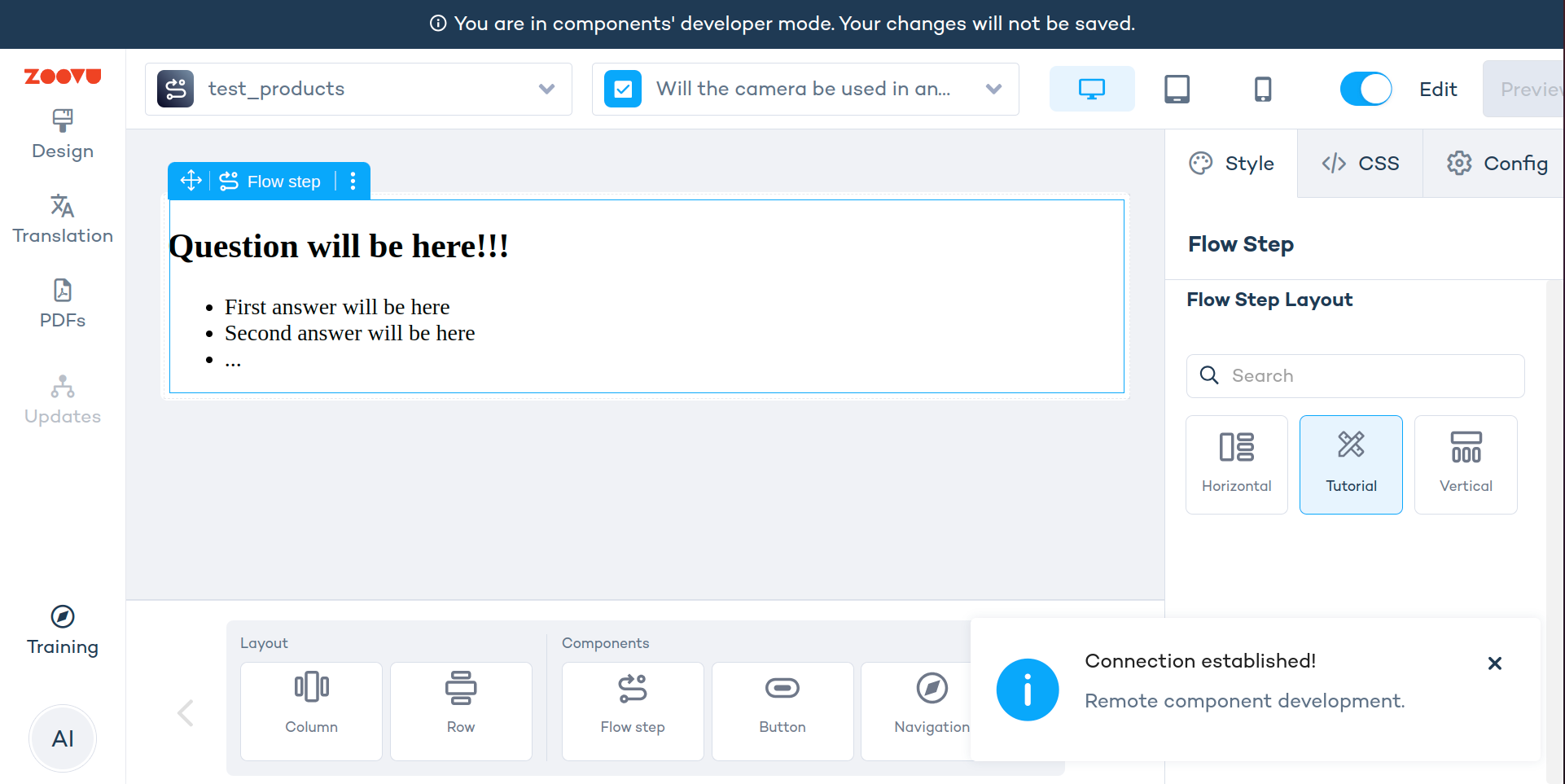
If you start the dev server with yarn run dev, open or refresh Experience Designer for developers.
You usually only need to refresh once per dev session. If ExD reconnects automatically, you can skip the refresh.
2. Match preset and configuration file structure
Preset files define which elements can be customized in the right-side panel (e.g. visibility of an image, selected color, spacing). The configuration file needs to match the preset file exactly so that the extension behaves correctly.
Here’s an example of matching .preset.ts and .configuration.ts files:
import { boolean, color, EmbeddedComponentParameterFormat, object } from "@zoovu/theme-editor-parameter-types";

export const answerPreset = object({
    isImageVisible: boolean({ label: "Is image visible", default: true }),
    color: color({
        label: "Color",
        default: "#D2EDFF",
    }),
    selectedColor: color({
        label: "Selected color",
        default: "#9ECAE1",
    }),
}, { label: "Answers", format: EmbeddedComponentParameterFormat.ACCORDION })
Configuration with the same property names:
export class AnswerConfiguration {
    isImageVisible = true;
    color = "#D2EDFF"
    selectedColor = "#9ECAE1"
}
3. Make sure you’re testing the right component instance
If hot reload doesn’t work, check that:
- you are in ExD developer mode (
/developer) - your local dev server (
yarn run dev) is running without errors - the theme you opened actually uses your extension (or you’ve added it to the canvas)
- you’ve selected the local extension instance - not an older uploaded one
- the theme’s ExD version matches your extension’s target (ExD 6.x → Vue 3 build, ExD 5.x → Vue 2 build)
4. Restart the server to fix TypeScript errors
Sometimes TypeScript shows false-positive errors if webpack doesn't detect recent file changes.
Restart the server with yarn run dev and refresh Experience Designer for developers.
Overriding faulty extension version
Experience Designer does not allow uploading an extension with the same name and version number. If your extension build has an issue and you need to upload a fixed version, you must bump the version number first.
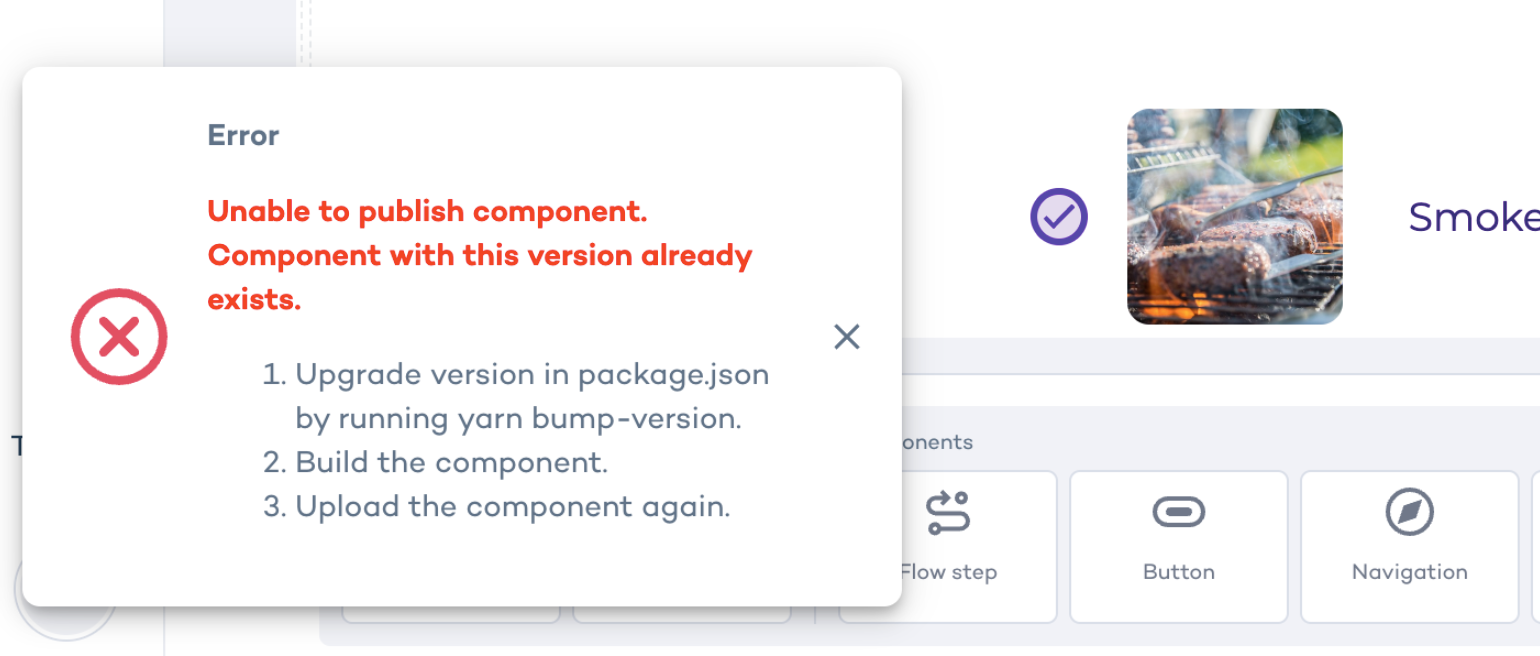
To override an existing version:
- Open your extension’s root folder.
- Run
yarn bump-versionto increase the version inpackage.json. - Build the extension using
yarn build. - Upload the new version to Experience Designer by dragging and dropping the generated .zip file into the right panel of the developer view. Learn more.
5. Expect larger bundle size in development
The bundle size is larger when using yarn run dev compared to yarn build. This is expected in development mode. For production builds, always use yarn build.
6. Local dev server must run on same machine
If you're using a virtual machine or remote environment, the browser running Experience Designer for developers must be on the same machine as the dev server.
Run yarn run dev and open https://orca-experience.zoovu.com/developer on the same machine and in the same network context (VPN or remote desktops can break the connection).