Integrations
Zoe can be integrated into your platform in several ways. The setup depends on where you want Zoe to appear and how you want it to interact with shoppers.
| Integration method | When to use it | What it requires |
|---|---|---|
| PDP integration | You want Zoe to answer product questions or generate descriptions directly on the product detail page. | A Data Project. No Digital Assistant is needed. |
| API integration | You want full control and prefer to call Zoe from your own backend or frontend application. | An API token generated in the platform and a Data Project. |
| Digital Assistant integration | You want Zoe to work inside an existing guided flow and use customer context (needs, preferences, answers). | A Data Project and a Digital Assistant linked to that Data Project. |
Option 1: PDP integration
Use this option if you want Zoe directly on your product detail pages with no conversational flow. Zoe can answer product-specific questions, explain features, and generate tailored product descriptions.
What you need:
- a Data Project in Zoovu Data Platform
How it works:
- your product data is synced through the Data Project
- your PDP calls Zoe to answer questions or generate descriptions
- responses update automatically based on the selected locale and data in your project
Option 2: API
Use the API if you want full control and prefer integrating Zoe through your own frontend or backend.
What you need:
- a Data Project in Zoovu Data Platform
- an API token, generated in Advisor Studio > Integrations
How it works:
- your system calls Zoe through the API
- you decide when and where to request product descriptions, comparisons or answers
Option 3: Digital Assistant in Conversation Studio
A Zoe Advisor can be integrated within multiple existing Digital Assistants to add personalized statements of why a product is a good fit for a customer.
For this, make sure that the Digital Assistant is linked to the corresponding Data Project:
- Go to Conversation Studio > Assistant > Catalog.
- Link the assistant to your Data Project, selecting it from the dropdown menu.
Connect Zoe to a Digital Assistant
- Edit your Zoe project.
- Go to Integrations > Assistant component.
- Select your assistant from the dropdown. You can add several assistants.
- Once an assistant is connected to Zoe, a few extra options appear. Click the three-dot icon next to the assistant to preview it with Zoe or unlink it.
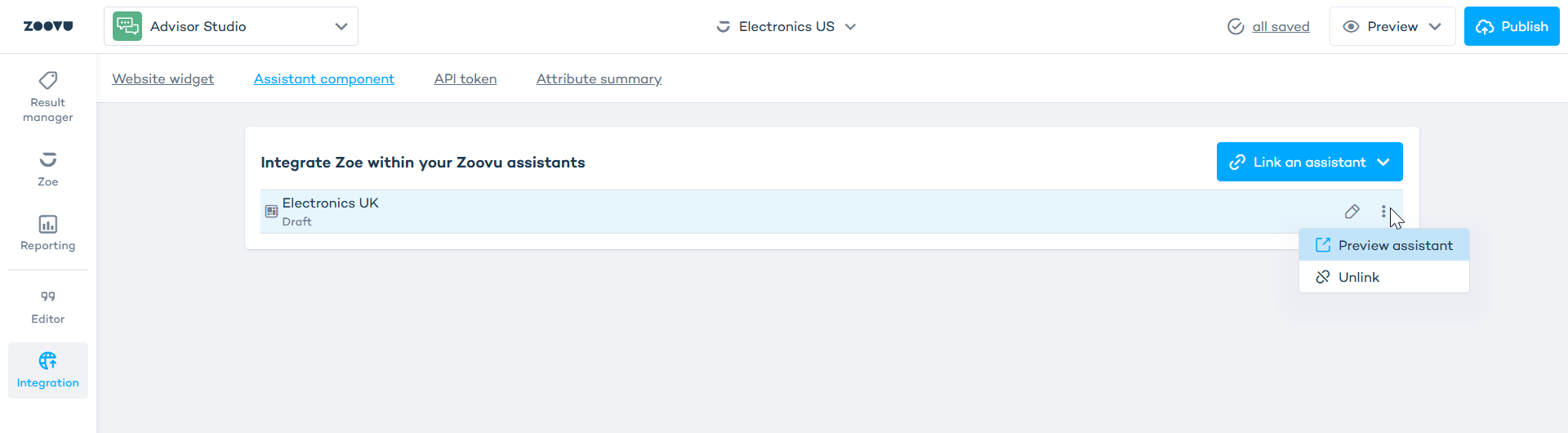
When an assistant is linked to a Zoe project, its status changes to Draft. Publish the assistant again after linking it to Zoe.
Context
A Zoe Advisor can use contextual information of the customer’s preferences and needs to personalize product descriptions and conversations about products.
Read how you can configure and set up Context in a Digital Assistant:
- Step 1: Configure Context
- Step 2: Set up Context in a Digital Assistant