Test and preview your Zoe Advisor
The preview helps you check how Zoe generates product descriptions and responds to questions before you publish your changes. It's a safe place to experiment and review outputs.
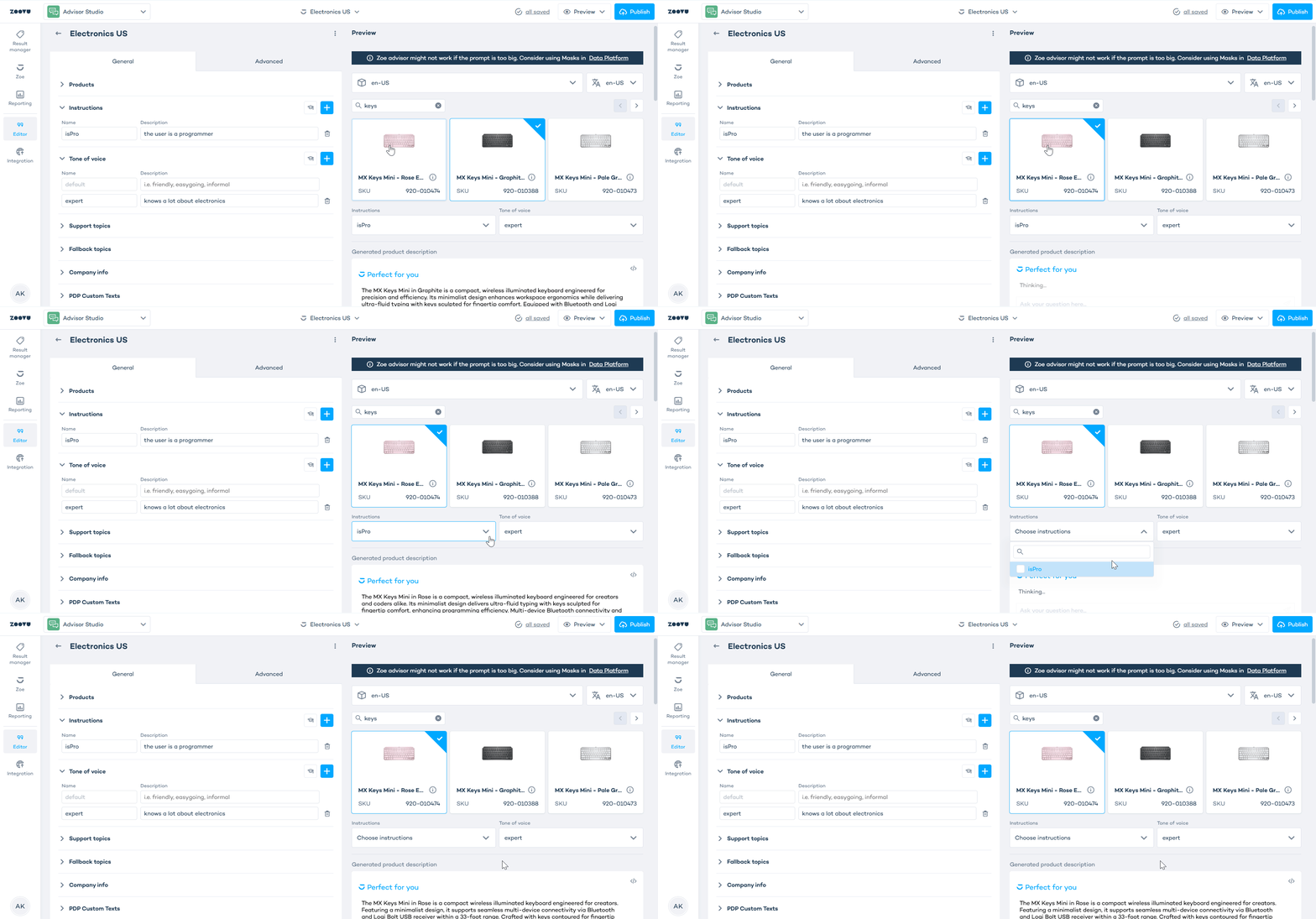
Select a product
Click any product card in the Preview panel. A product description appears automatically.
You can use the search bar to find a specific SKU or product name.
Choose your settings in the preview
- Create new items in the Instructions or Tone of voice sections on the left.
- After adding instructions or tones of voice, open the dropdowns in the Preview panel and select the ones you want to test.
Switch between products
Click another product in Preview to see how your settings apply across your catalog.
Publishing Zoe
Click Publish in the top right corner to make your updated Zoe configuration available to your digital assistants.
Publishing does not affect your catalog. It only applies the updated rules for Zoe’s actions.
Generate product descriptions in multiple languages
Zoe supports multiple languages.
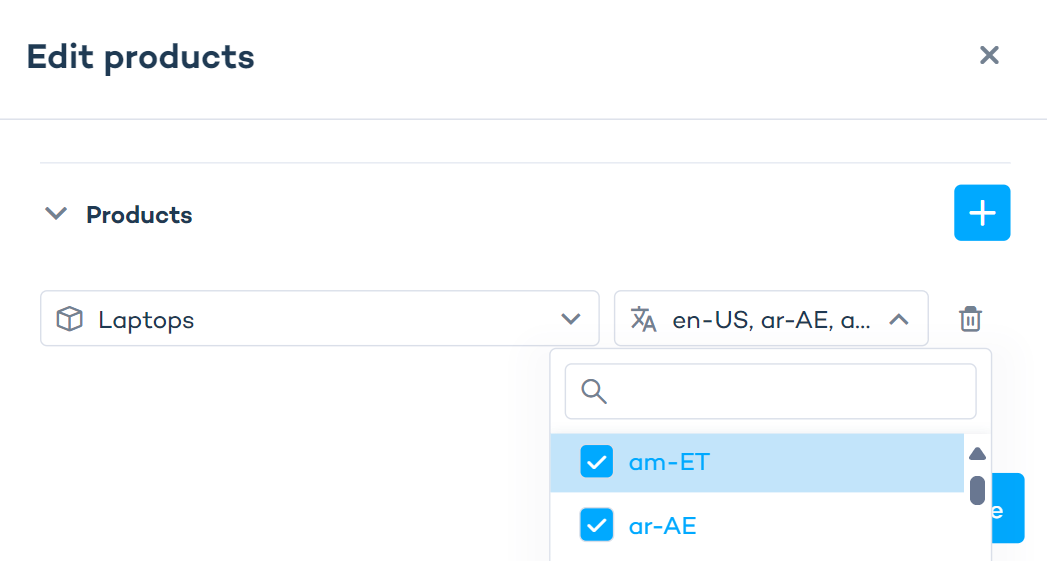
- Go to Advisor Studio > Zoe > Products and edit the products settings.
- Select multiple locales from the dropdown menu (each locale consists of a language and a country).
- Click "Save".
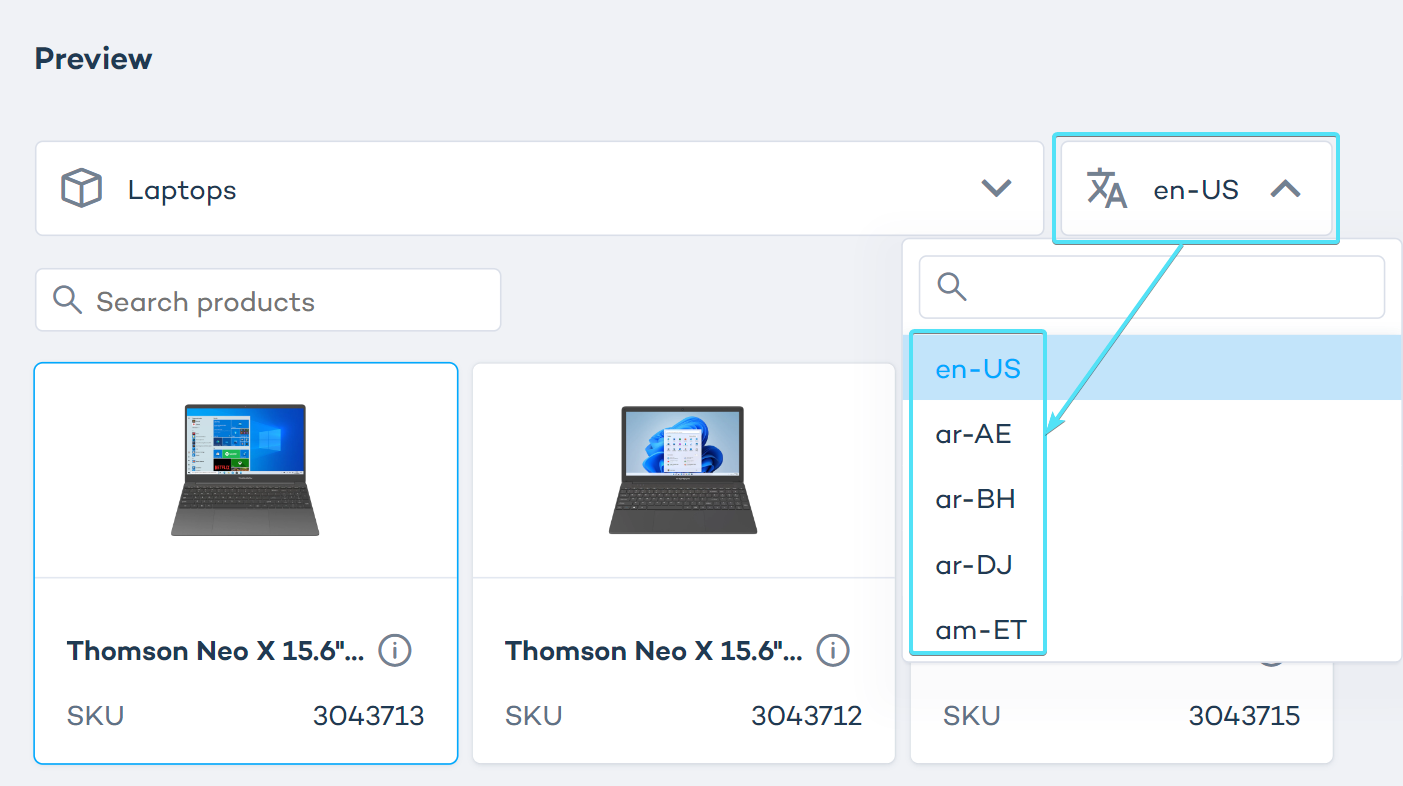
As soon as you save the Products settings, you will be able to select the added languages in the Preview:
Zoe should be able to find the SKUs recommended by the assistant in the Data Project that has been configured for this locale. The locale used by the assistant must be available in the Zoe configuration. Otherwise, Zoe will not respond.
If your Digital Assistants use different data projects for the same locale, make sure to set up different Zoe configurations for best results.