Lead generation in configurators
You can add a lead generation form on configurator panels within a unified assistant. The form appears as a button that your customers click to submit their configuration along with requested contact information.
Step 1: Create a standalone lead generation question
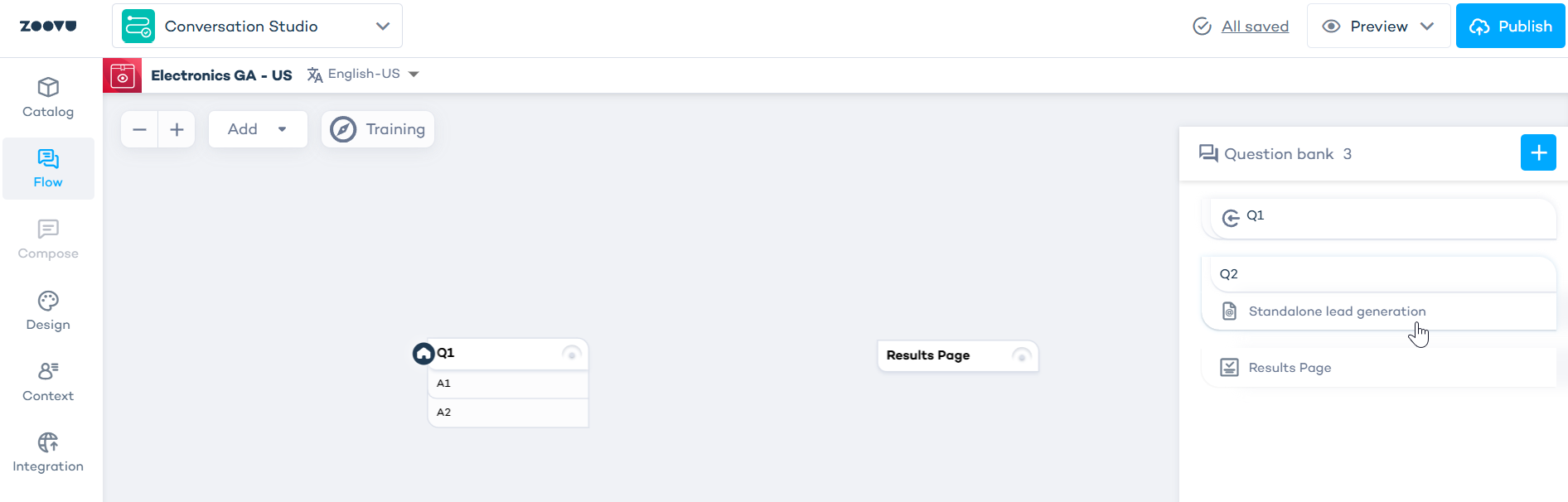
- In Conversation Studio, open your General Assistant
- Go to the Flow tab
- Open the Question bank on the right
- Click + Add question
- From the question type dropdown, select
Standalone lead generation.
Don't reuse the Lead generation question type in this scenario. Instead, create a new Standalone lead generation question.
- Choose where to send responses:
- email: responses are sent to a specified email address
- webhook: responses are sent to a webhook URL for CRM integration
- Click + Form element to add fields to your form
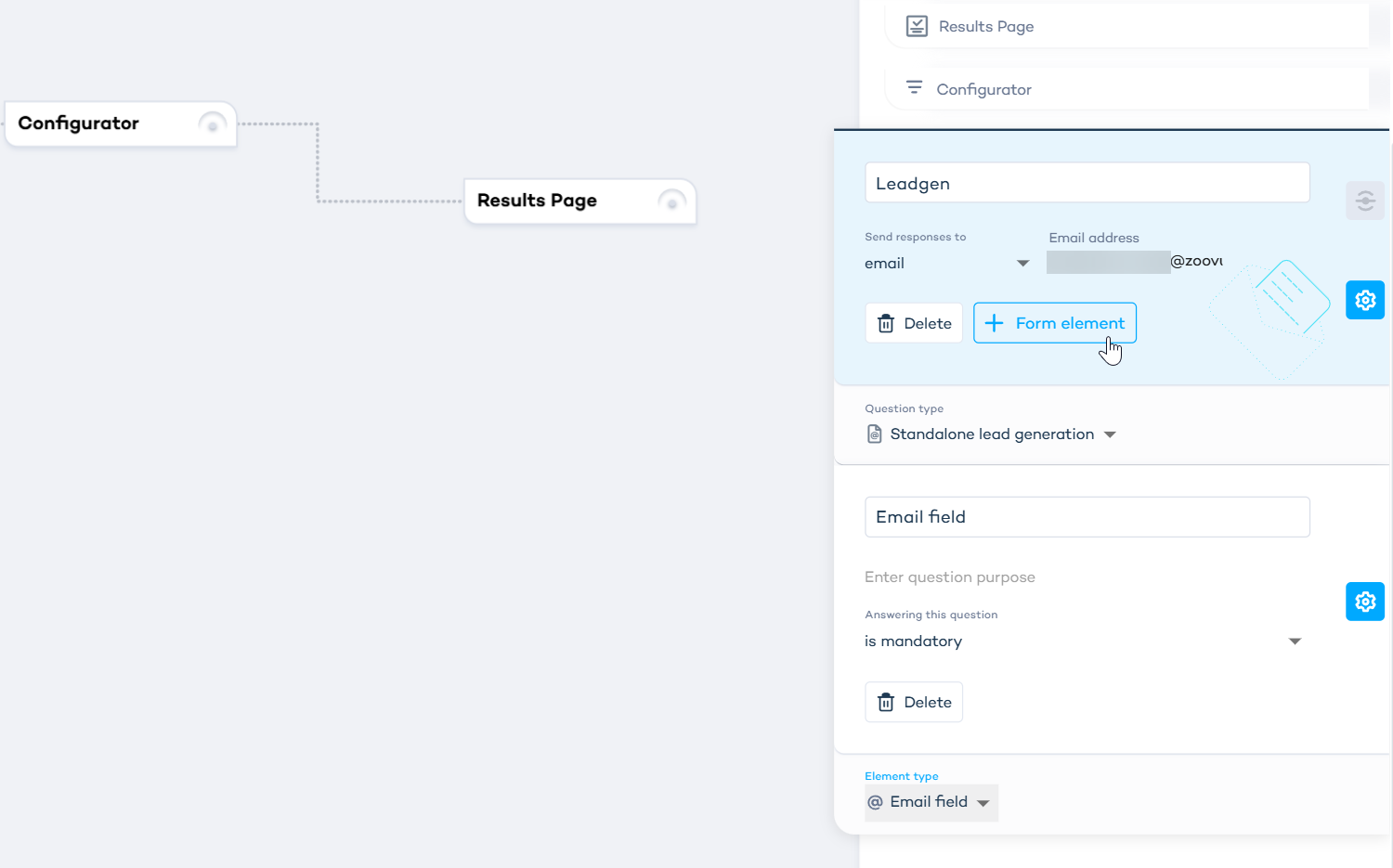
Available form elements:
- Single selection - radio button list where users pick one option
- Multiple selection - checkbox list where users can select multiple options
- Dropdown - dropdown menu for a single choice from a longer list
- Email field - validates email address format
- Input field - open text input for names, company names, or other short text
- Text area - larger text input for comments or detailed information
- File upload - allows users to upload files (up to 3 files: JPG, PNG, WEBP, SVG, GIF)
- For each form element, configure:
- Field label (the question or prompt shown to the user)
- Whether the field is required or optional
- For selection fields: add answer options
- Click Save
If you convert an existing question to Standalone lead generation, the question is automatically removed from the canvas. All settings and subquestions are lost when changing question types.
Step 2: Attach the form to your configurator
- In the Flow tab, click on the Configurator Panel step
- In the right-side configuration panel, scroll to the bottom
- Toggle on Add lead generation form
- From the Lead generation form dropdown, select the Standalone question you created
- Click Save
The leadgen form is now attached to the configurator.
Step 3: Design the leadgen button
- Switch to the Design tab in Conversation Studio
- Open your assistant in Experience Designer
- Navigate to the Configurator Panel page
- In the canvas, locate the Selection Summary Total component (this is the panel where customers see their selected products and total price)
- Click on Selection Summary Total to open the style panel
- Toggle on Leadgen Button
- Customize the button label, colors, size, and placement
Control when the button shows
By default, the leadgen button is hidden if the Selection Summary is empty.
To change this:
- In the Leadgen Button settings panel, find Disable if empty
- Turn it off if you want the button to show even when no products are selected
- Turn it on (default) to hide the button when the selection is empty
The button visibility updates in real time as customers add or remove products.
Step 4: Configure delivery
Set up how you receive the submitted leads:
- In Conversation Studio, go to Settings > Integrations
- Choose your delivery method:
- Webhook to send data to your CRM or email automation platform
- Email to receive submissions directly to an inbox
- Enter the webhook URL or email address
- Click Save
What data is included
The leadgen submission includes:
- All answers from the leadgen form
- The customer's selected products from the configurator
- Session metadata (timestamp, assistant name, locale)
Step 5: Test the form
- Click Preview in Conversation Studio
- Navigate through your assistant to the configurator
- Add products to your selection
- Click the Open leadgen button
- Fill out the form and submit
- Verify the submission arrives at your configured destination
Reusing the same form across multiple pages
You can attach the same Standalone lead generation question to multiple configurator panels or results pages in the same assistant. Each page tracks its own submissions independently.
If a customer submits the form on one configurator panel, they will be prompted to submit again if they reach a second panel with the same form attached.
Troubleshooting
The button is not visible in preview
Check that:
- The form is attached in the configurator configuration panel (Flow tab)
- The Leadgen Button is enabled in the Selection Summary Total (Design tab)
- If Disable if empty is on, add at least one product to the selection
Submissions are not being received
Verify that:
- The webhook URL is correct and publicly accessible
- The email address is correct and not blocking emails from Zoovu
- The form was submitted (check tracking events in analytics)
If you edit the Standalone lead generation question after attaching it, the changes appear immediately in the form modal. No need to re-attach.