Stage configuration
When you build an assistant with a configurator, you can control where users land by setting the subconfigurator, stage and variant for each answer. This lets different answers in the flow take users to different parts of the configurator.
Configure the landing stage
- Open your assistant in Conversation Studio.
- Go to the question that will lead to the configurator.
- Click the answer you want to configure.
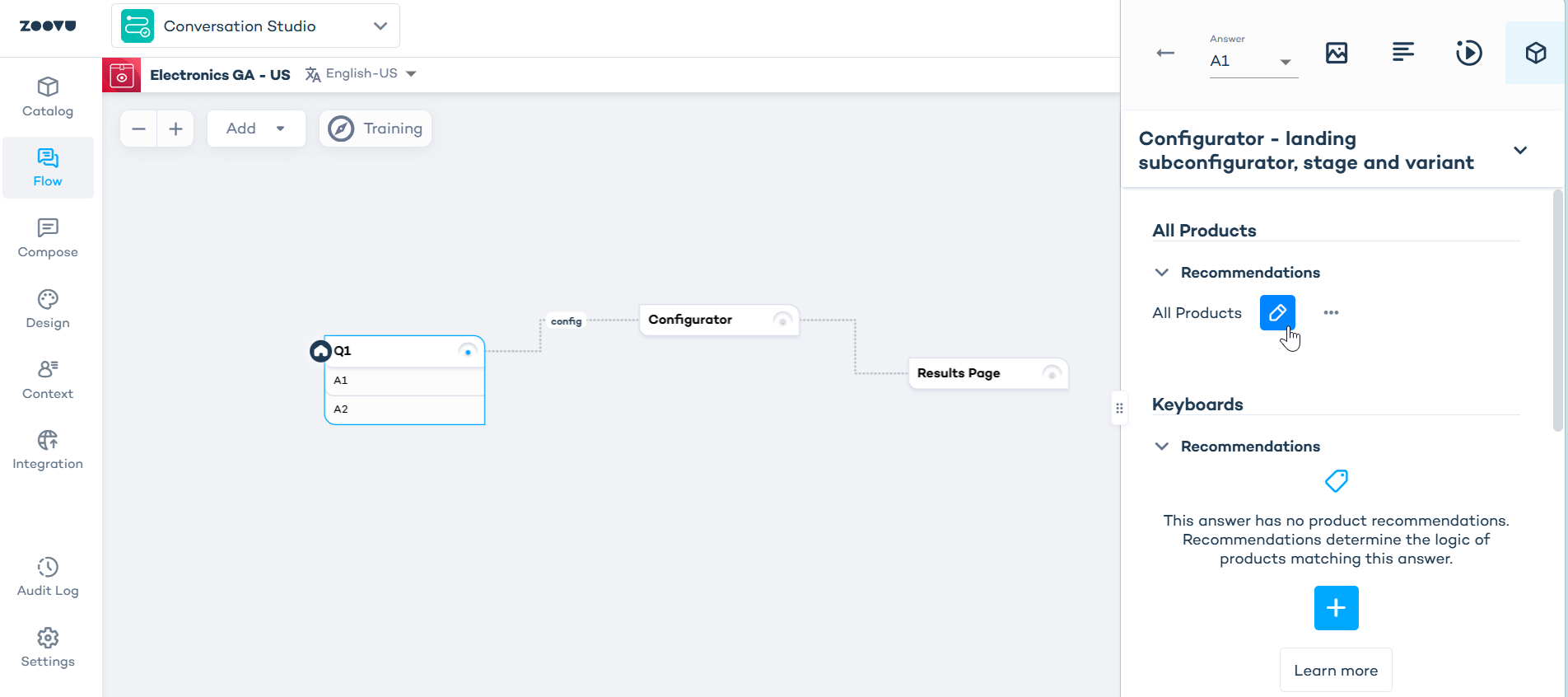
- In the right panel, click the recommendation logic icon (cube icon).
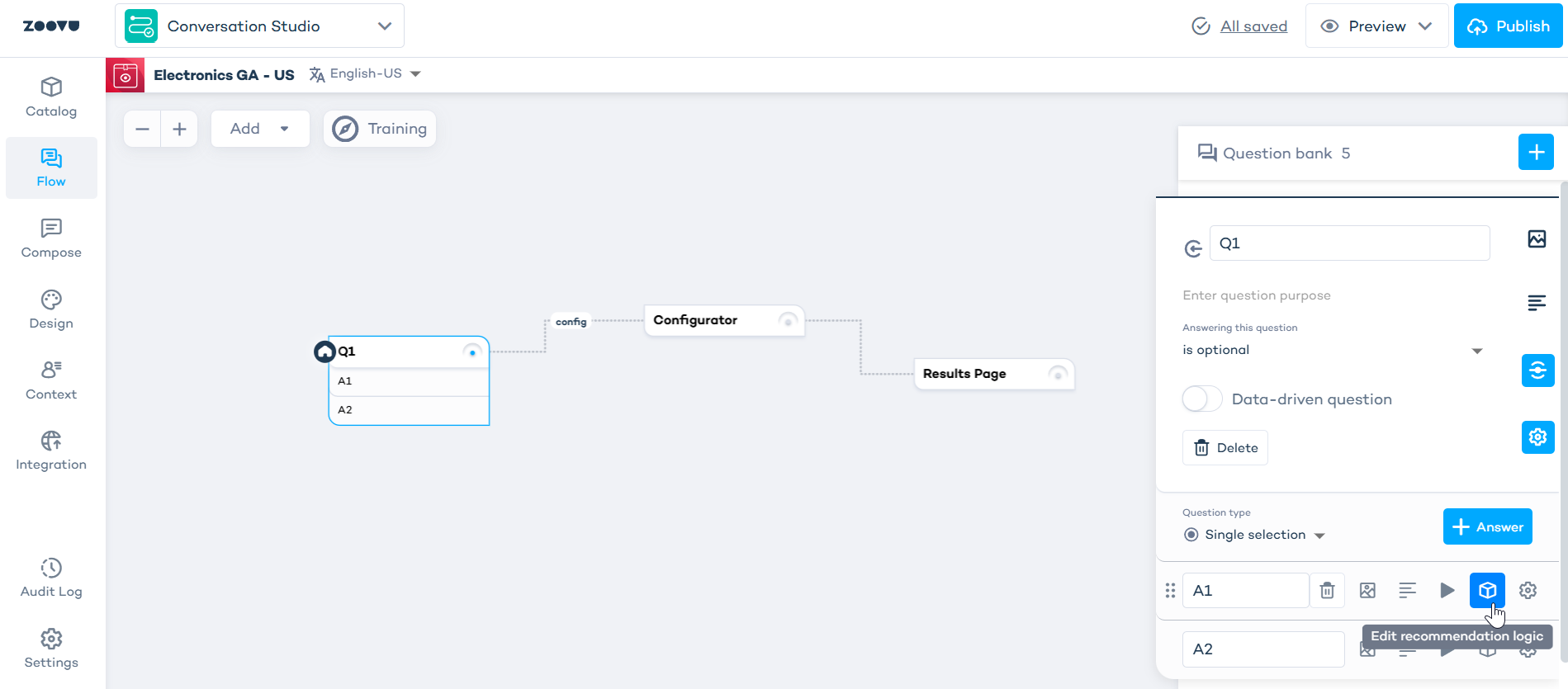
- Expand "Configurator - landing subconfigurator, stage and variant".
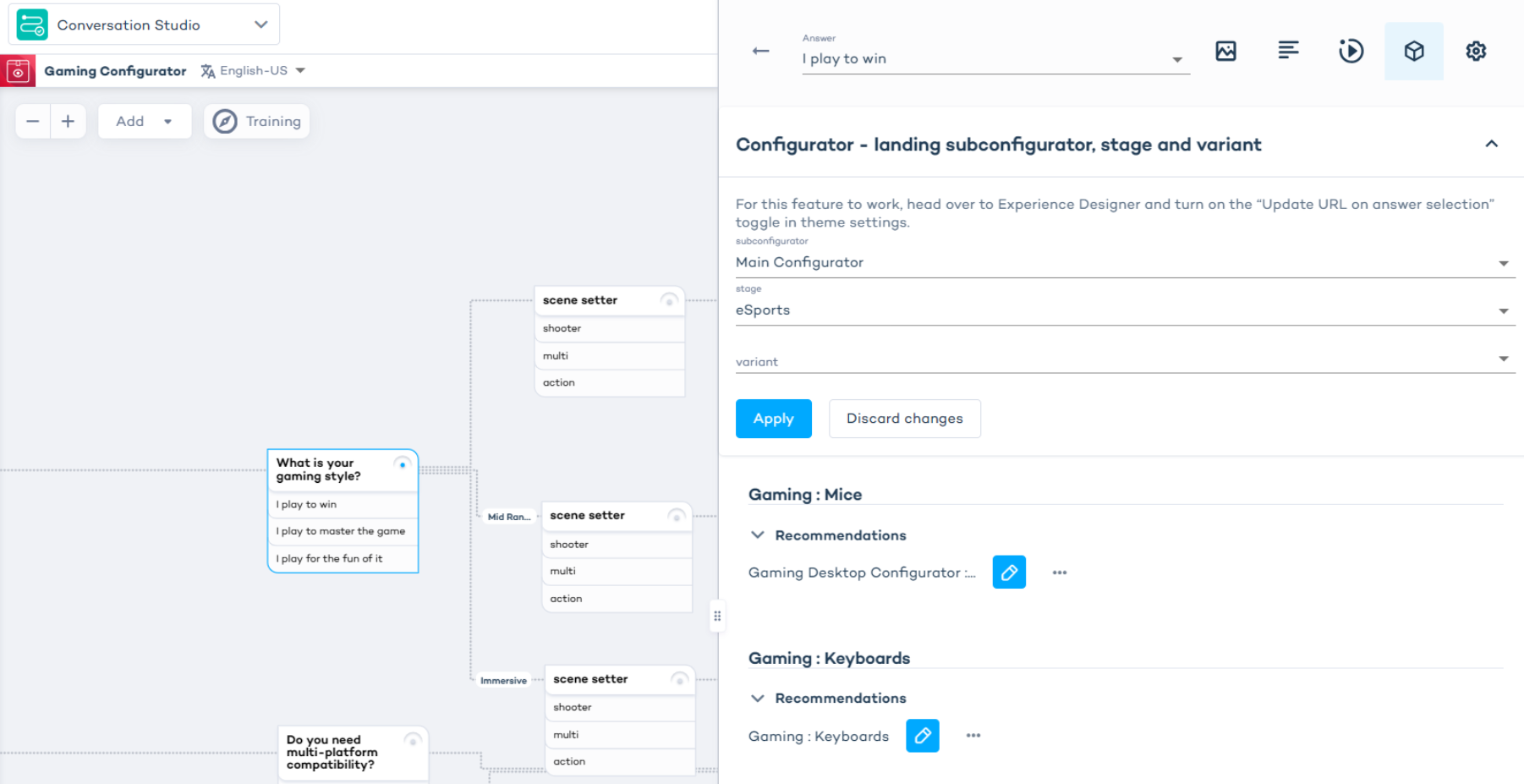
- Select:
- Subconfigurator: The configurator to open (e.g. Main Configurator).
- Stage: The specific stage to display.
- Variant (optional): A variant within that stage.
- Click Apply.
| Setting | Purpose |
|---|---|
| Subconfigurator | Determines which configurator opens when the user selects this answer. |
| Stage | Sets the specific step or view within that configurator. |
| Variant | Applies a variation of the stage (e.g. a different background or preselected options). |
Example
You're building an outfit configurator. One answer leads to "Bags" another to "Tops." By configuring the landing stage for each answer, users who select "Bags" go directly to the bag section and users who select "Tops" go to the tops section.
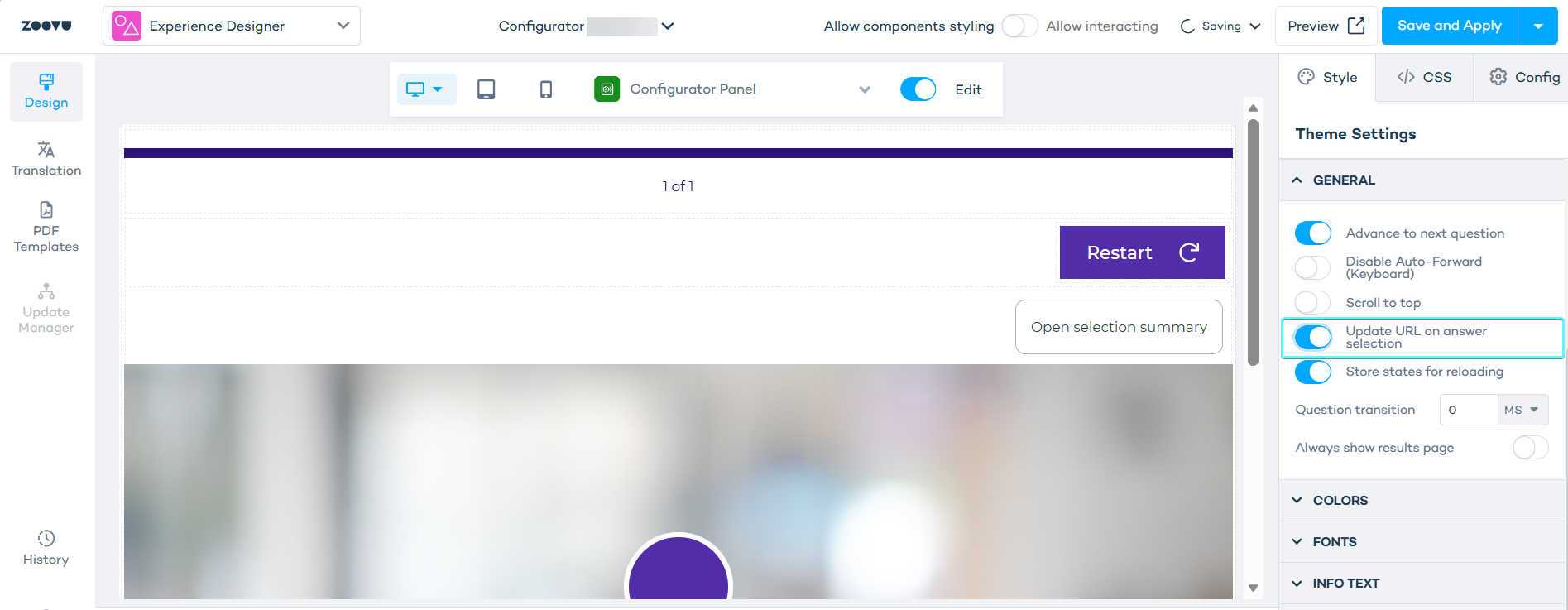
Style the configurator in Experience Designer
- Go to Conversation Studio Design, and open Experience Designer.
- Go to General theme settings.
- Enable the Update URL on answer selection toggle. This will enable the assistant to load a subconfigurator, stage or variant for a given answer.