Configurators within assistants
You can now add a configurator to an assistant to combine guided questions with hands-on product customization.
The flow:
- The assistant asks questions to understand customer needs.
- The configurator lets them configure components, pick features, or assemble bundles visually.
- The results page shows recommendations, captures leads, or displays related products.
Create a configurator within an assistant
Step 1: Create your assistant
-
In Conversation Studio, click the plus icon and choose "Discovery Assistant."
-
Give it a name, choose default language and region and start your setup.
Step 2: Connect your catalog
- Go to Conversation Studio > Catalog.
- Link your Data Platform project and select the catalogs you want to use.
Step 3: Build your question flow
- In the Flow tab, add product questions.
- Configure recommendation logic for each question.
Step 4: Add the configurator
- In the Flow tab, add a Configurator Panel to your canvas.
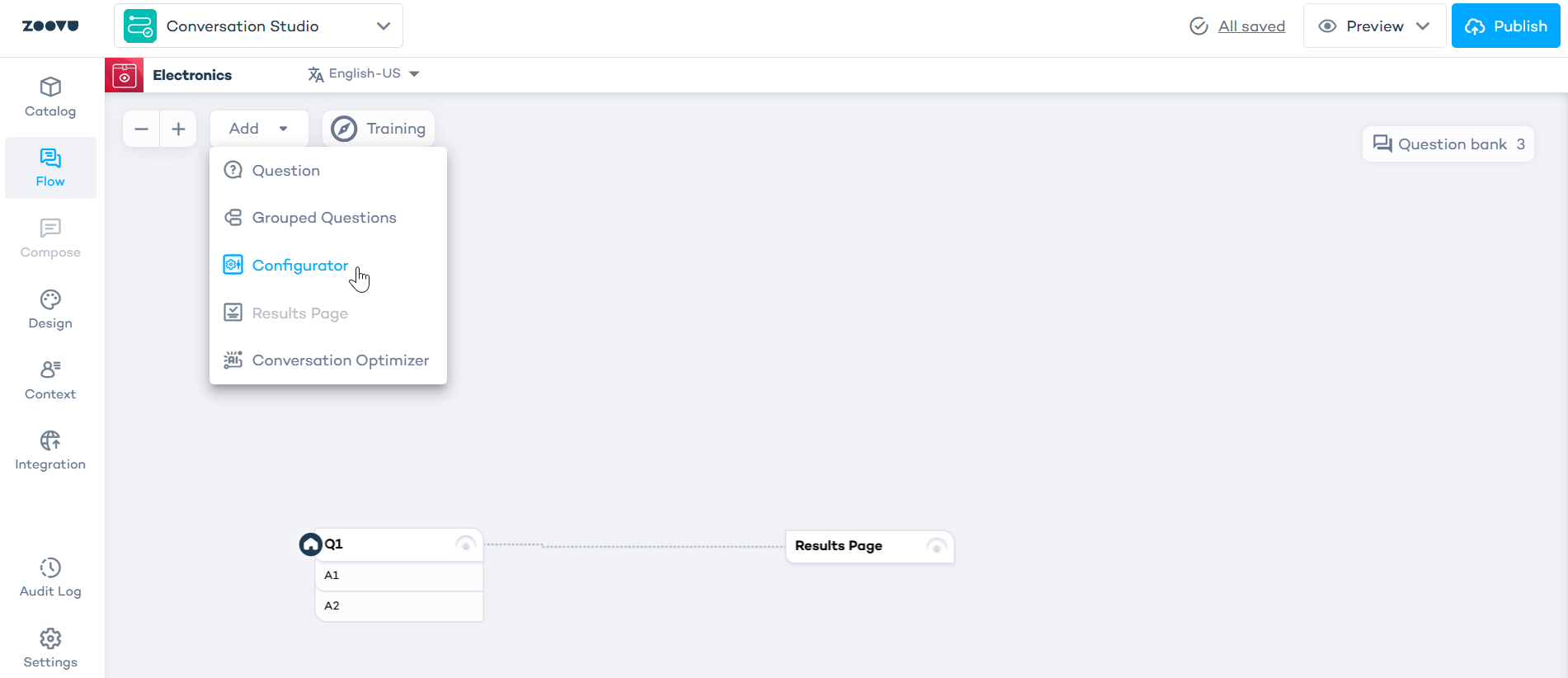
Place the configurator after your questions, before your results page.
Step 5: Configure sections
- In the Compose tab, set up your configurator sections.
- Each section represents a part of the product customers can configure (like selecting a bike frame or color).
- Add features to each section and map them to your catalog data.
Step 6: Set up the product stage
- Upload stage images (backgrounds).
- Add hotspots or buttons as triggers for each section.
- Position them on the canvas where customers will click.
Step 7: Add a results page
- Insert a results page after your configurator.
- Configure what appears: top products, bundles or search results.
Step 8: Style in Experience Designer
- Open the Design tab and launch Experience Designer.
- Customize colors, fonts, and layout to match your brand.
Configurators function the same as standalone ones, but section configuration includes only core toggles when built within an assistant.