Create and manage API keys
You can now create new API keys in Data Platform for both project groups and individual projects. Go to Data Platform > Projects > API Access to generate, copy or delete an API key.
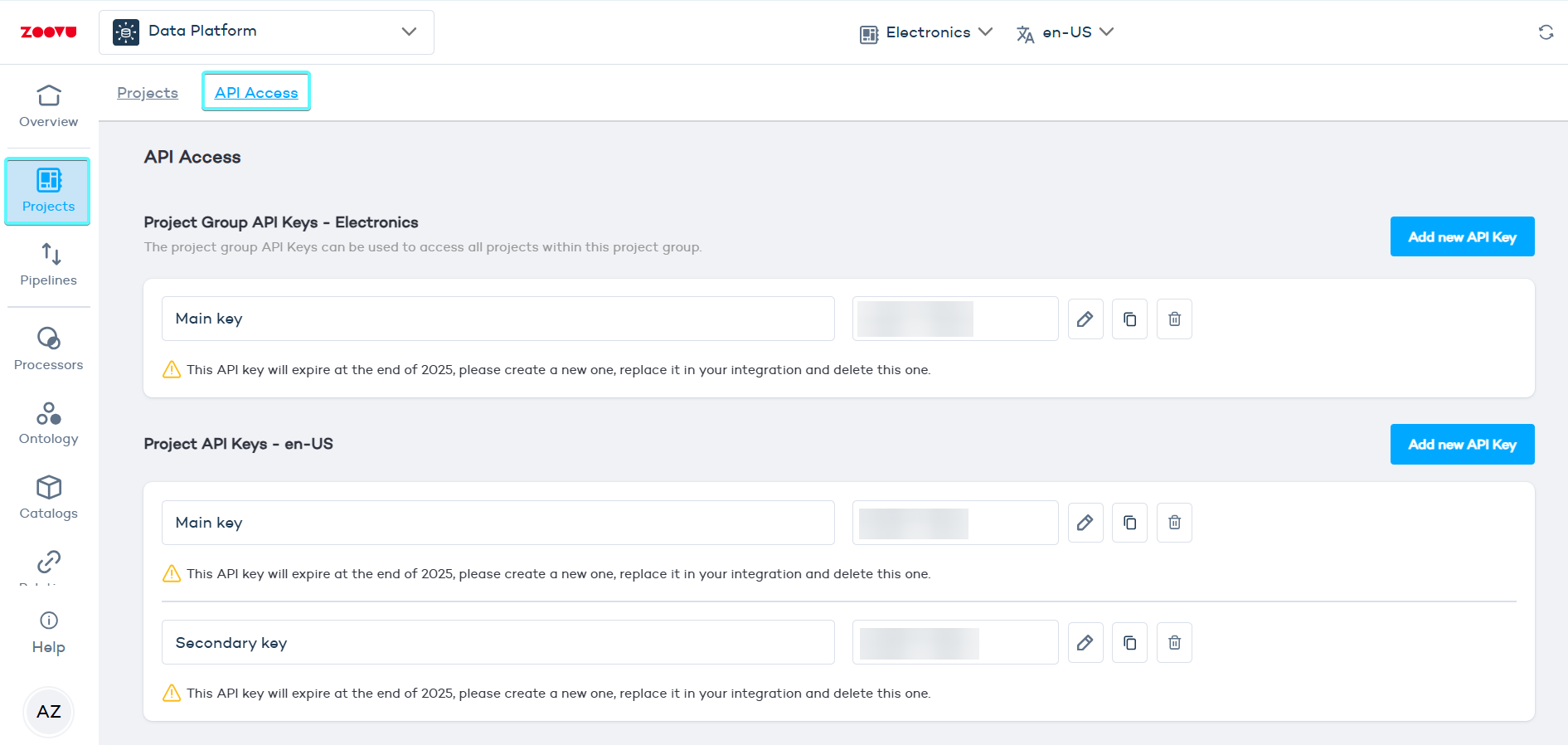
An API key:
- authenticates your account when using public APIs
- grants access to specific functionality
- applies settings such as rate limits
The account API Keys can be used to access all project groups and projects within this account.
Create a project group API key
Project group keys give access to all projects in that group.
- Under Project Group API Keys, click Add new API key.
- Enter a name (for example, Main key).
- Copy the generated key and use it in your integration.
Create a project API key
Project keys give access to one specific project.
- Under Project API Keys, click Add new API key.
- Enter a name (for example, Secondary key).
- Copy the generated key and use it in your integration.
Keys can be rotated on demand to improve security. Simply create a new key, update your integration, and delete the old one.
Authentication Methods
Recommended - Authorization Header (apiKeyHeader)
Pass the API key in the Authorization header with the Bearer scheme:
POST https://api.data.zoovu.com/products/batch/initiate?projectId=YOUR_PROJECT_ID
Authorization: Bearer YOUR_KEY
This method is supported by all authenticated endpoints and is the recommended way to authenticate.
Deprecated - Query Parameter (apiKey)
The query parameter method is deprecated. Migrate to the Authorization header method above.
POST https://api.data.zoovu.com/products/batch/initiate?projectId=YOUR_PROJECT_ID&apiKey=YOUR_KEY
Testing Endpoints
Using the page ("Try it" panel)
Each endpoint page on docs.zoovu.com includes a Send API Request panel on the right-hand side.
- Expand the Auth section
- Paste your API key into the field
- Fill in any required parameters (e.g.
projectIdfrom Data Platform > Projects) - Click
Send API Request - The response appears below
The panel may occasionally return a 401 No token set error immediately after a documentation update, due to caching. If this happens, use the manual curl method below.
Manual testing with curl
If the panel does not work, use curl from your terminal. This bypasses any caching issues and gives a reliable result.
- Generate an API Key for your project in Data Platform > Projects.
- Save the key value. You will not be able to copy it later.
- Paste the key value at the end of the query (replacing
YOUR_KEY).
curl -X GET "https://api.data.zoovu.com/projects?projectId=YOUR_PROJECT_ID" \
  -H "Authorization: Bearer YOUR_KEY"
A successful response returns the projects of your account:
{
  "status": "success",
  "data": {
    "projects": [
      {
        "id": 12345,
        "name": "en-GB",
        "project-group-id": 12344,
        "project-group-name": "Laptop Assistant",
        "locale": "en-GB",
        "language": "en",
        "country": "GB",
        "tags": []
      }
    ]
  }
}
Troubleshooting
-
401- No token set The API key was not received. Check that you are using the correct authentication method for the endpoint (query param vs. header) and that the key field is not empty. -
401- You are not allowed to access the requested resource The key was received but does not have permission. Verify that the key has access to the project ID you are using. -
200via curl but401in the docs panel - This is a known caching issue following a documentation update. Use curl for testing until the panel refreshes. If the issue persists, contact Zoovu Support.