AI Product Enrichment
AI Product Enrichment helps you improve the quality, completeness, and consistency of your product catalog. Using advanced AI models, it generates shopper-friendly descriptions, SEO-ready titles, and enrichment scores that make it easier for customers to discover and evaluate your products.
AI Product Enrichment can also cleanse and normalize product data. The cleaned data can then be used across all your discovery experiences.
To activate AI Data Enrichment, please contact your Zoovu representative or send a message to the Customer Success Team.
Getting started
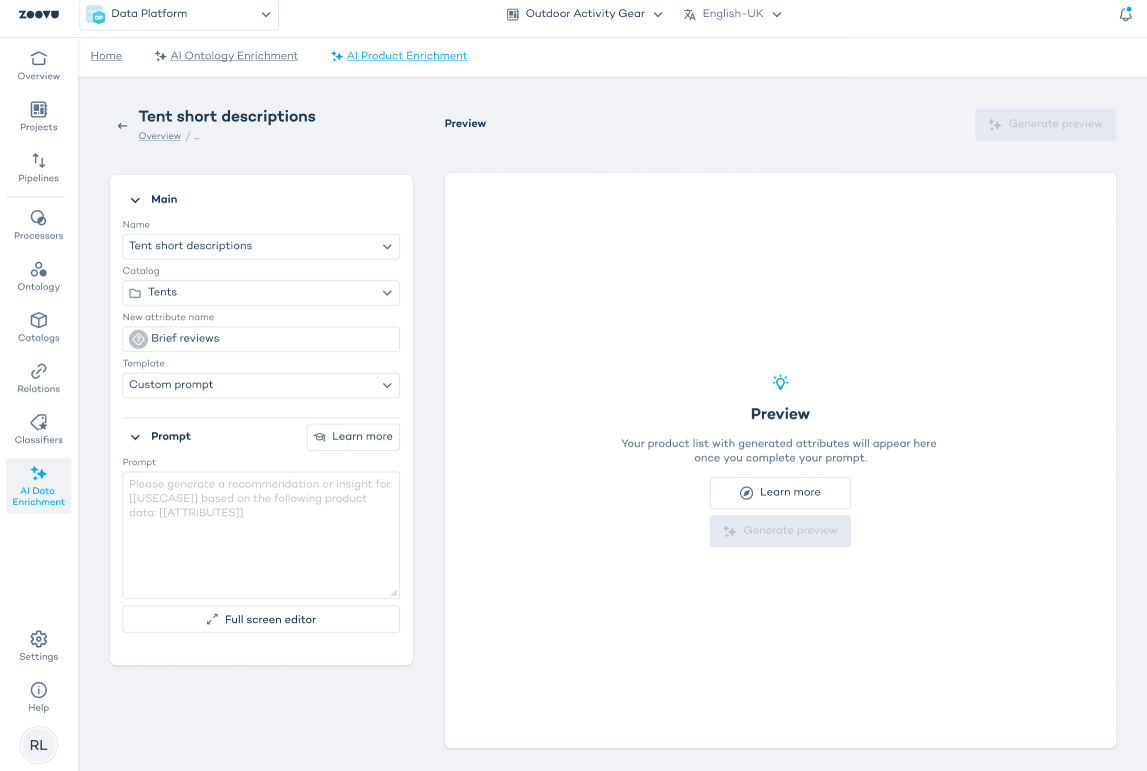
- Go to Data Platform > AI Data Enrichment > Product Enrichment.
- Click + Add AI enrichment
- Enter a name for your enrichment (for example, “Rich Product Descriptions”).
Choose which catalog to enrich:
- Select a specific catalog, or
- Choose All products to enrich your entire project.
AI Enrichment works on one catalog at a time.
- Select one of the available enrichment templates based on your goal. See Templates below for more details.
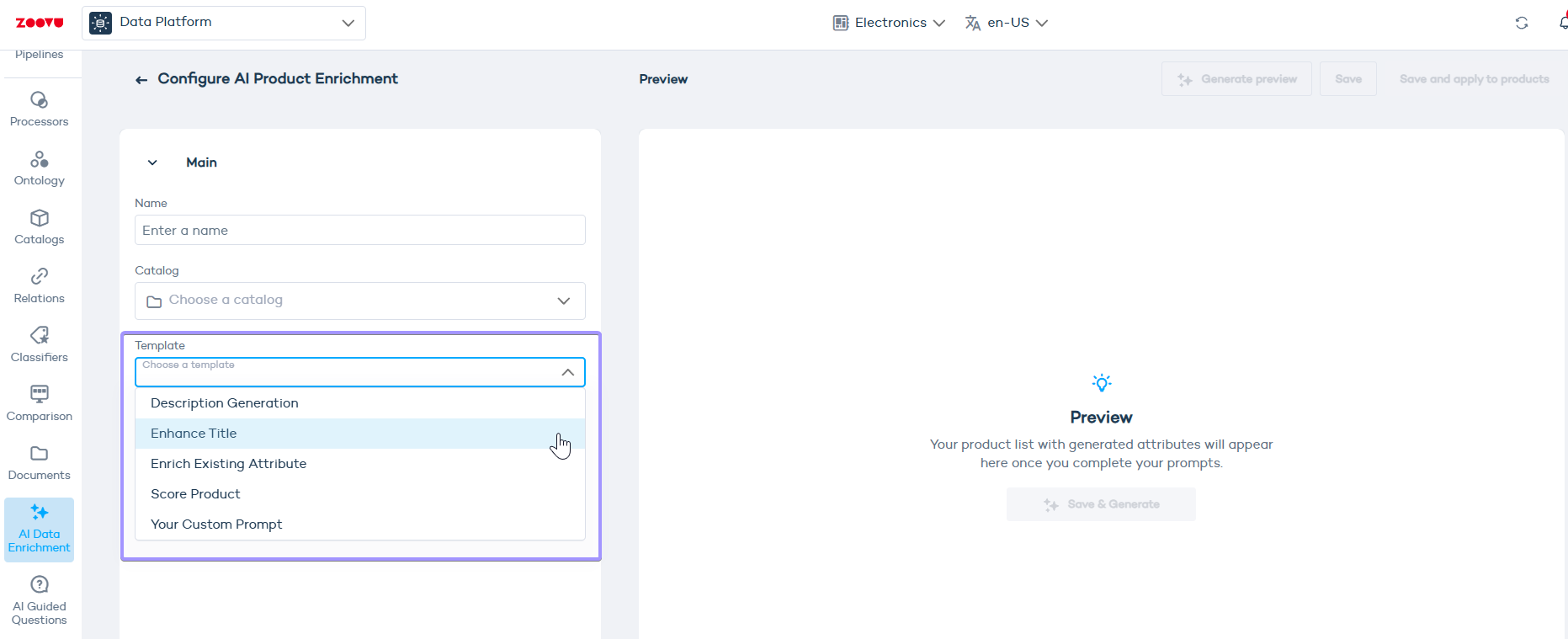
- Create a name for the new attribute that will store your enrichment results. This will appear as a new column in your catalog (unless the template updates an existing attribute).
Manage enrichments
After setting up your enrichment:
- Click Save & Generate to preview results. You can test enrichment on specific product identifiers before applying it project-wide.
- Review and validate the results based on the preview.
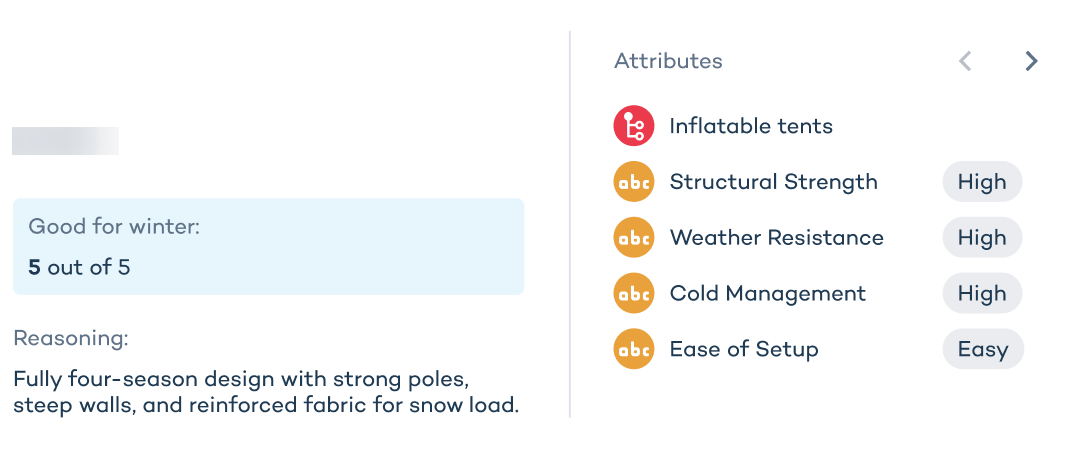
The blue box displays the AI-generated result for your selected enrichment. The reasoning section below explains how the AI arrived at its suggestion, helping you understand which attributes and context influenced the outcome.
- Click Save if you want to keep it as a draft for future edits.
- Click Save and apply to products to run the enrichment during your next full update.
Test enrichments on a small catalog and verify the results before applying them to your entire catalog, especially if you have a large number of products. Starting small helps you understand the output, confirm it meets your needs, and manage costs.
Once you create enrichments, you can review them in AI Data Enrichment > Product Enrichment. In this view you can:
- see all enrichments in one place
- filter by status (Draft or Active)
- filter by template type or catalog
Enrichment templates
1. Description Generation
Use this template to create or enhance product descriptions. You can shorten, expand or completely rewrite descriptions using your existing product data.
Prompt options include:
Category(optional): Specify a product category for context.Attributes(required): Choose which attributes the AI should use as source material.Generation instructions(optional): Define sentence or character limits.Tone(required): Select the desired tone.Additional instructions(optional): Provide extra context or stylistic guidance.
2. Enhance Title
Improve your product titles with relevant keywords and improved clarity.
Prompt options include:
Category(optional): Provide a category to enrich.Attributes(required): Select attributes to use for enhancement.Character limits(required): Define title length constraints.Additional instructions(optional): Add any special instructions for optimization or brand style.
3. Enrich Existing Attribute
Use this template to standardize or cleanse existing product data.
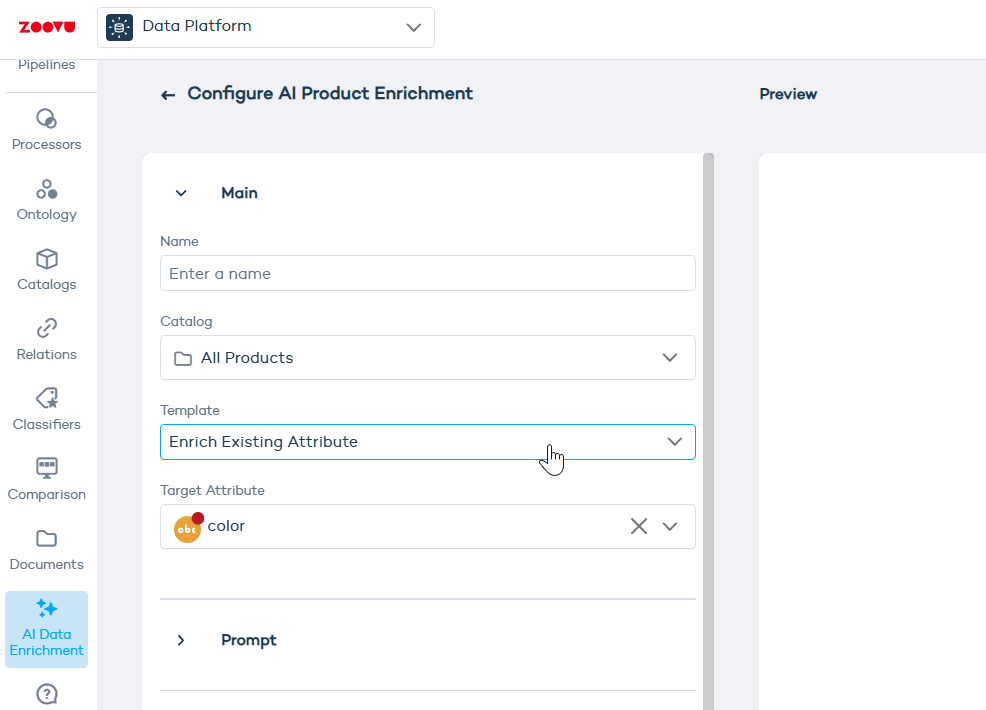
Example: If your catalog’s “Color” attribute includes too many values (e.g. “snow,” “pearl,” “eggshell” instead of simply “white”), you can create a new attribute called “Color” and let the AI map all similar values to standardized ones like “White.”
Steps:
- Select the existing attribute you want to enrich (your target attribute).
- (Optional) Provide a category to enrich.
- Choose a reference attribute that contains the source data (e.g. “Color (Original)” or “Title”).
The tool shows the possible output values so you can review and confirm the enrichment options:
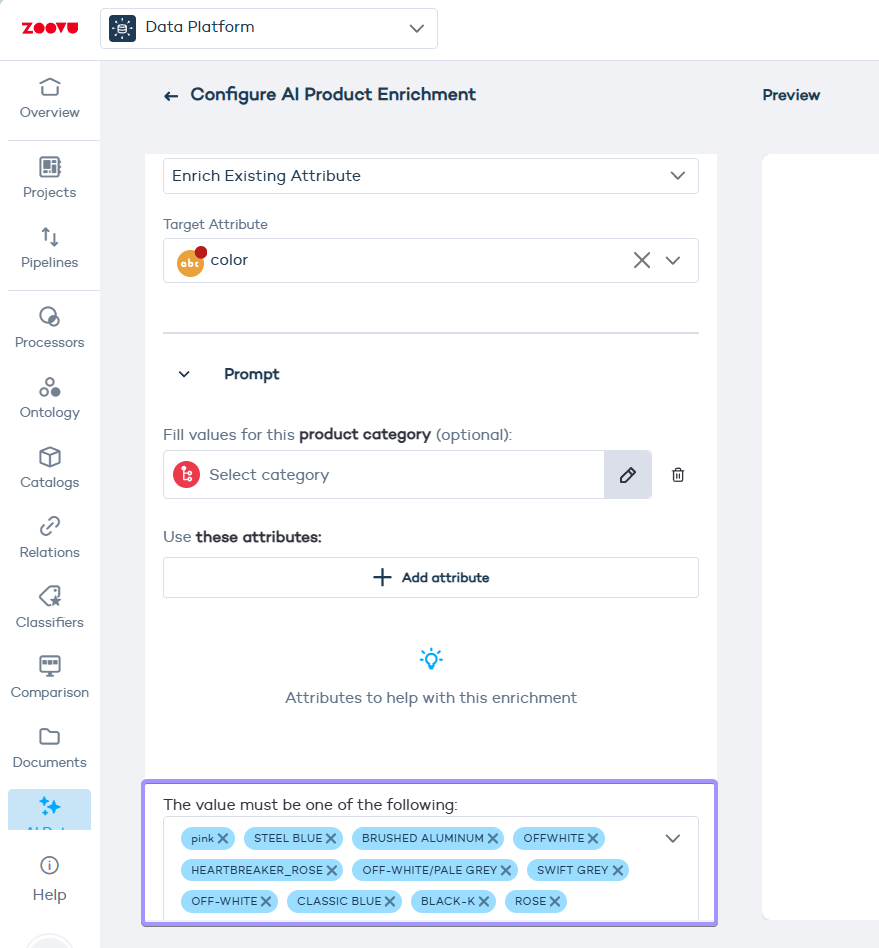
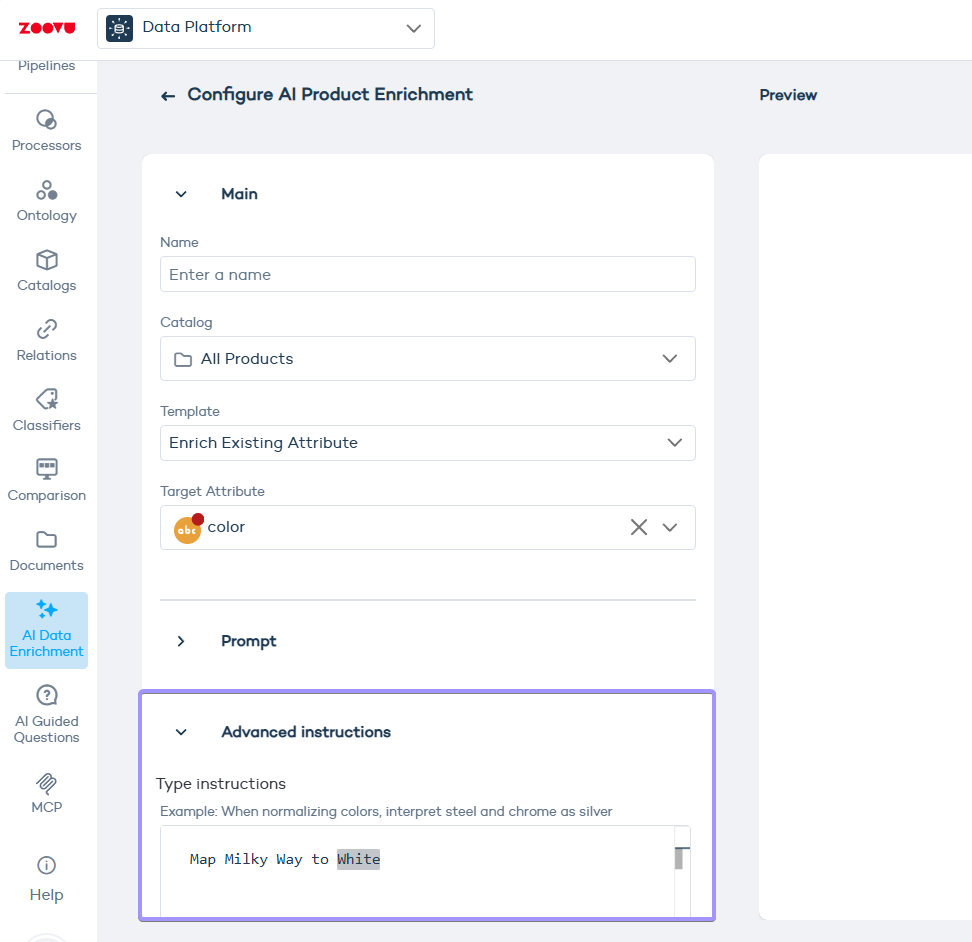
If you want to guide the result further, you can add your own rules under Advanced instructions. For example, you can map the color “Milky Way” to “White”. Clear instructions like this help reduce inconsistent values and make your data easier to use in filters, relations, and Q&A flows.
4. Score Product
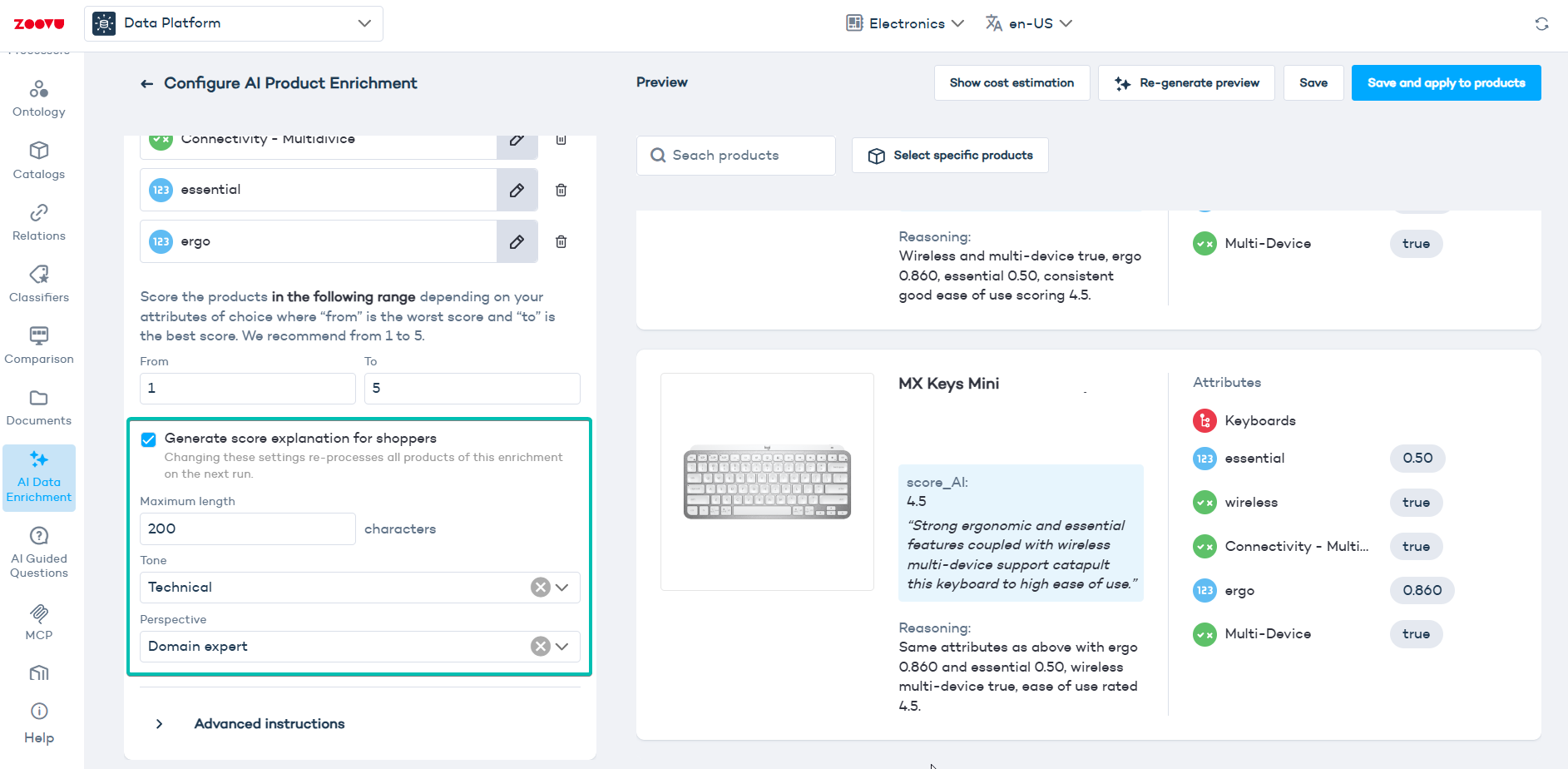
Use the scoring template to assign a score to products based on specific criteria such as durability, sustainability, or portability.
Steps:
- Define what the score represents (e.g. durability).
- Choose which attributes should inform the score (e.g. material, weight, or even just description).
- Set your scoring range (e.g. 1 - 5, where 1 = worst score and 5 = best score).

- Turn on
Include an explanationif you want AI to explain the score for each product. Configure the explanation by setting:- Length: Choose how brief or detailed the explanation should be.
- Tone of voice: Select the style, such as domain expert.
- Degree of strictness or generosity: Choose whether AI should use a stricter, more cautious assessment or a more generous interpretation of the available product information.
Adding scores to search results:
- Save your AI-generated score.
- Go to Ontology > Attribute Groups, and create a new attribute group using your generated score attribute.
- In Search Studio > Design & Publish, open Results, scroll to "Score data points" and select your score attribute.
5. Custom Prompt
Try custom prompts when you need to adjust your product data in a specific way. The built-in prompt editor gives you space to define your own instructions.
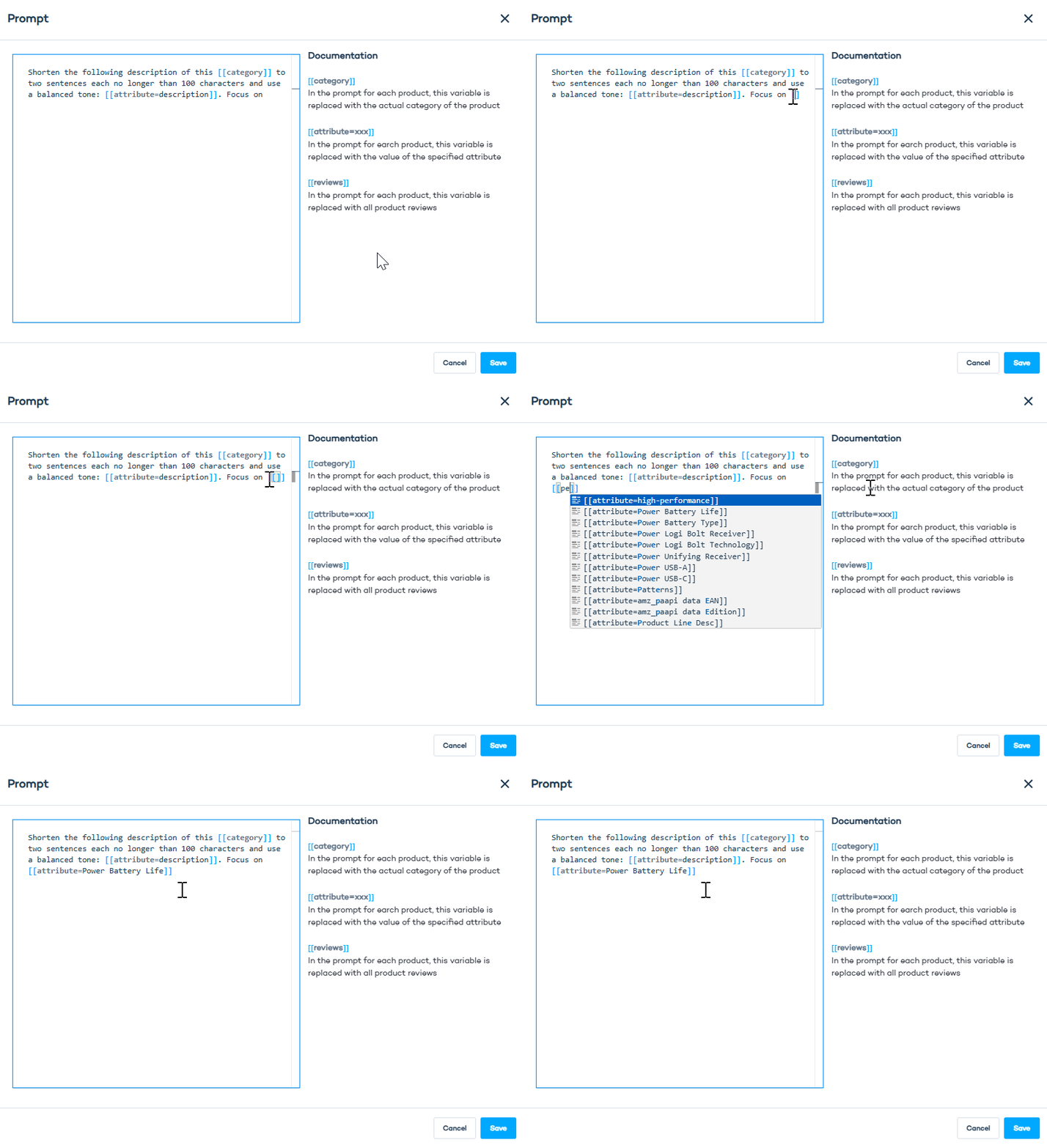
You can use the following variables in your prompt:
| Variable | Description |
|---|---|
[[category]] | Inserts the product’s category |
[[attribute]] | Inserts a specific product attribute (e.g. [[attribute=price]]). Start typing attribute to see available attributes. |
[[reviews]] | Inserts product reviews (available if reviews are imported; contact support for setup) |
[[images]] | Passes the product’s image URL |