Attribute groups
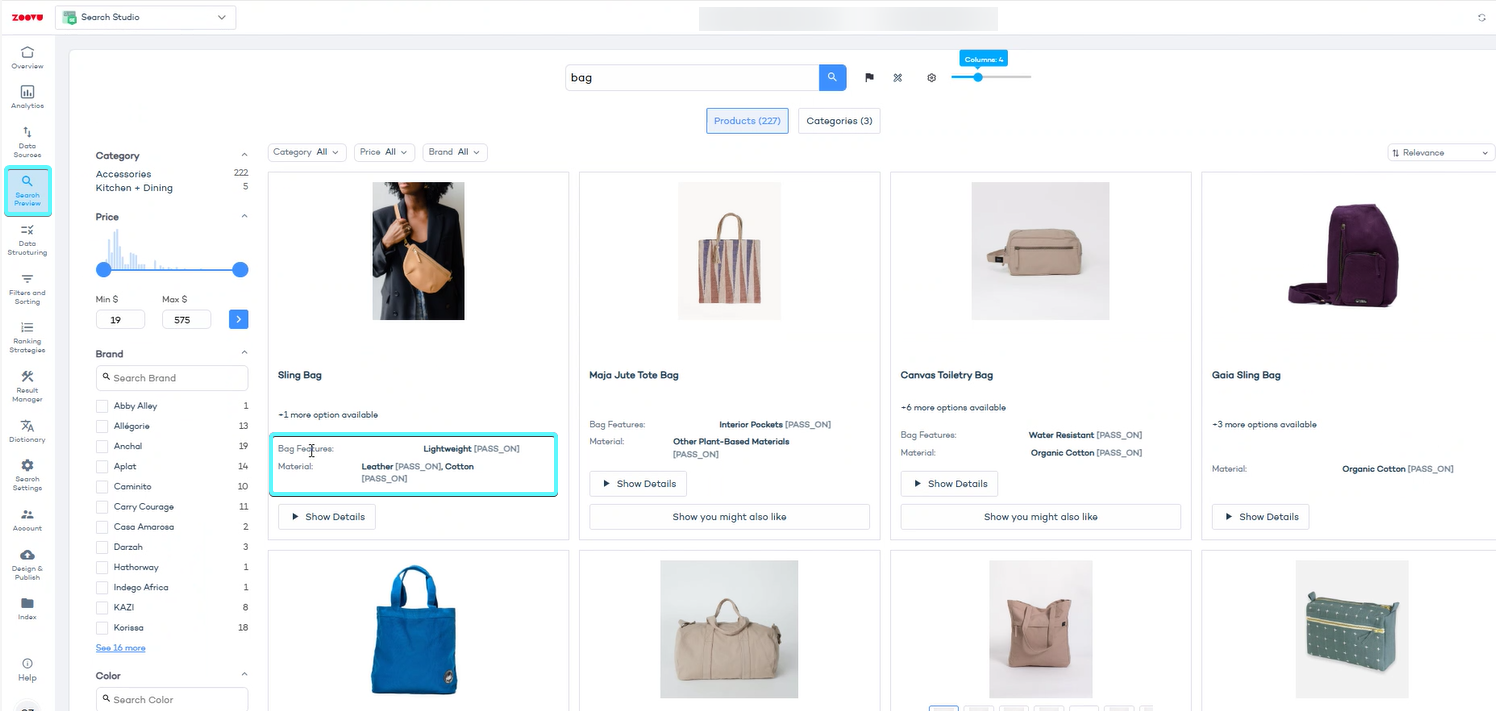
Attribute groups help you control which product details appear in search results and recommendations, making it easier for customers to find what matters most.
- You can use them to ensure that only relevant details appear for each product category. (For example, if you sell laptops and desktop computers, you may want to show "Battery Life" and "Weight" for laptops but exclude them for desktops.)
- Customize the order in which attributes appear in search results and suggestions.
- Optimize prompts for Zoe. Learn more.
To manage attribute groups, go to Data Platform > Ontology > Attribute Groups.
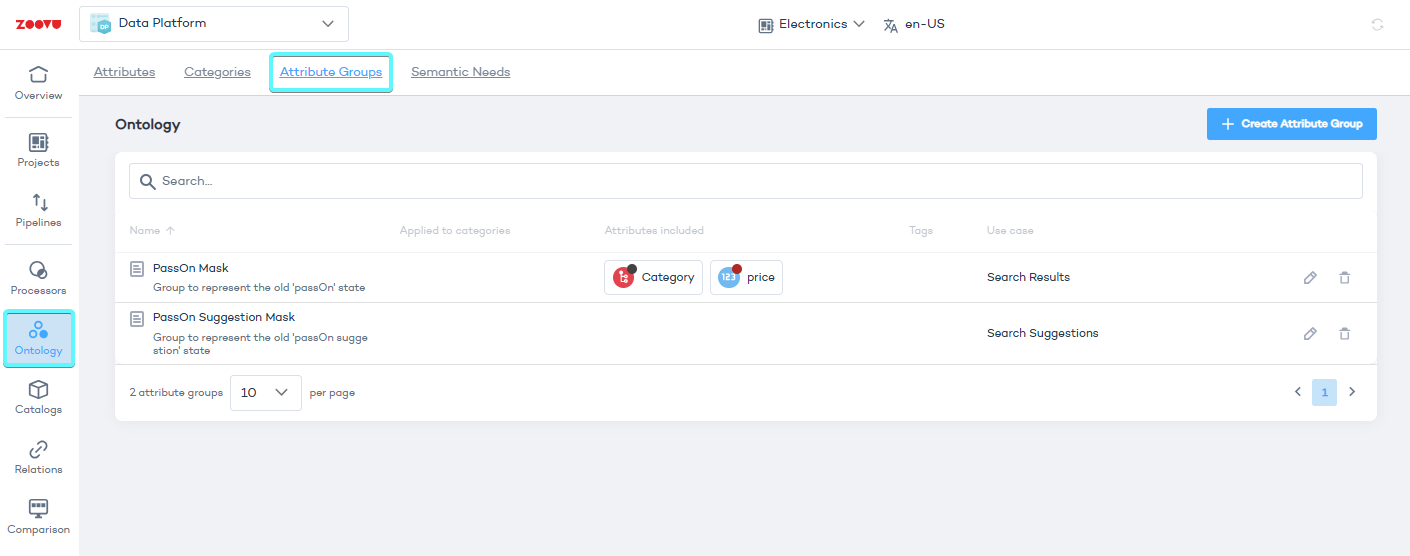
In older projects, you might see two default attribute groups:
PassOn Mask – Represents the old "passOn" state used in Search Results.
PassOn Suggestion Mask – Represents the old "passOn suggestion" state used in Search Suggestions.
Set up a new attribute group
- Click "Create Attribute Group".
- Enter a name and description for the group.
- Select one or more product categories (optional). If you want certain attributes to be passed on to your experiences (e.g. to show the "weight" attribute for the laptop category without showing it for the PC category), choose the categories from the tree.
- Select a
use case: This determines where these specific attributes will be used. The dropdown menu allows you to target your attribute group to a specific experience.
If you already have an active assistant using an attribute group, there is no need to explicitly switch to the "Assistant" use case right now. By default, your assistants will continue to pull from the Search Results group unless a more specific group is defined.
- Choose the attributes you want to include. There is no limit to the number of attributes in a group, but it's good practice to keep it concise.
- Drag and drop the attributes to set the order in which they will be displayed.
- Once you’ve selected the necessary attributes, click Save.
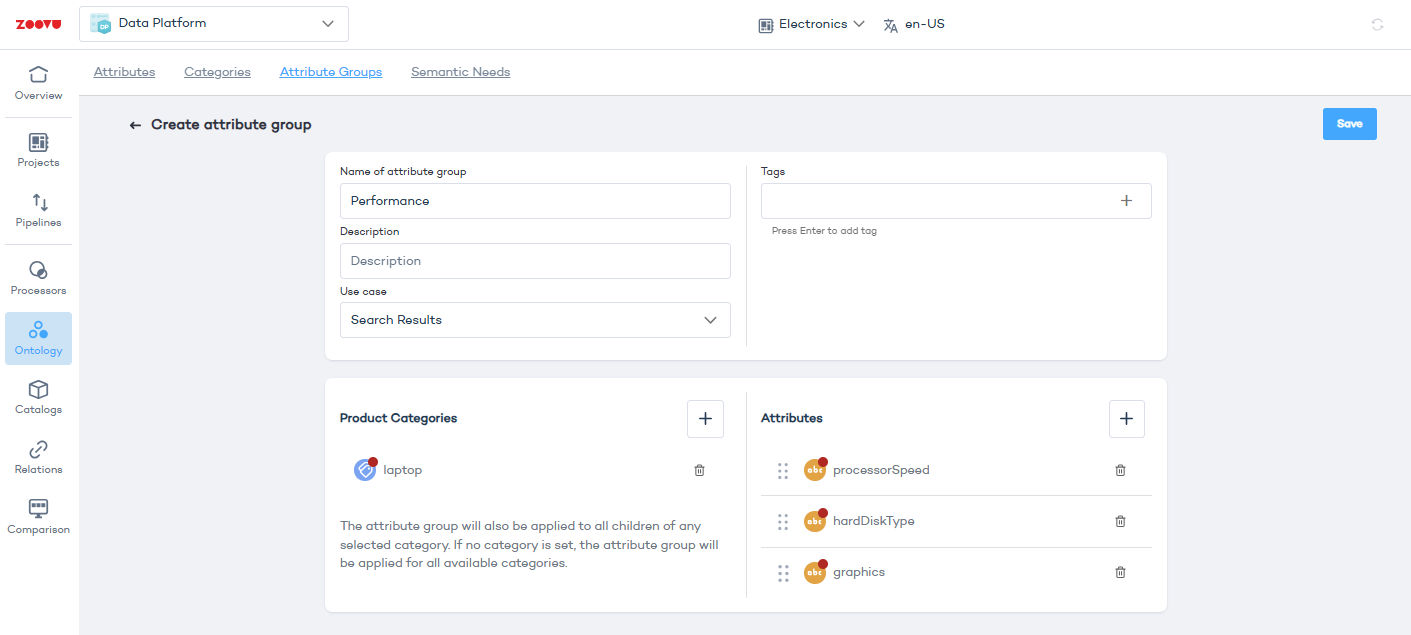
The attribute group will also apply to any subcategories within the selected category. For example, if you select the "Keyboards" category, the group will include related subcategories like "Gaming Keyboards."
Use cases
| Use case | Description |
|---|---|
| Assistant | Attributes displayed within your assistants. Once saved, these will be used IMMEDIATELY in all assistants across the project group. |
| MCP Product Details | Specify attributes used for the MCP "Get Product Details" and "Get Product Details By Name" tools. |
| MCP Search Results | Choose attributes returned by the MCP "Search Products With Filters And Sorting" tool. |
| Mini PDP | Attributes that appear in rich product cards within your experiences. |
| PIM | Set mandatory attributes for products within your selected categories. |
| Product Details | Limit the attributes returned in the product details API endpoints. |
| Relations | Attributes to be displayed in your product relations. |
| Search Refinement | Attributes used as filters during conversational discovery. |
| Search Results | Attributes displayed in search results. This is the default for relations, assistants, and MCP unless a specific group is defined for them. |
| Search Suggestions | Attributes that appear in your search suggestions. |
| Zoe | Specific attributes used to power the Zoe prompt engine. |