AI Guided Questions
AI Guided Questions in the Data Platform help you build structured, product-focused conversations. Each question has predefined answers linked to your product data, allowing the system to understand customer choices and filter your catalog.
To activate Question Bank in Data Platform, please contact your Zoovu representative or send a message to the Customer Success Team.
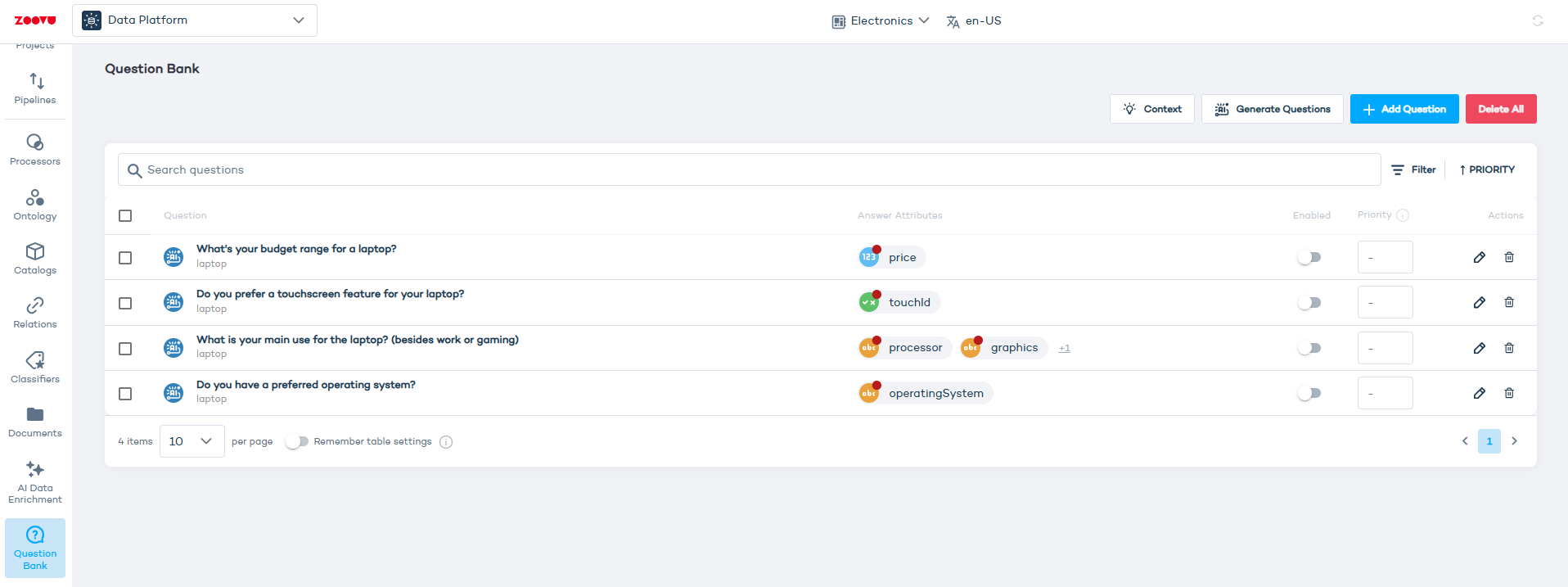
Generate AI Guided Questions for your project
Go to Data Platform > Question bank
Provide AI context
- Enter a short description of your company and target audience. This context allows the AI to generate accurate and relevant questions.
- You can edit Context at any time.
Option 1: Add questions manually
You can create questions manually instead of using AI-generated ones. Select Add question, choose a category, and enter your question text.
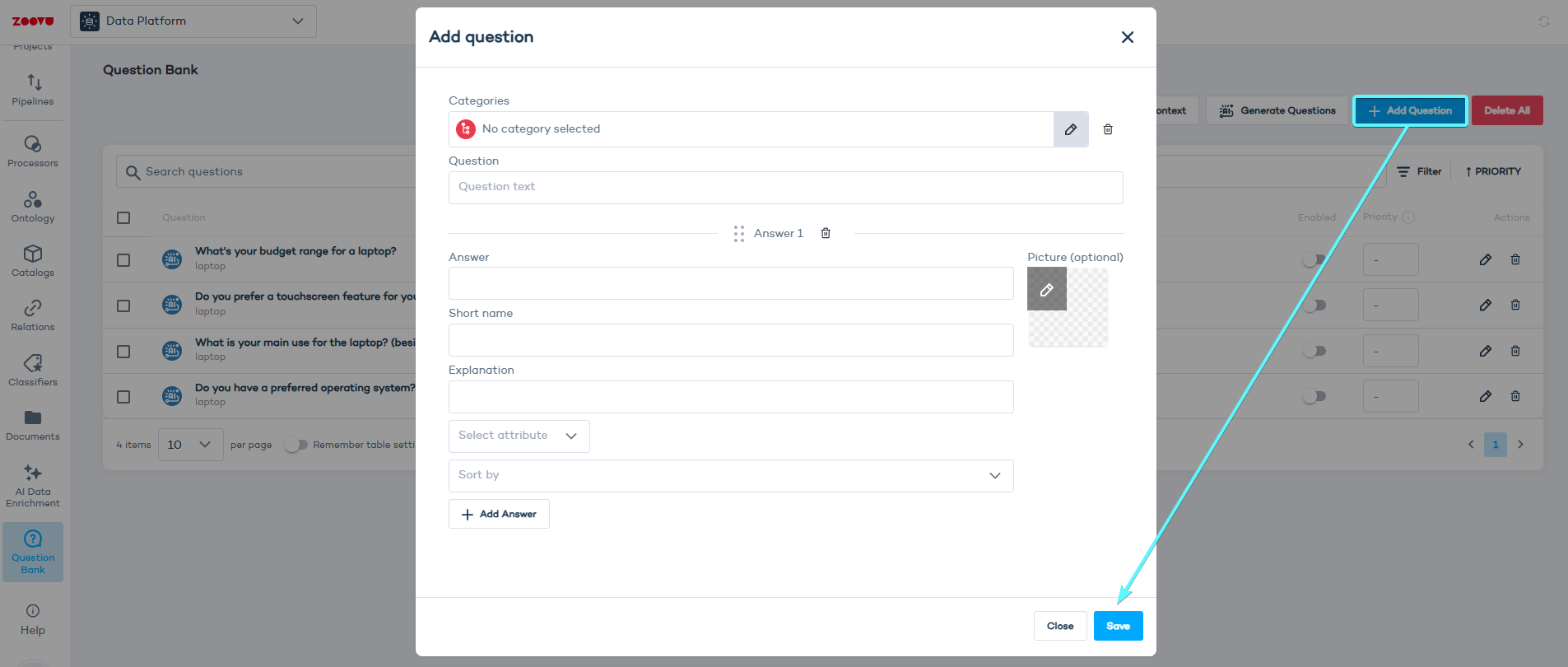
For each answer, you can define:
- Answer – the visible text shown to users
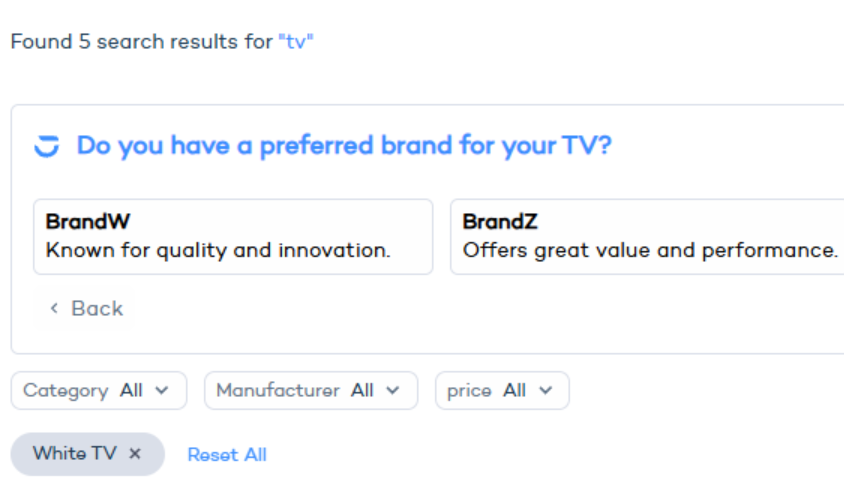
- Short name – the label displayed when the filter is applied. It shows previously selected answers in the experience. (See the example below.)
- Explanation (optional).
- Picture – an optional image for visual context. These can be your own product visuals or icons from public sources like the Noun Project.
- Attribute – connects the answer to product data
- Sort by – defines the order of the displayed product results
Short names and explanations
Short names help you create clear, readable labels for user selections. They appear in search results and help users understand which filters are active.
Example: White TV is the short name for the answer “White” in a color-preference question.
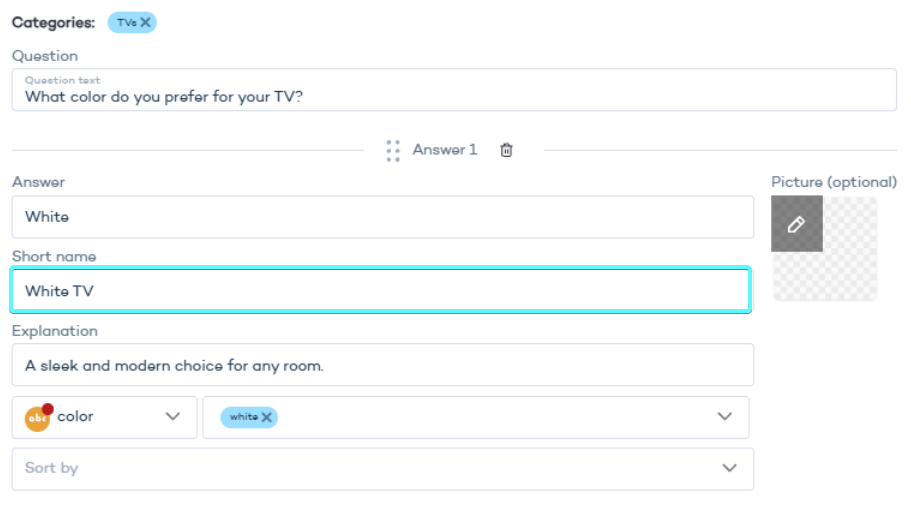
Explanations added to each answer can also appear in the search results, giving users extra context while they browse.
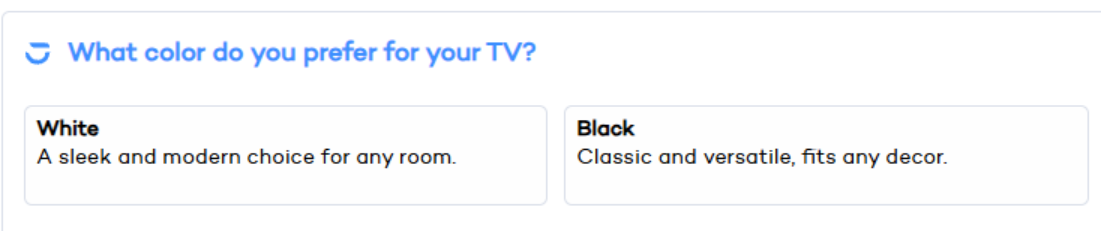
After a user selects “White,” the short name is displayed as a filter label when the next question appears.
Option 2: Generate questions for a specific category
- Choose a product category.
- Select "Generate questions".
Edit an AI Guided Question
- Select the pencil icon next to a question to edit it.
- Change the question text if you want to rephrase it.
- Drag and drop answers to change their order.
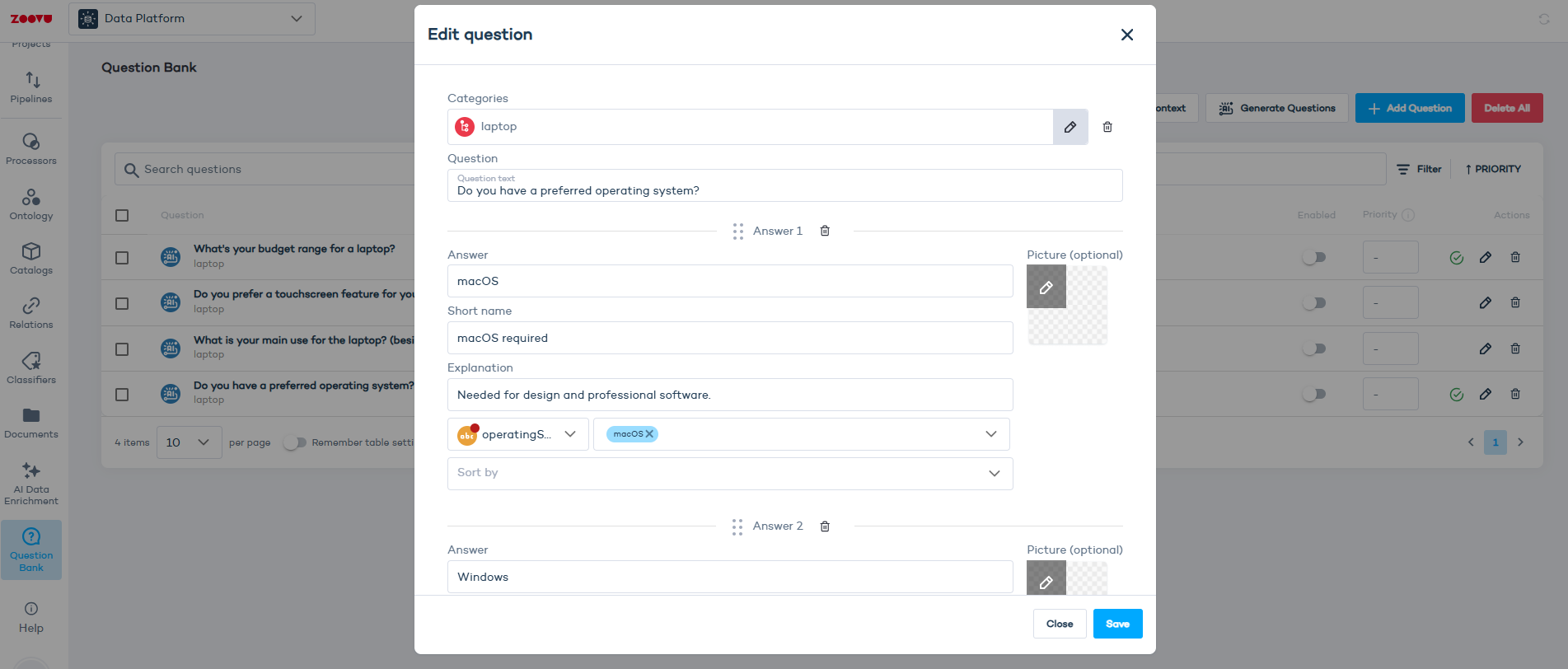
- Use Add Answer to create new answers.
- Select Save. Updates are available immediately in your experiences.
Enable in Search Studio
You can make your questions active in Search Studio. The questions will then appear in search whenever the conditions you set are met.
AI guided questions are triggered when the result set contains at least 5 products.
- Go to Search Studio > Search Settings > General and turn on AI Guided Questions.
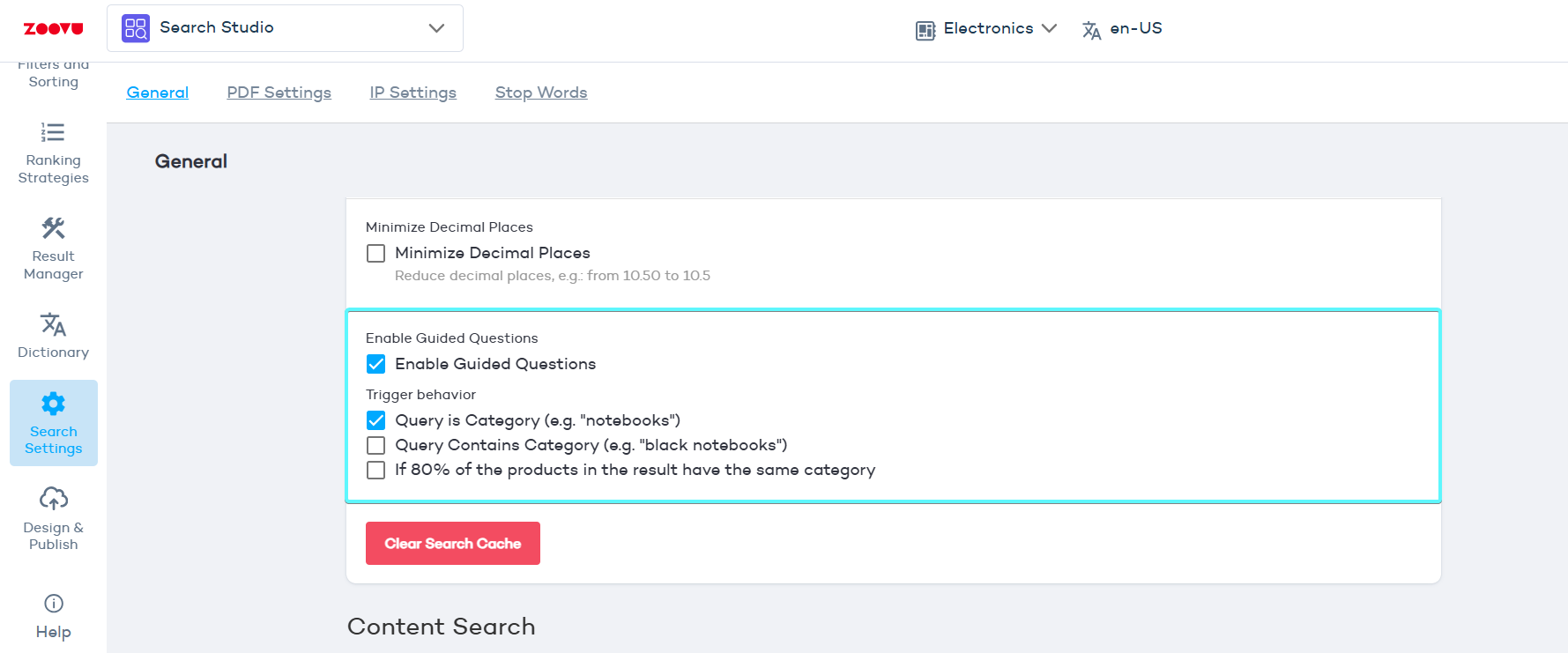
Next, choose when the questions should appear by setting the Trigger behavior. You can pick one or more of the following:
- Query is Category – shows questions when a search term matches a category, for example “notebooks”
- Query Contains Category – shows questions when the search term includes a category, for example “black notebooks”
- If 80% of the products in the result have the same category. (This percentage can be adjusted when the option is selected.)
If you use the Search plugin, you can style guided questions on the results page by going to Design and Publish > Search settings > Results.
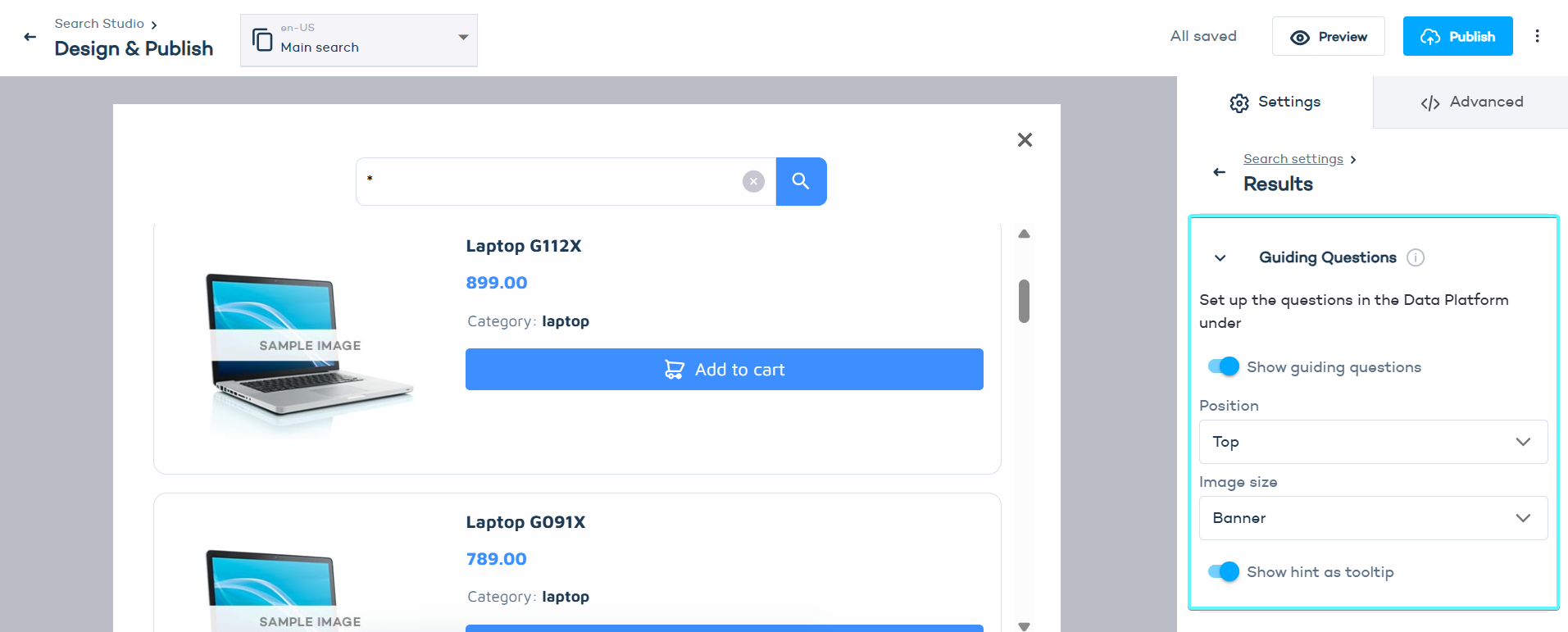
Choose where and how the questions are displayed:
- Position: Top or Left
- Image size: Banner, Icon, Thumbnail, or Hide image
Question priority
Priority controls the order in which AI Guided Questions are asked. Questions with a higher priority value appear earlier in the conversation.
Priority uses a fixed scale from 1 to 5.
- Higher number = asked earlier (for example, 5 comes before 3).
- Questions with the same priority are ordered automatically.
- Disabled questions never appear, regardless of priority.
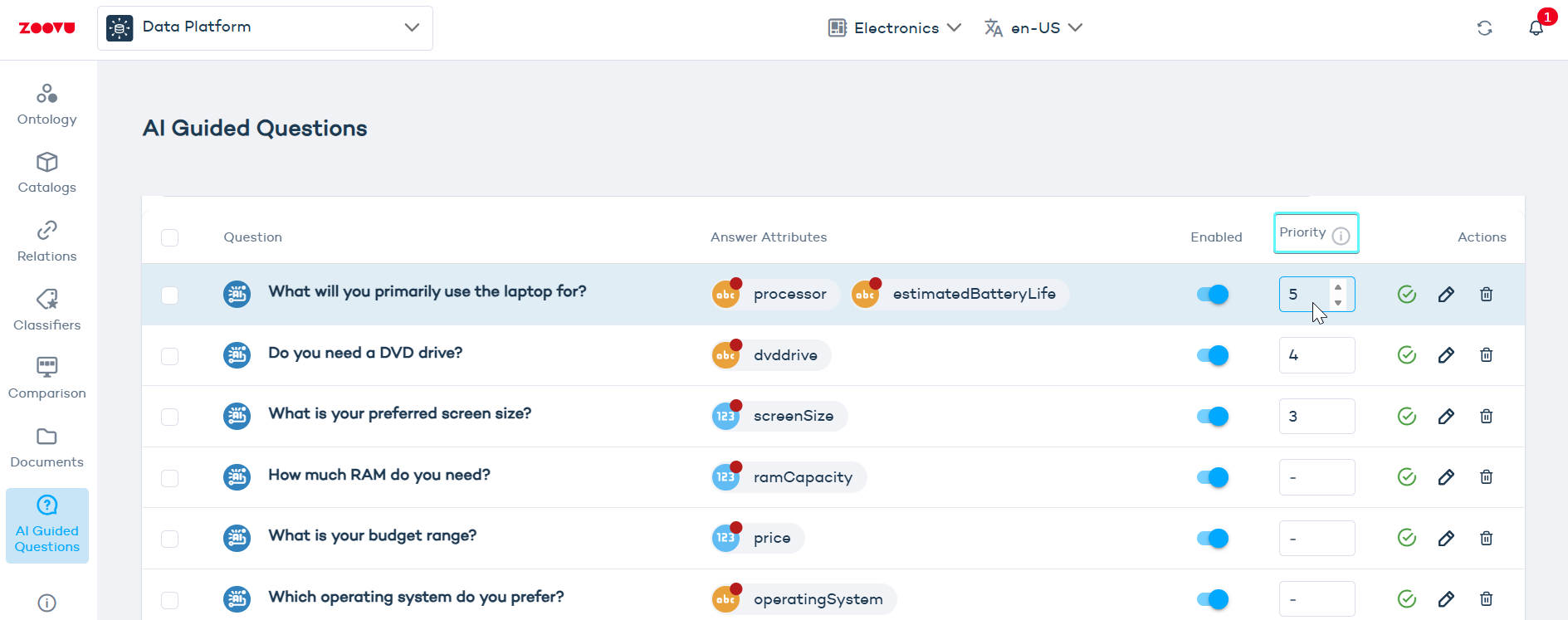
Use priority to surface questions that strongly narrow results or influence recommendations. This helps users reach relevant products faster without feeling overwhelmed.
Customize AI Guided Questions
Once AI generates a list of suggested questions, you can customize them before adding them to your assistant. Each question can include:
- Question text – The main question users will see.
- Answer options – AI-generated answer choices.
- Short name – A concise label for each answer (useful for internal organization).
- Explanation – Additional details to clarify the answer.
- Attribute selection – Connects answers to specific product attributes from your catalog.
- Sort order – Allows sorting answers based on an attribute (e.g., price, size).
- Picture (optional) – Adds an image to represent the answer.
To add a new answer, click Add Answer and fill in the required details.
You can review and edit these questions before adding them to your Digital Assistant in Conversation Studio. Learn more.
Question Bank Analytics
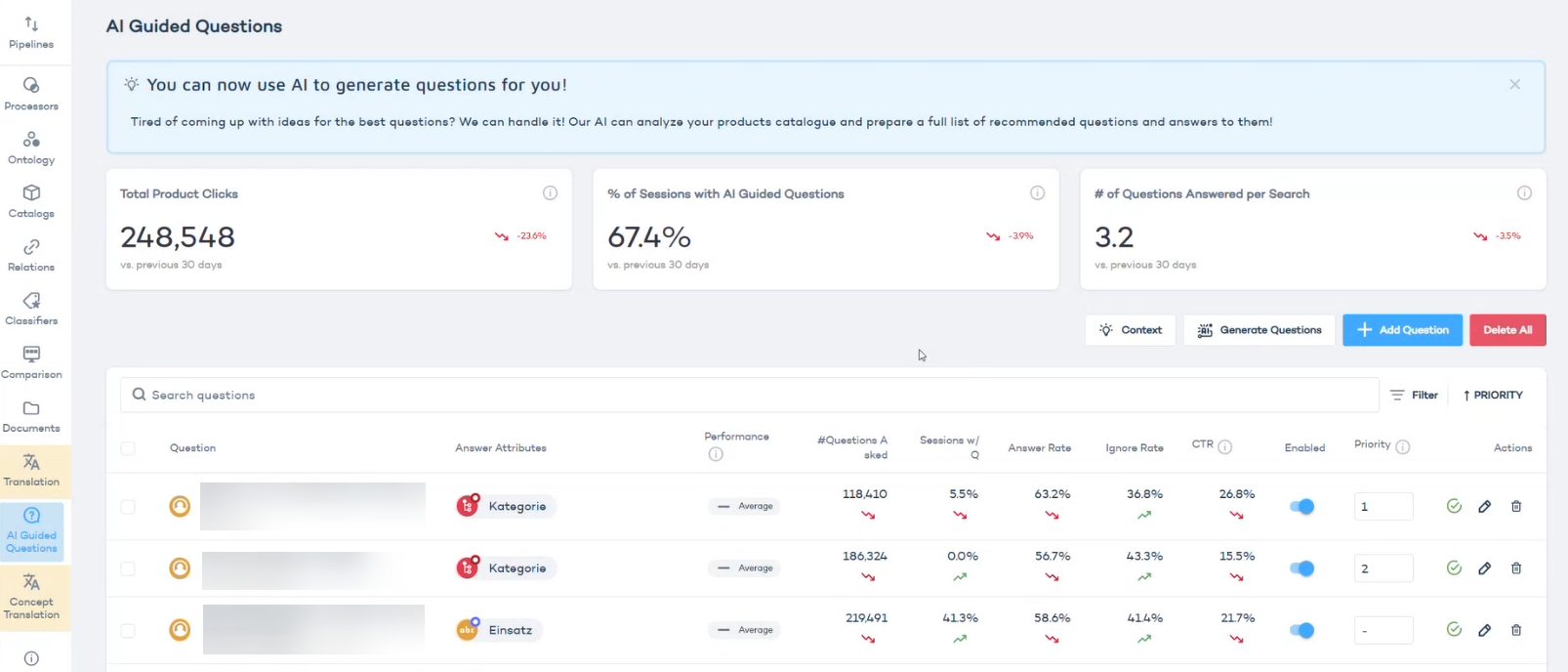
Analytics help you understand how effective your AI Guided Questions are. They are automatically displayed above the questions in Data Platform > Question Bank, after enough data has been collected.
- Question-level analytics show how individual questions perform across your experience.
- Answer-level analytics show how each specific answer option influences customer behavior.
Question-level analytics
Each question has performance metrics that help you evaluate its impact:
- Number of questions asked: how often the question is shown to customers.
- Sessions with question: how many sessions include the question.
- Answer rate: the percentage of customers who answered the question.
- Ignore rate: the percentage of customers who skipped the question.
- CTR (click-through rate): how often customers clicked products after answering.
Use these metrics to decide whether a question should stay active, be rephrased or be replaced.
Answer-level analytics
Within each question, you can also track how answers perform:
- Answer selections: how many customers chose each answer.
- Products clicked directly after answering: how many clicks happened immediately after selecting the answer.
- Products clicked after answering: how many clicks happened later in the same session.
- CTR: how likely customers are to engage with products after giving a particular answer.
Advanced settings - API
This section is for readers who want a deeper understanding of how Guided Questions work technically, or who are involved in a custom integration.
No extra API call needed
Guided Questions are part of the standard search response. When a question is ready to be shown, it appears automatically in the same response your search experience already receives. Nothing needs to be configured at the API level to make this work.
How a question gets selected
Not every search triggers a question. The system evaluates the current result set and picks the most relevant question to show based on the category, the products in the results, and which questions have already been shown in the session. A question only appears when there are more than 5 products in the result set and at least one answer maps to products within the current results.
How answer selection works
When a user selects an answer, your frontend makes the same Search API call it already makes, with one addition: the selected answer's id is passed as an activeGuidedQuestions parameter. Zoovu reads this and returns results filtered to that answer.
"activeGuidedQuestions": [
  {
    "questionId": "<id of the question>",
    "answerId": "<id of the selected answer>"
  }
]
- Optional
name: you can add anamewith a display text to each entry, for example the answer text. Zoovu does not use it for filtering. It is only returned back to you inside the response'sactiveGuidedQuestionsfield, so you can show the selection in your UI without looking the text up again. - Skip option: If
skippableQuestion: true, one answer will have"id": null. Selecting it dismisses the question without filtering results. Don't pass a nullanswerIdto the API. - Null handling: The
image,explanation, andidfields may be null. Make sure to build the frontend with image and explanation rendering in mind for future use.
Guided Questions and filters
Guided Questions and filters work together. Selecting a guided question answer updates the available filters, and selecting a filter can update which question is shown next.
Search pages and listing pages (PLPs)
Guided Questions work on both search result pages and listing/category pages (PLPs). Zoovu doesn't inject the question UI directly into your page. Your frontend or shop backend needs to check the Search API response and render the question when one is returned.
Check for the guidedQuestion object in every search API response:
{
  "searchResults": [ ... ],
  "guidedQuestion": {
    "questions": [
      {
        "id": 27581,
        "question": "How does the main load act in your application?",
        "answers": [
          {
            "id": 0,
            "answer_text": "Static",
            "short_name": "Static load",
            "explanation": "The load is constant and free of shocks.",
            "image": null
          },
          {
            "id": 1,
            "answer_text": "Dynamic",
            "short_name": "Dynamic load",
            "explanation": "The load varies or acts with shocks.",
            "image": null
          },
          {
            "id": null,
            "answer_text": "Skip",
            "explanation": null,
            "image": null
          }
        ],
        "skippableQuestion": true
      }
    ]
  }
}
If guidedQuestion is present, render the question UI above the results. If it's not there, display results as normal. Show answer_text as the answer label; short_name is a compact label you can use to display the active selection (it is not present on the skip answer). The question's id and the selected answer's id are the values to send back in activeGuidedQuestions.
Questions not showing up after activation
Before Guided Questions appear in search results, two steps need to be complete:
- Questions are created, reviewed, and saved in the Question Bank in Data Platform.
- The feature is enabled in Search Studio. Go to Search Studio > Search Settings and toggle Guided Questions on.
If both are done and questions still aren't showing, check the following:
- The questions are set to the correct language and locale (e.g. de_DE)
- The search query matches a category that has questions mapped to it. Questions are configured per category, not globally.
- The result set for that query has more than 5 products. The Next Best Question algorithm only triggers above this threshold.
You don't need Zoe activated for Guided Questions to work. Zoe is a separate feature. The Zoe icon visible in some documentation screenshots is specific to those implementations.