Model Context Protocol (MCP) Server
By connecting your LLM to the Data Platform’s MCP server, the model gains secure access to your product data and can leverage a range of tools to perform various tasks.
To start using our MCP server, please contact your Zoovu representative or send a message to the Customer Success Team
Use cases
Our MCP server handles practical tasks such as:
- Resolving product search queries using AI, including:
- applying the most relevant filters
- applying the most relevant sorting options
- returning the best-matching products
- Finding related products (e.g. compatible accessories, alternative options, and more)
- Retrieving detailed product information
- Comparing products and answering other product questions with help of Zoe
Example queries for tests:
- "Is this material good for sensitive skin?"
- "Compare these two drills."
- "Recommend a laptop under $1,500 with a good graphics card."
Getting started
- Go to Data Platform > MCP.
- Create a new configuration.
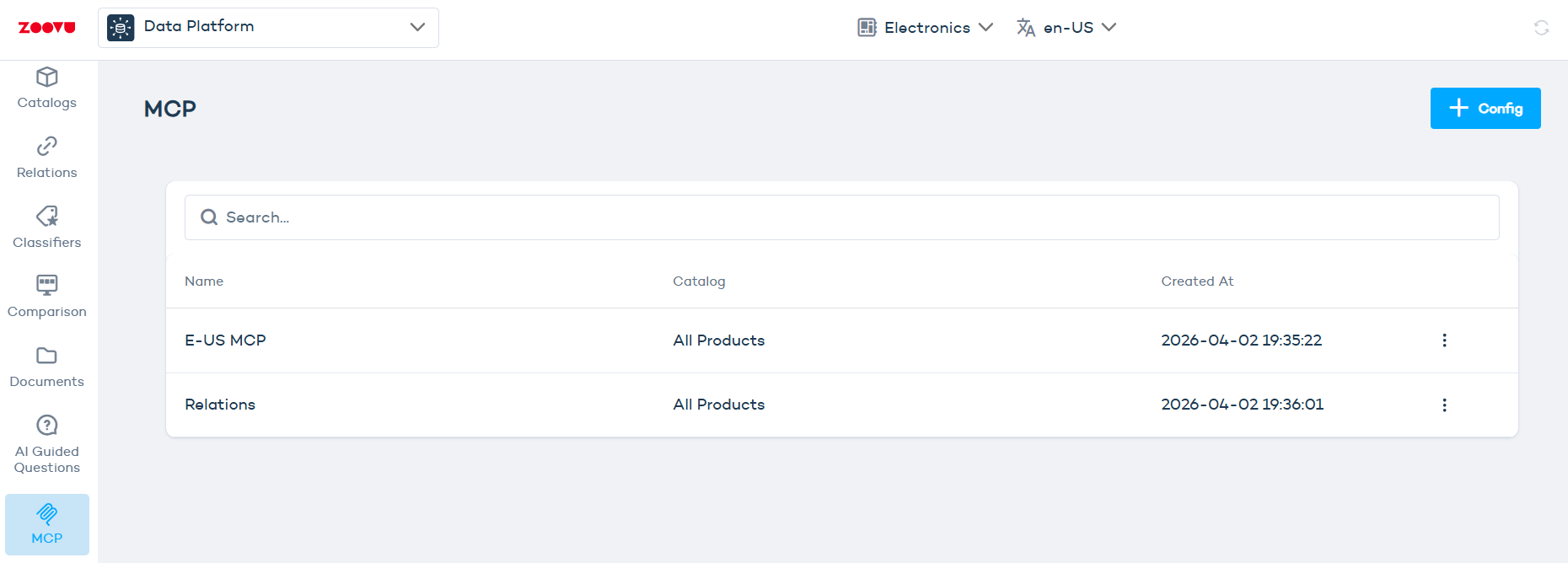
- Provide a name for your configuration.
- Optional: If you want to enable the
products_ask_assistanttool, include your Zoe app key. - Use the
catalogdropdown to limit this configuration to a specific Data Platform catalog.
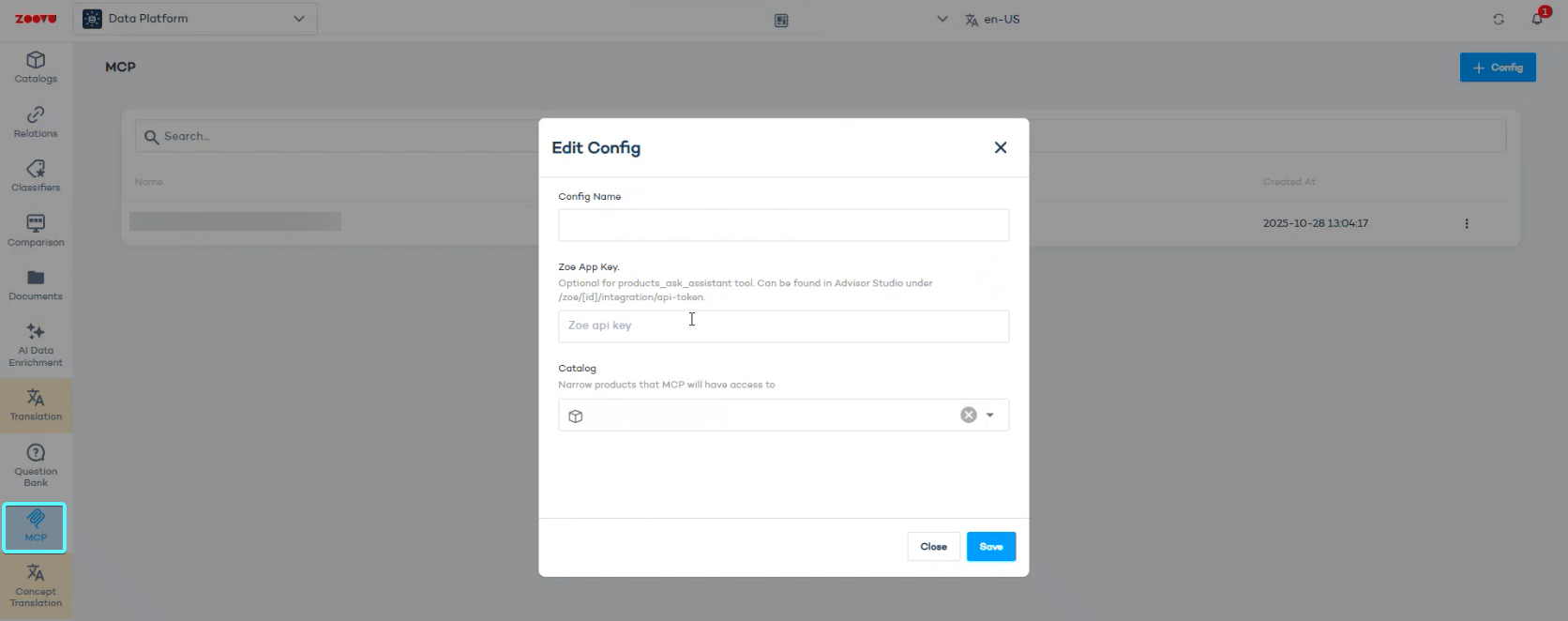
You can locate the Zoe App Key inside Advisor Studio, in the settings for the specific Zoe assistant, under the path: /zoe/[id]/integration/api-token. ([id] stands for your Zoe assistant's unique identifier.)
Setup tips
Before testing your MCP setup, check these points:
- If your product URLs are relative (for example
/23415135), set a Base URL in the config so MCP can return full product links. Edit your MCP config to access this setting. - If you use attribute groups for MCP, make sure the correct MCP use case / mask is applied (Data Platform > Ontology > Attribute Groups).
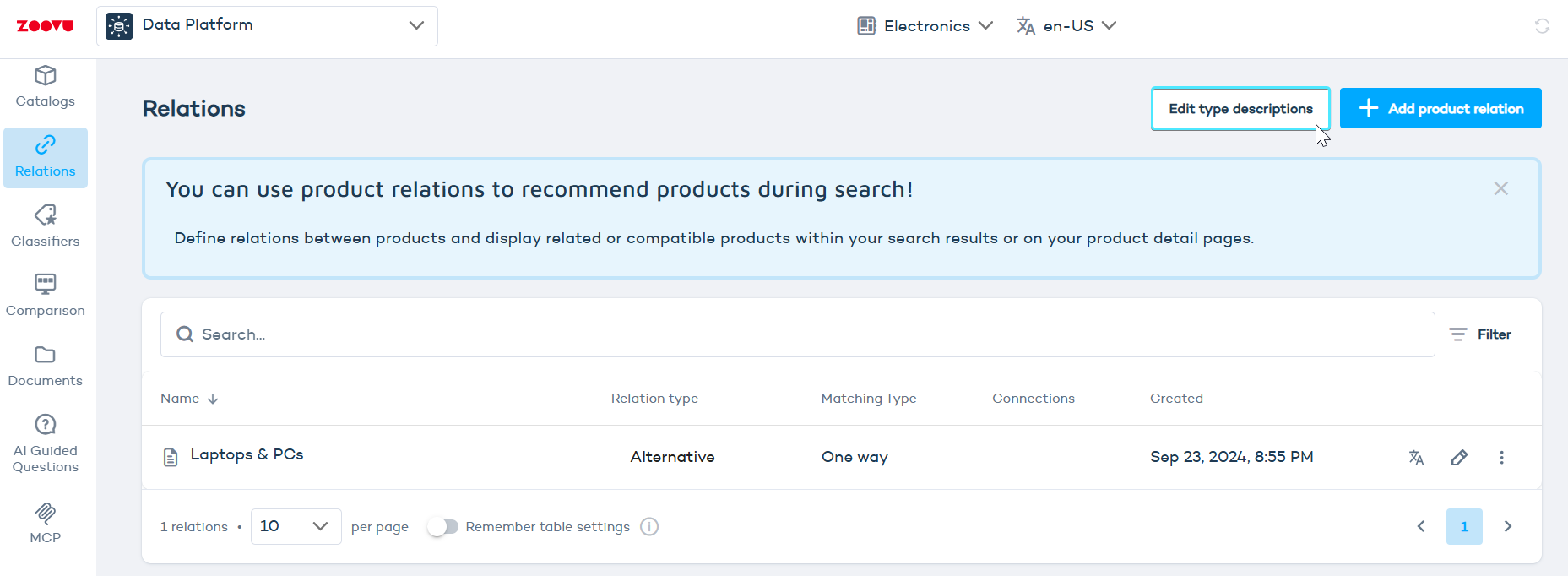
- If your project has many relation types, add short descriptions so that relation names are easier to understand in MCP results. Go to Data Platform > Relations and click on
Edit type descriptions:
Configuration settings
The MCP config (Data Platform > MCP > Edit Config) exposes the following settings:
| Setting | Description |
|---|---|
| Catalog | Limits the configuration to a specific Data Platform catalog. |
| Base URL | Base product URL. Set to your main domain so MCP returns full links when your product data contains relative links. |
| Zoe App Key | Enables the products_ask_assistant tool. See the note above on where to find it. |
| Use Aggregated Variants | Groups variants under a master product; each variant then keeps only its differing attributes. Reduces response size and improves performance for products with many variants. |
| Limit Variants | Limits the number of variants returned per product in search results, to improve performance and reduce response size. |
| Max Search Variants | Maximum variants returned per product when Limit Variants is enabled. |
| Page Size | Number of products returned per search page. Also the upper bound for the search tool's limit parameter. |
| Filters in Schema | Adds dynamic range filter parameters directly to the search tool schema. Generally not recommended; leave unchecked if unsure (see Tools). |
Copy the MCP server URL
- Once you save a configuration, open the three-dot menu to copy your unique MCP server URL.
- To authenticate, use your API key.
You can share this link with teammates to test the same setup.
Working with MCP tools
Once your MCP server URL has been integrated into your chosen client (e.g. Claude), the LLM gains access to the tools the server exposes. Some tools only appear if your project has the required configuration.
For example:
- No relations configured → no "get related products" tool
- No numeric filters visible → no dynamic filter parameters
- No sorting options configured → no sortBy parameter
- No zoeAppKey configured → no "ask assistant" tool
Filter discovery (products_get_filter_options)
The LLM can use this tool to discover all available filters for your catalog before searching. It supports two modes: a slim discovery call (no parameters) that returns all filter names, keys, and types, and a full detail call (with selected_keys) that returns all values and counts for specific filters. The slim call uses a cached response and has no extra cost.
Product search (products_search_with_filters)
The LLM can use this tool to search your catalog based on natural language input. When a user searches with free text (e.g. "gaming laptops under $1500"), the LLM can resolve the query and set the appropriate filters, sorting options etc. to find matching products. The recommended workflow is to call products_get_filter_options first to discover available filters, then search with short queries combined with filters for best results.
Filters and sorting options come directly from your project in Search Studio. Only filters marked as visible and configured sorting options are available.
Product details (products_get_details)
The LLM uses this tool to retrieve more detailed product information when a user expresses interest in a specific product and provides the identifier (e.g. the SKU). Returns full product information:
- Name
- Images
- Categories
- All attributes and values
- Product links
Product details by name (products_get_details_by_name)
Use this when the user asks for more information about a product by name and the LLM has no identifier for it from the current session.
Related products (products_get_related)
This tool answers requests about product compatibility, suitable alternatives, matching accessories, and similar queries.
Relation types come from your Relations setup in Data Platform. If no relations exist in your project, this tool won't appear.
The tool returns products grouped by relation tag and relation name.
Assistant knowledge (products_ask_assistant)
This tool answers conceptual or buying-advice questions.
Examples:
- "What's the difference between OLED and LED?"
- "Is this good for sensitive skin?"
- "Compare these two."
This tool is only available when your configuration includes a Zoe App Key.
Best practices
- Verify that filters, sorting options, relations etc. are configured in your project if a tool is missing.
- Use meta-instructions in the client to inform the LLM how it should display information to end users (e.g. "never show price" or "only show ratings above 4.0")
- Test how the LLM resolves a variety of queries and adjust meta-instructions to guide the LLM if necessary.