Navigational filters
Navigational filters let users narrow down results within category pages.
-
Global filters apply to search results. A user types "headphones" in the search bar, gets results, and uses filters to narrow them down. The filter list is dynamically loaded based on the products in the result set.
-
Navigational filters apply to category pages. A user clicks into the "Headsets" category and sees products from that category. Navigational filters let them narrow down within that specific category page.
Set up navigational filters
Step 1. Create filter groups (optional)
Filter groups let you bundle related filters together on the page. Set these up before creating your navigational filters so that they're ready to use.
- Go to Search Studio > Filters and Sorting and click
New filter group. - Give the group a name (e.g. "Pricing") and click + Add filters to assign filters to it.
Examples
| Group name | Filters |
|---|---|
| Pricing | Price, Discount |
| Performance | RAM, Storage, Processor |
| Connectivity | Wireless, Noise cancelling |
Step 2. Create a navigational query filter
- Go to Filters and Sorting > Navigational Query Filters.
- Click
+ Navigational Query Filter. - A dialog gives you two options:
- Start with empty settings: Gives you a blank slate. You pick a category and add only the filters that matter for it. Best when the category needs a highly specific set of filters.
- Start with a copy of global filters: Pre-populates the config with all filters from the global Filters tab. Best when the category mostly needs the same filters as your global search and you just want to remove a few, reorder or add a group.
In most cases, starting with a copy of global filters is faster: you get a working baseline and trim what doesn't apply. Start empty when a category is specialized enough that the global setup doesn't help.
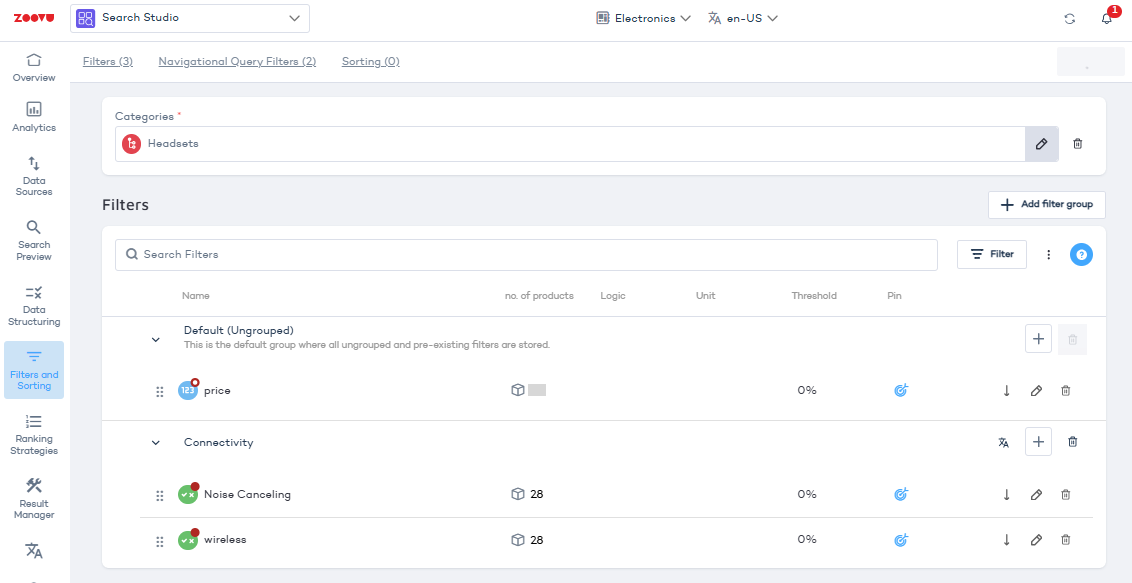
- Select the category this filter config applies to.
- Add or remove filters and filter groups as needed.
- Save.
Step 3. Customize filter values and ordering
Once your navigational filters are set up, you can control exactly which values appear and in what order. Open any filter to access the Customize Values panel.
- Show or hide specific values
Use the checkboxes next to each value to control what users see. This is useful for removing irrelevant or low-quality entries — for example, hiding a "N/A" option that slipped in from the product feed.
- Choose how values are ordered
Pick the ordering that makes the most sense for the filter:
- Alphanumeric — sorts values alphabetically. Works well for text-based filters like brand names or styles.
- Usage — puts the most frequently selected values first. Useful when you want popular choices at the top.
- Product count — orders by how many products match each value. Helps users see where the most options are.
Filter inheritance
-
When you configure navigational filters on a product category, every subcategory beneath it automatically picks up the same filters. You only need to set things up once at the top level.
-
If a specific product subcategory needs different filters, you can configure it separately. That configuration replaces the inherited one entirely for that subcategory.
Configure filters at the highest relevant category level. The fewer overrides you maintain, the easier it is to keep things consistent. If a subcategory shows unexpected filters, check whether it has its own config that's overriding the main category.