Testing Zoe configurations with A/B tests
Use A/B tests to compare Zoe assistant configurations against each other, measure performance, and make data-driven decisions about which setup works best.
At least one Zoe must exist and be published before you can create an A/B test.
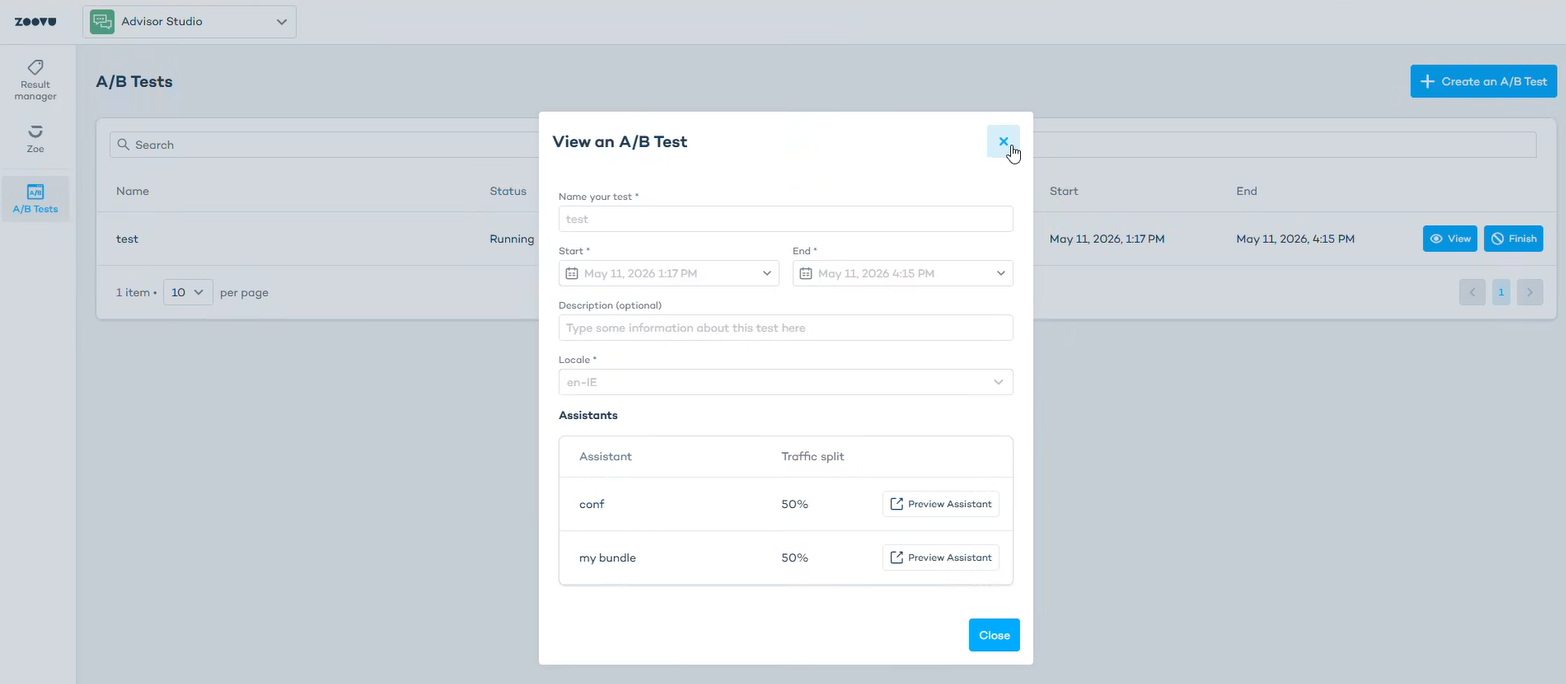
Create an A/B test
-
Go to Advisor Studio > A/B Tests.
-
Click Create an A/B Test or the + button.
-
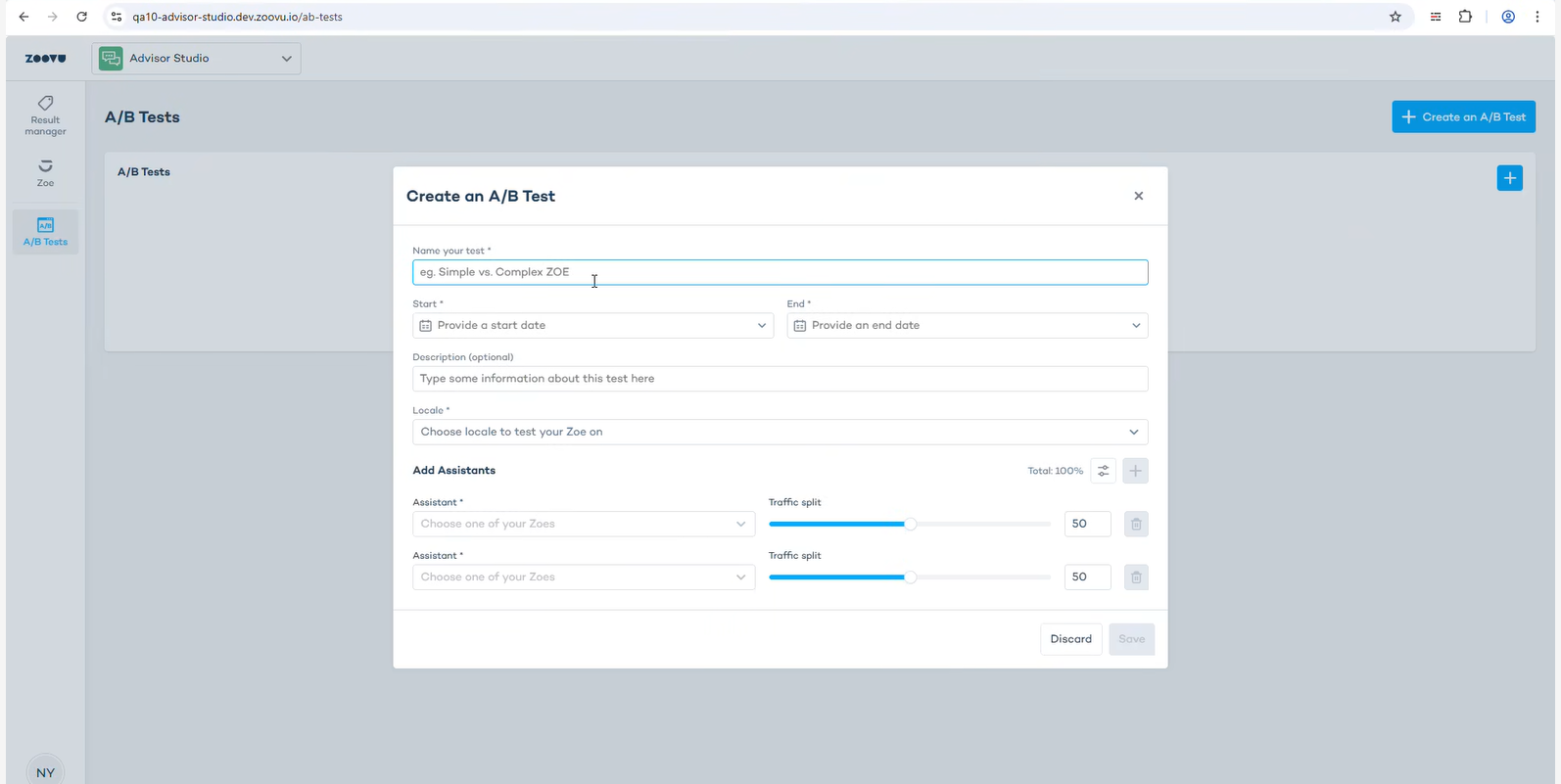
In the creation modal, fill in the following fields:
- Name - A unique name for the test.
- Start and end - Set the date range for the test. Both dates are required, and the start date must be in the future.
- Traffic split - The percentage of traffic assigned to each variant.
- Locale - Select the locale you want to run the test on. The test will only apply to Zoe on that locale.
- Add assistants - Select the published Zoe configurations you want to compare.
-
Click
Save.
Traffic split
- Each Zoe configuration has a Traffic split slider. Drag the slider to set what percentage of users will see that version. When you adjust one slider, the others update automatically to keep the total at 100%.
- For example, if you're testing a new Zoe configuration but want to limit its exposure, you might set it to 20% and leave the existing configuration at 80%. Once you're confident in the results, you can create a new test with a higher split.
View your A/B tests
- Go to Advisor Studio > A/B Tests. The page lists all existing tests.
Available actions based on the test's current status:
- Scheduled — edit or delete the test.
- Running — view only; editing and deletion are disabled.
- Finished — view only.
Edit a scheduled test
You can only edit a test while it has Scheduled status.
- Find the test in the list and click
Edit. - Update the configuration in the modal.
- Click
Save.
The same traffic split rules apply: values must sum to 100% and no variant can be set to 0%.
View a running or finished test
- Find the test in the list and click
View. - The test detail page shows:
- Test configuration (name, variants, traffic split).
- Current or final results.
- An
Open DIRlink to the associated Discovery Impact Report
Use the Discovery Impact Report to dig deeper into performance data and compare how each variant is performing.
Configure the integration panel
The integration panel controls how the A/B test snippet is delivered to your site.
| Save type | Behaviour |
|---|---|
| Frontend-saved | The snippet is applied per page. |
| Backend-saved | The snippet is applied globally. |
To publish the integration:
- Configure the settings in the integration panel.
- Click
Publish.
The snippet deploys according to the save type selected.