Set up Zoe variants
Variants let Zoe understand that several products belong to the same product family, such as the same shoe in different sizes or colors.
Once variants are set up correctly, Zoe can:
- describe a product family more naturally
- answer questions about available versions of a product
- surface options like color, size, finish, or capacity
Before you start
Variants depend on your product data. The main requirement is a group identifier shared by products that belong to the same family.
There are two variants implementations in Zoe:
- Legacy variants for Zoe Basic, where variant data is included inline in product information
- Dedicated Product Variants tool for Zoe Advanced, Immersive, and Configurator, where variants are retrieved separately on demand.
How variants work
At a high level, Zoe starts from one product SKU and uses the shared group identifier to find the rest of that product family. It can then use that family data to generate a family-level description and answer questions like:
- “Does this come in red?”
- “What sizes are available?”
- “Show me other versions of this product”
Step 1: Map a group identifier in Data Platform
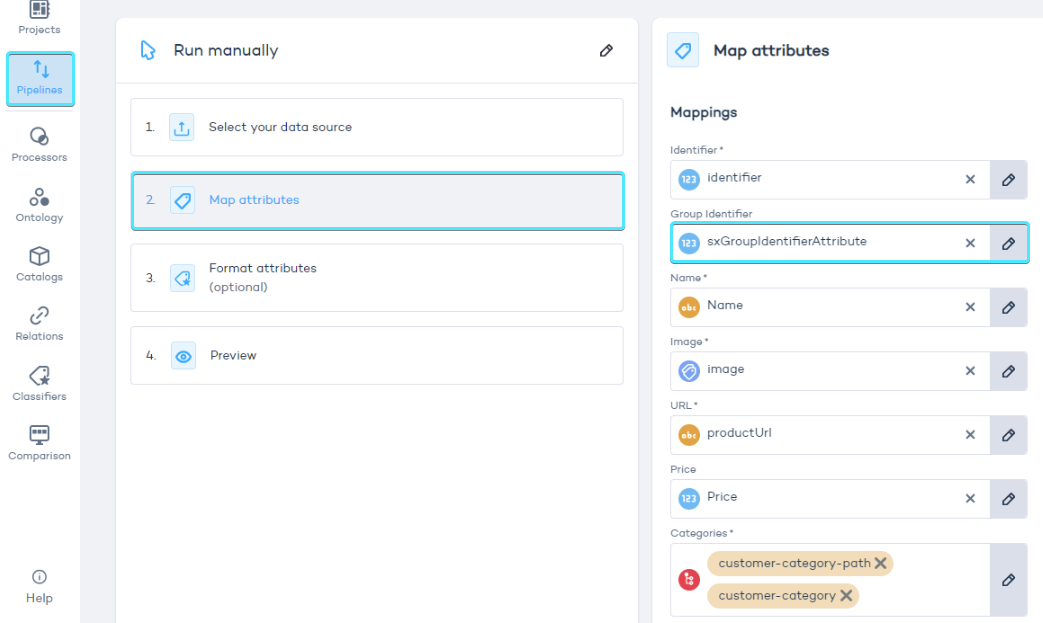
When importing products into Data Platform, map the field that represents the product family to Group Identifier.
In your screenshot, this happens in the Map attributes step of the pipeline. The group field is mapped to Group Identifier, which is what Zoe uses to understand that multiple SKUs belong to the same family.
What to check:
- every variant in the same family has the same group identifier
- products from different families have different group identifiers
- the field you map is stable and consistent across imports
If products do not share a clean, consistent group identifier, Zoe will treat them as separate products instead of variants.
Step 2: Confirm the variants exist in your catalog
After import, verify that Data Platform actually shows grouped products in the catalog.
In your screenshot, the product details panel includes a link like “Show 14 products with group ID …”. That is a good sign that the grouping is working and the catalog contains multiple products in the same family.
What to look for:
- the product belongs to a visible group
- the group contains the expected sibling products
- the grouped products are genuinely variants of the same item, not loosely related products
This check is worth doing before touching Zoe settings. If the grouping is wrong in Data Platform, Zoe will inherit that problem.
Step 3: Keep the product data lean
Variant handling can send a lot of attribute data to the model. If each product has many attributes, or each family contains many variants, prompts can become too large or too expensive.
A Zoe mask helps limit which attributes are included in the prompt. Masks are configured in Data Platform and are applied automatically by Zoe once set up. Learn more about masks.
Good practice
- include only the attributes Zoe actually needs
- remove noisy or redundant fields
- keep variant families reasonably sized
- review large product groups before enabling variants broadly
Masks are not only for edge cases. They are recommended even when prompt size is not yet a problem, because they keep responses faster and more focused.
Step 4: Enable variants in Zoe
Once your catalog supports variants, enable the Product Variants tool in Zoe. Go to Advisor Studio > Zoe > Editor > Capabilities > Tools. Learn more.
The Product Variants tool is disabled by default and requires variants to be configured in Data Platform first.
Step 5: Set an appropriate variant limit
The Variant limit controls how many variants Zoe can return for one product. The default value is 300.
In many catalogs, a lower limit is more practical. When to lower the limit:
- product families are large
- responses feel too broad
- cost or latency matters
- only a few variants are usually relevant to the shopper
Too many variants combined with too many attributes can create large LLM requests and increase cost. Use masks and set an appropriate variant limit for your catalog.