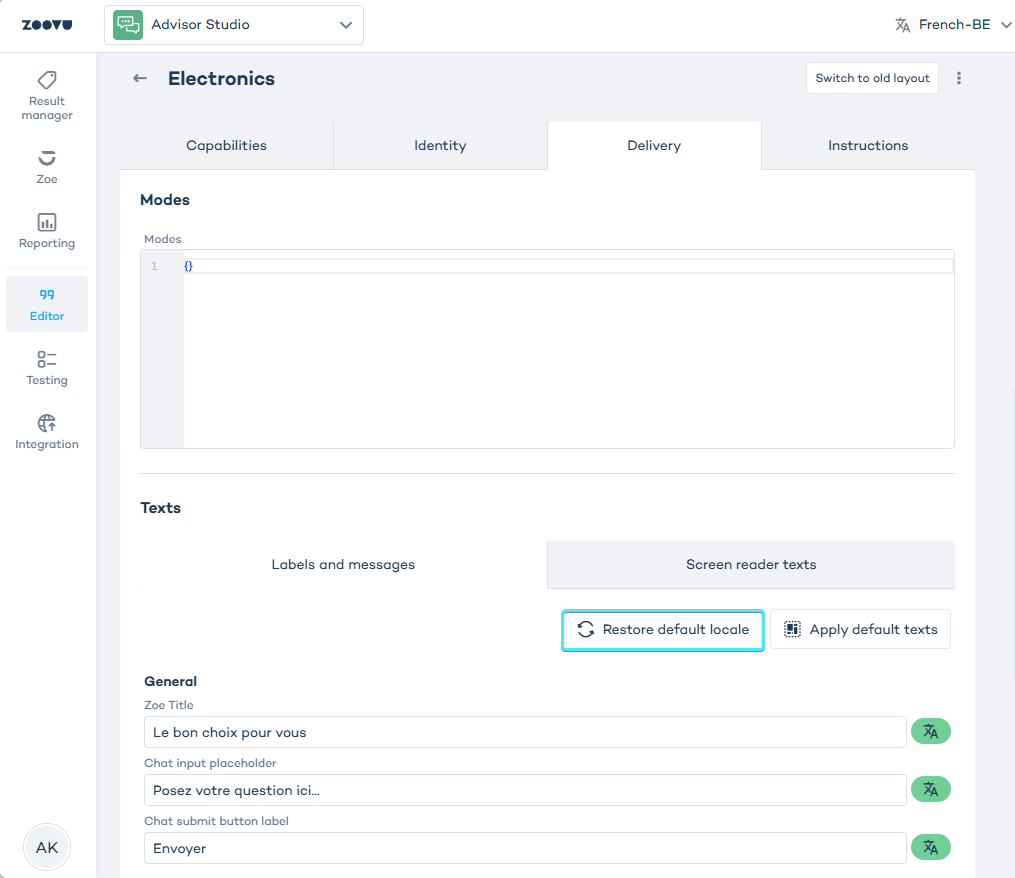
Localization
Every Zoe has a default locale that you set when you create it, for example en-US.
You can add more locales later and provide localized text for supported settings.
Zoe must be published before it can be localized. If your Zoe is still in draft state, click Publish first.
Add additional locales
To add more languages or regions to an existing Zoe:
- Open your Zoe in the editor.
- Click the locale selector at the top of the page.
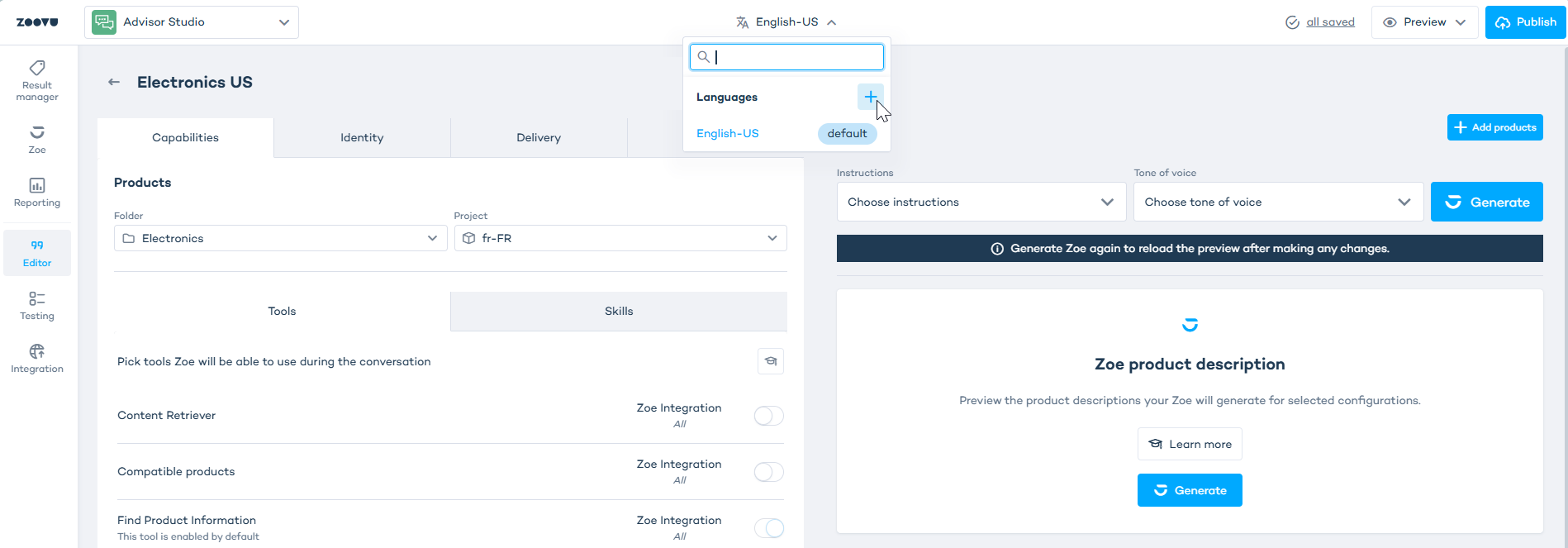
- Click the plus (+) icon.
- In the Language settings modal, select the additional language and country/region combinations you want to support.
- Click Save.
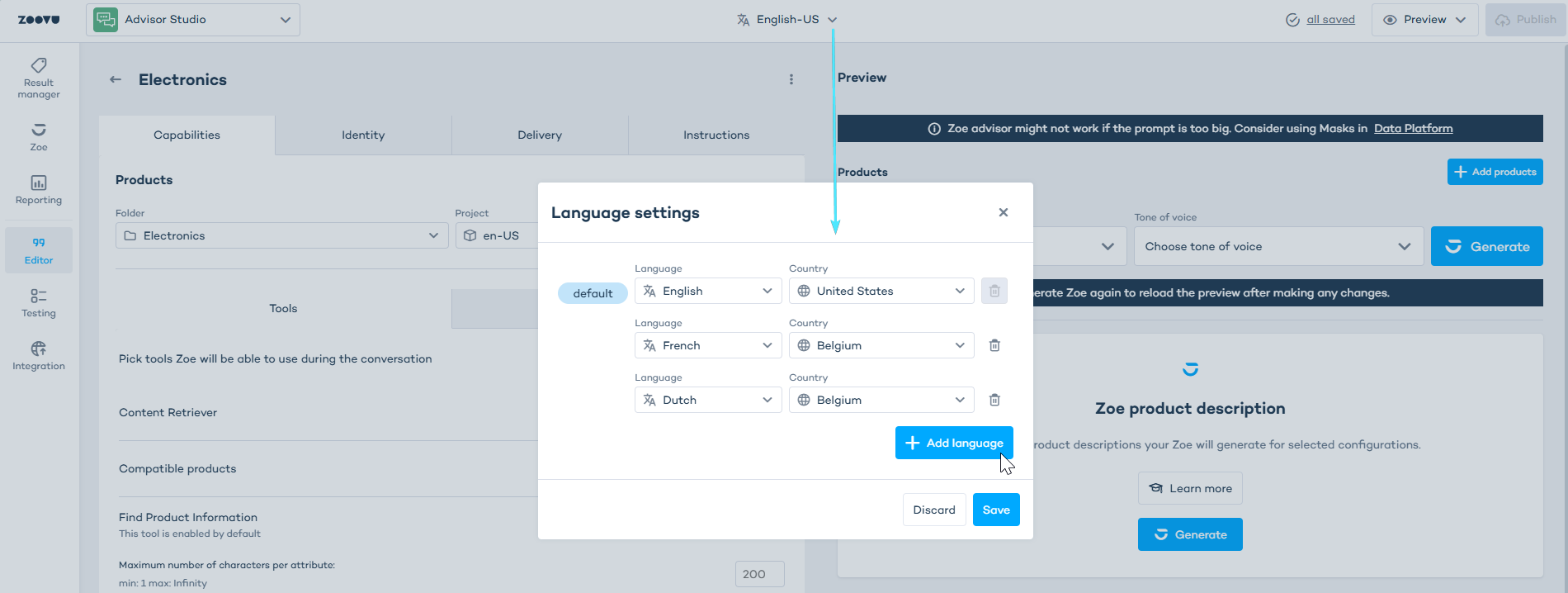
Your original locale remains the default locale.
Localize Zoe settings
After you add a locale, you can start entering localized text.
- In the Zoe editor, open the locale selector at the top of the page.
- Select the locale you want to edit, for example French (Belgium).
- In the Zoe settings, find text fields that show the language icon.
- Enter the translated text directly into those fields.
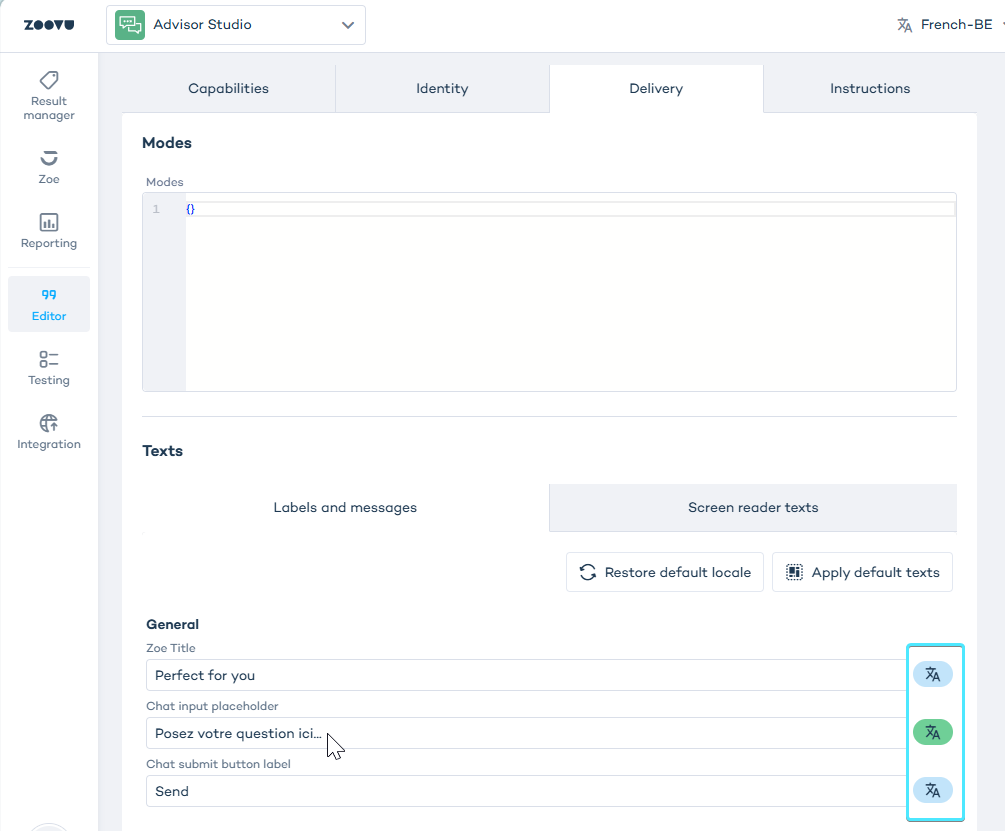
The language icon shows that the field supports localization. When a field has a localized value for the selected non-default locale, the language icon turns green. This indicates that the field is using localized text instead of the default locale value.
Restore the default locale values
While editing a non-default locale, you can remove all localized texts for that locale at once.
- Select a non-default locale from the locale selector, for example French (Belgium).
- Click Restore default locale.