Zoe on search-driven pages
Zoe can be integrated into two types of search-driven pages: alongside the search bar on search results pages, and on product listing pages (PLPs). In both cases, a small Zoe widget presents short contextual questions. *Users' answers automatically refine the results on the page, helping them reach relevant products.
To activate Zoe on search or PLPs, please contact your Zoovu representative or send a message to the Customer Success Team.
Before you start
Before enabling Zoe on search or PLPs, confirm that you have:
- Data Platform normalization and enrichment in place. AI experiences rely on structured, consistent product data.
- AI guided questions created in Data Platform.
- Attribute groups configured in Data Platform. The Search results attribute group is used in the frontend design. The Zoe attribute group is relevant for your Advisor Studio configuration.
- Search Studio access to:
- Configure filters and sorting options for your search or PLP experience.
- Configure the frontend design in the Search Designer.
- Advisor Studio access to configure your Zoe assistant.
- A Zoe app key from Advisor Studio added to your Search Designer configuration so the widget can load correctly. Alternatively, a project lookup (added by your implementation team) can be used instead of the app key.
Setup
Step 1: Prepare your Zoe assistant
- Open Advisor Studio and set up the assistant you want to show above search results.
Step 2: Create AI guided questions
- Go to Data Platform > Question bank.
- Configure questions and answers.
- Optional: Generate questions for a specific category of products in your catalog.
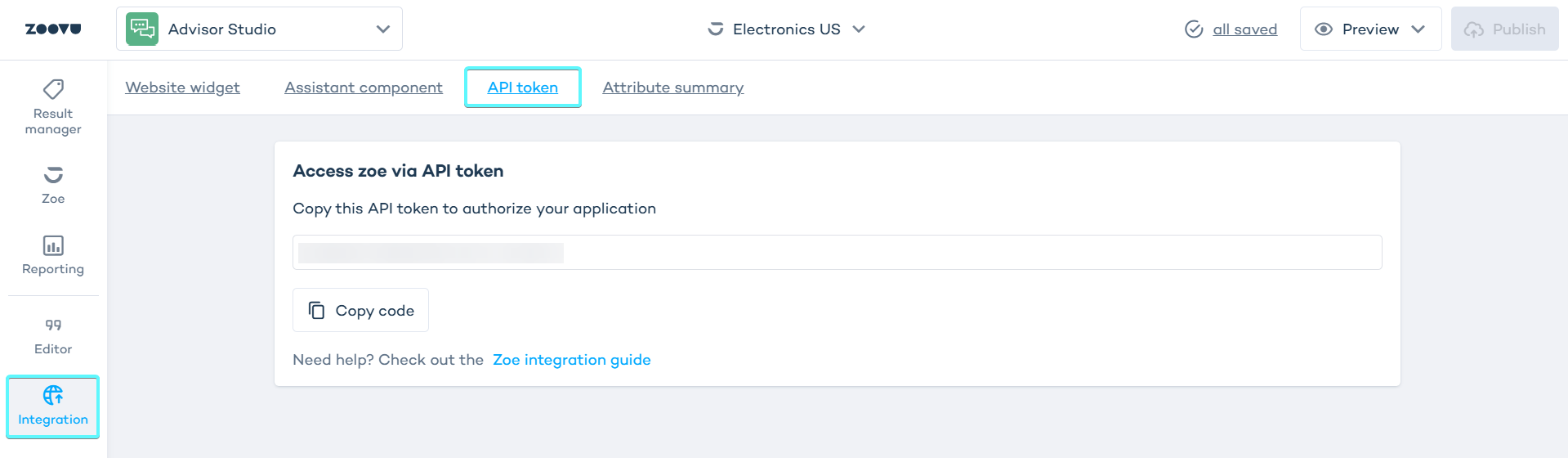
Step 3: Copy the Zoe API token in Advisor Studio
- Open your Zoe in Advisor Studio.
- Go to Integration > Api Token and copy the token.
Step 4: Enable inline Zoe in Search Studio
- Open your search project.
- Go to Search Studio > Design & Publish > Results.
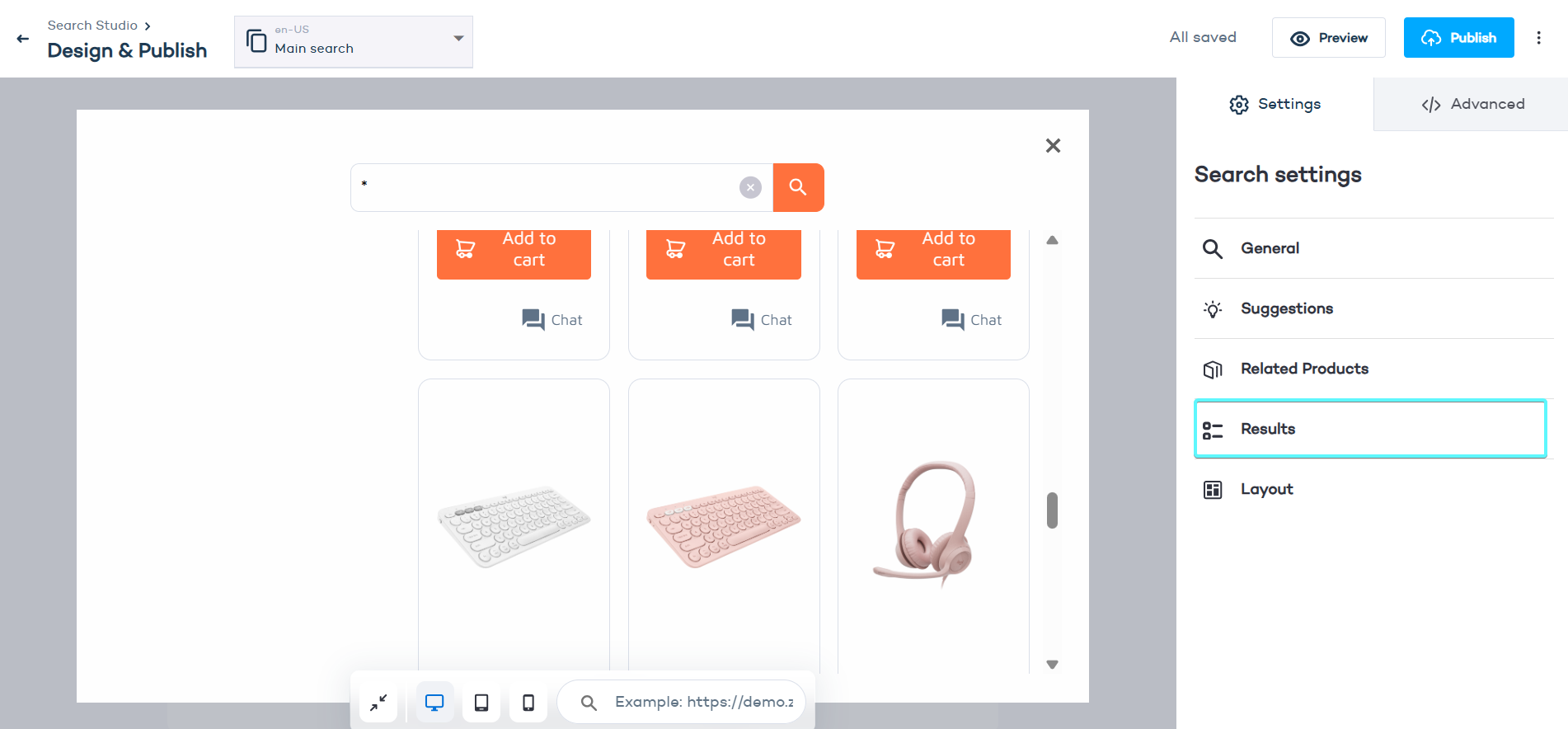
- Scroll down to Zoe options.
- Switch on the option that displays Zoe under the search bar.
- Paste your Zoe API token into the configuration field.
Step 5: Test the experience
- Use a few search terms.
- Check that:
- Zoe appears under the search bar
- selecting an answer updates the results
Zoe appears above the results while the rest of your search page stays as it is. Your filters, banners, and ranking rules continue to work normally.
Zoe on a PLP
The setup for PLPs follows the same steps as Zoe under the search bar. The key difference is that instead of being triggered by a search query, Zoe is embedded on a category or listing page.
Configure the PLP in Search Designer
- Open Search Studio > Design & Publish > Search Designer.
- Configure your filters, sorting options, and frontend design for the PLP.
- Add the Zoe app key to the configuration so the widget can load.
If your implementation uses a project lookup instead of an app key, your implementation team will have configured this. You do not need to paste the token manually.