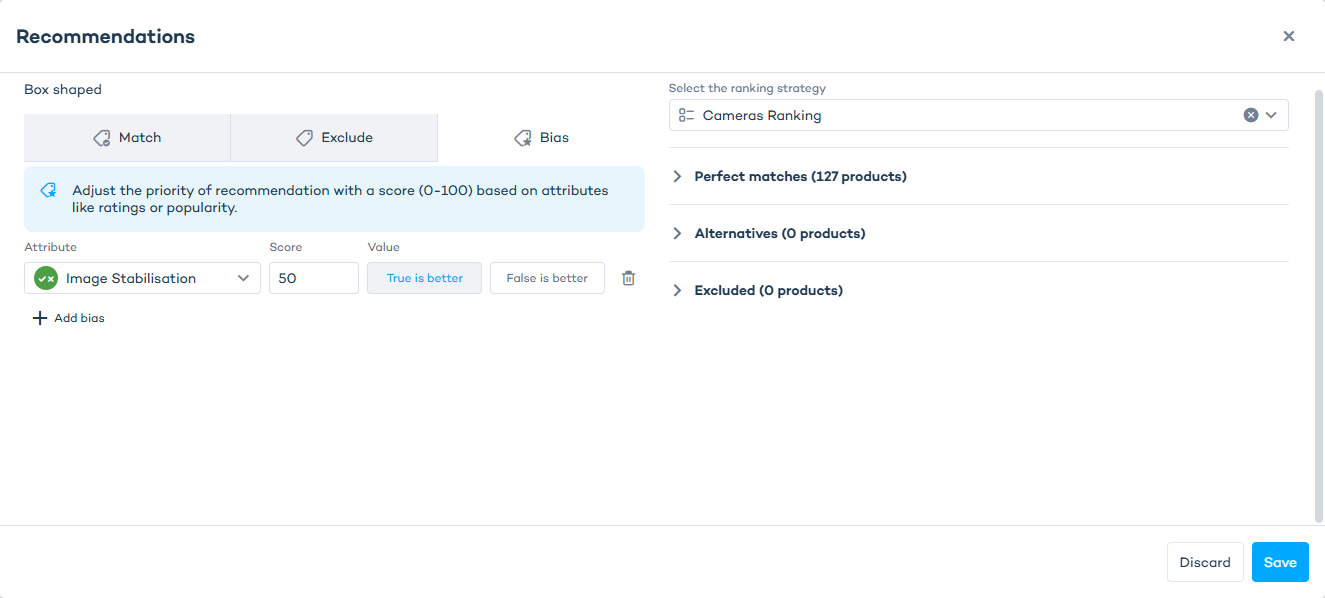
Bias
Bias lets you influence which products get shown first for a given answer, based on product attribute values. You define one or more bias rules, and each rule boosts products that match an attribute criterion by a score from 0 to 100.
Setup
Step 1: Add recommendation logic to an answer
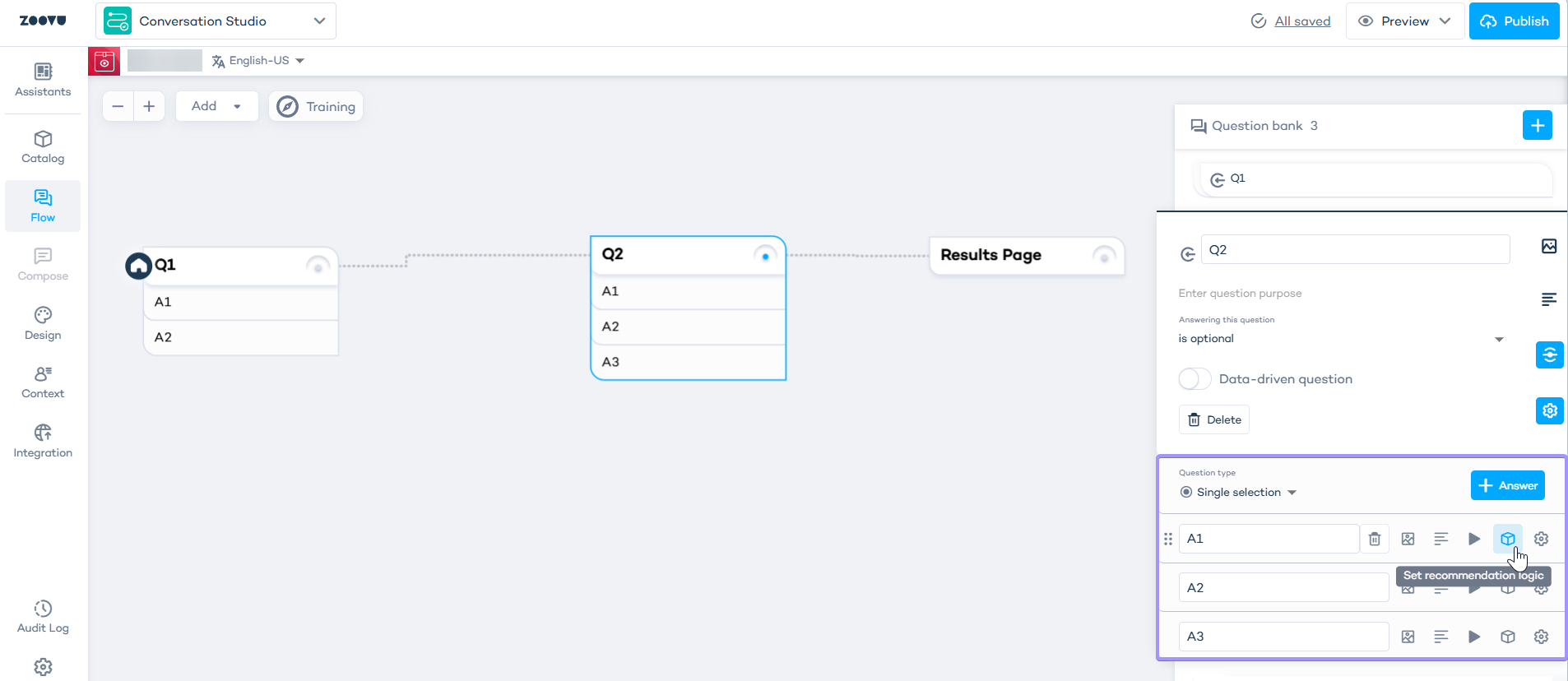
- Edit your assistant (must be created as "Discovery Assistant") and go to the Flow tab.
- Go to Question Settings > Answer > select the cube icon to access
Recommendation logic.
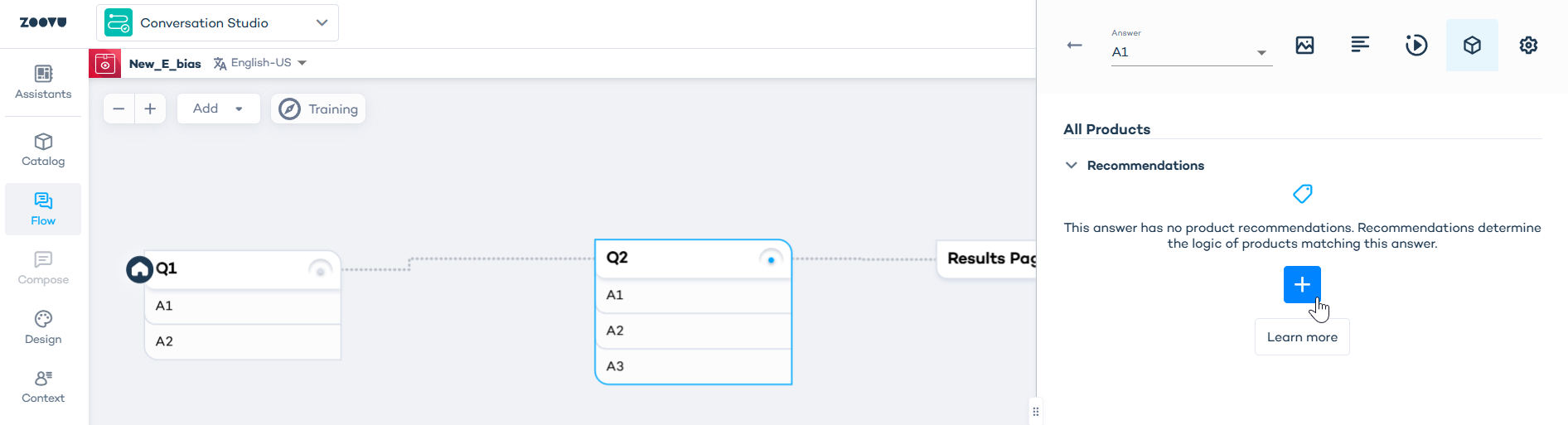
- Add recommendation.
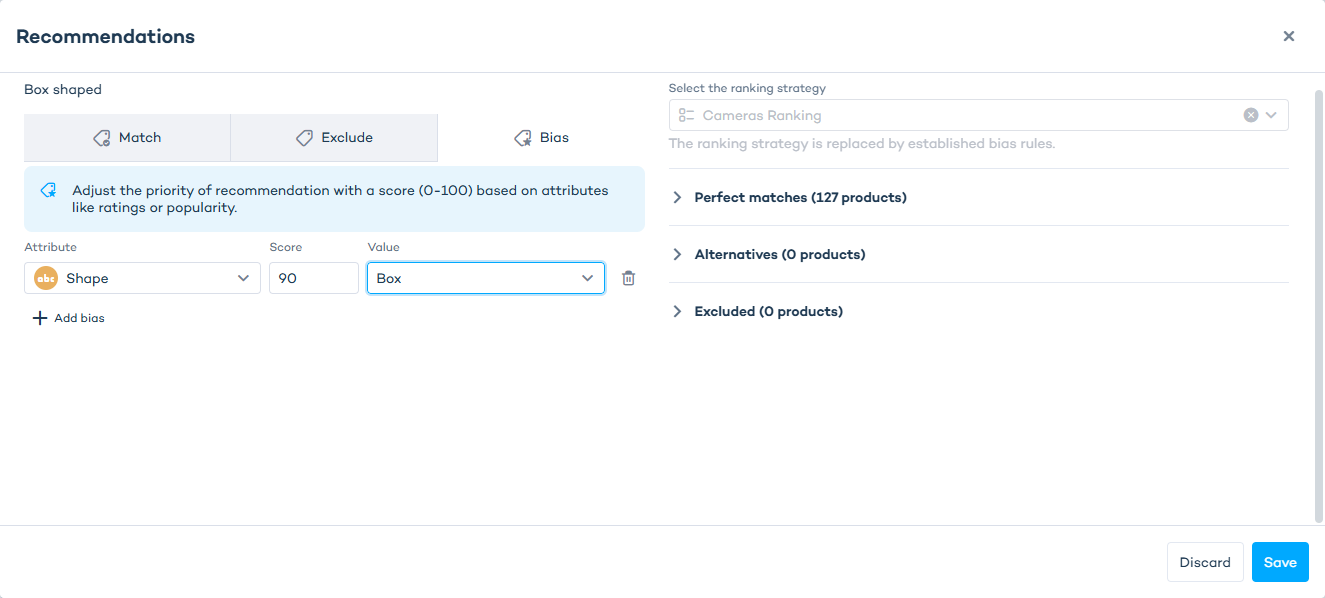
Bias and ranking strategy can't be used together on the same recommendation. Once you add a valid bias rule, the "Select the ranking strategy" field is disabled and your bias rules take over. Removing all bias rules re-enables the ranking strategy selector, and your previous ranking strategy selection is preserved, not deleted.
Step 3: Add a rule
- Click
Add bias rule. - Choose an attribute.
- Set a score from 0–100.
- Set the value or direction, depending on the attribute type (see below for more information).
Step 4: Add more rules (Optional)
Click + Add bias to add another rule. You can mix text, numeric, and boolean attributes in the same rule set.
Step 5: Preview the result
Check the products preview in the right-hand column of the Recommendations window (it reorders live as you edit rules).
Adding a rule
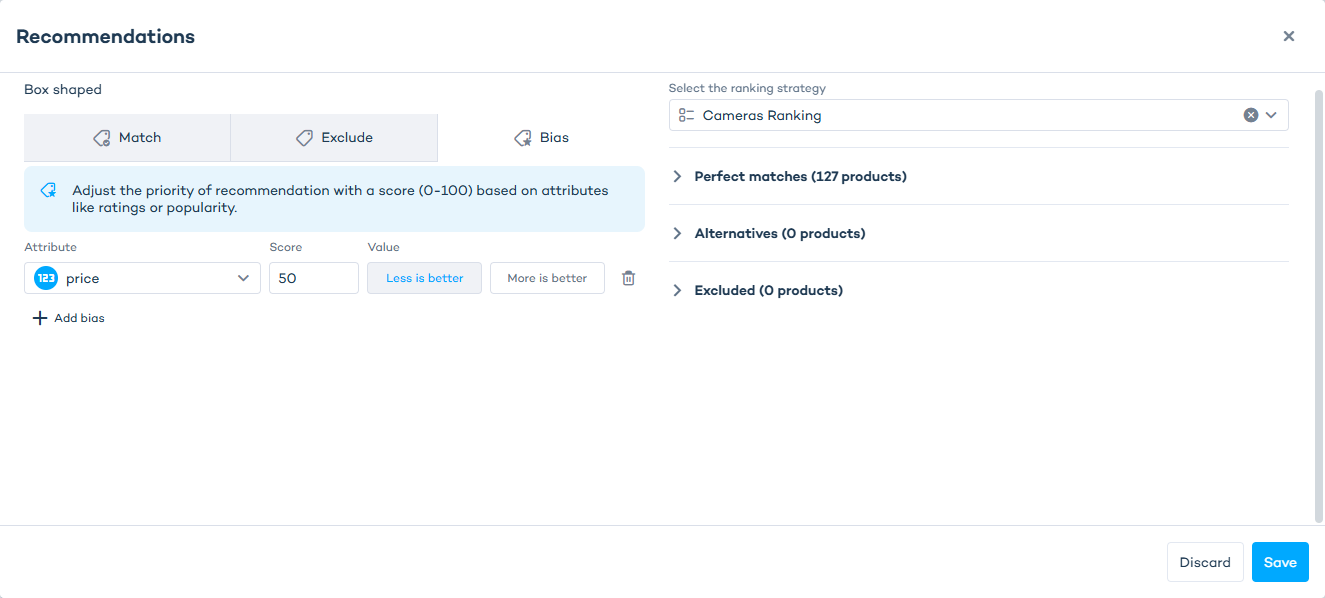
Click Add bias rule (or + Add bias for additional rules) to add a rule row. Each row has three fields: Attribute, Score, and Value.
- Attribute - the product attribute the rule applies to. A type badge next to each attribute name (text, numeric, or boolean) tells you how the Value field will behave.
- Score - an integer from 0 to 100 that sets how much weight this rule carries relative to your other rules. When you have multiple rules, scores are normalized.
- Value - what counts as a match, described below.
Setting the value, by attribute type
Text attributes
Search and select one or more of the attribute's values from a multi-select list. Each option shows how many products carry that value. The rule boosts any product that has at least one of the selected values.
You can't select the same value twice across different rules for the same attribute.
Numeric attributes
Choose a direction instead of a value: Less is better or More is better. Less is better is selected by default.
- Less is better - boosts products with lower values (for example, price).
- More is better - boosts products with higher values (for example, battery life).
Boolean attributes
Choose a direction: True is better or False is better. True is better is selected by default.
- True is better - boosts products where the attribute is true.
- False is better - boosts products where the attribute is false.
If you change a rule's attribute to a different type, the Value field automatically switches to match: multi-select for text, direction toggle for numeric or boolean.