Create a unified assistant
An assistant is Zoovu’s unified experience for guided discovery. It allows you to combine guided questions, configurators, bundles, and search into a single flow, all created and managed in Conversation Studio. All parts of the experience are connected to Data Platform catalogs and Search Studio configuration, so product data, filters, and ranking stay consistent across the entire flow.
Older assistants were created as separate experience types (for example, standalone configurators or bundle assistants). All new assistants use this structure, while older setups are currently being migrated.
Before you start
Before creating a new assistant in Conversation Studio, make sure your product data and search setup are ready.
-
Prepare product data in data platform. Clean and structure your catalogs, attributes, and values.
-
Set up filters and search in search studio. Do this if your assistant needs filters or search results on the results page.
Create your assistant
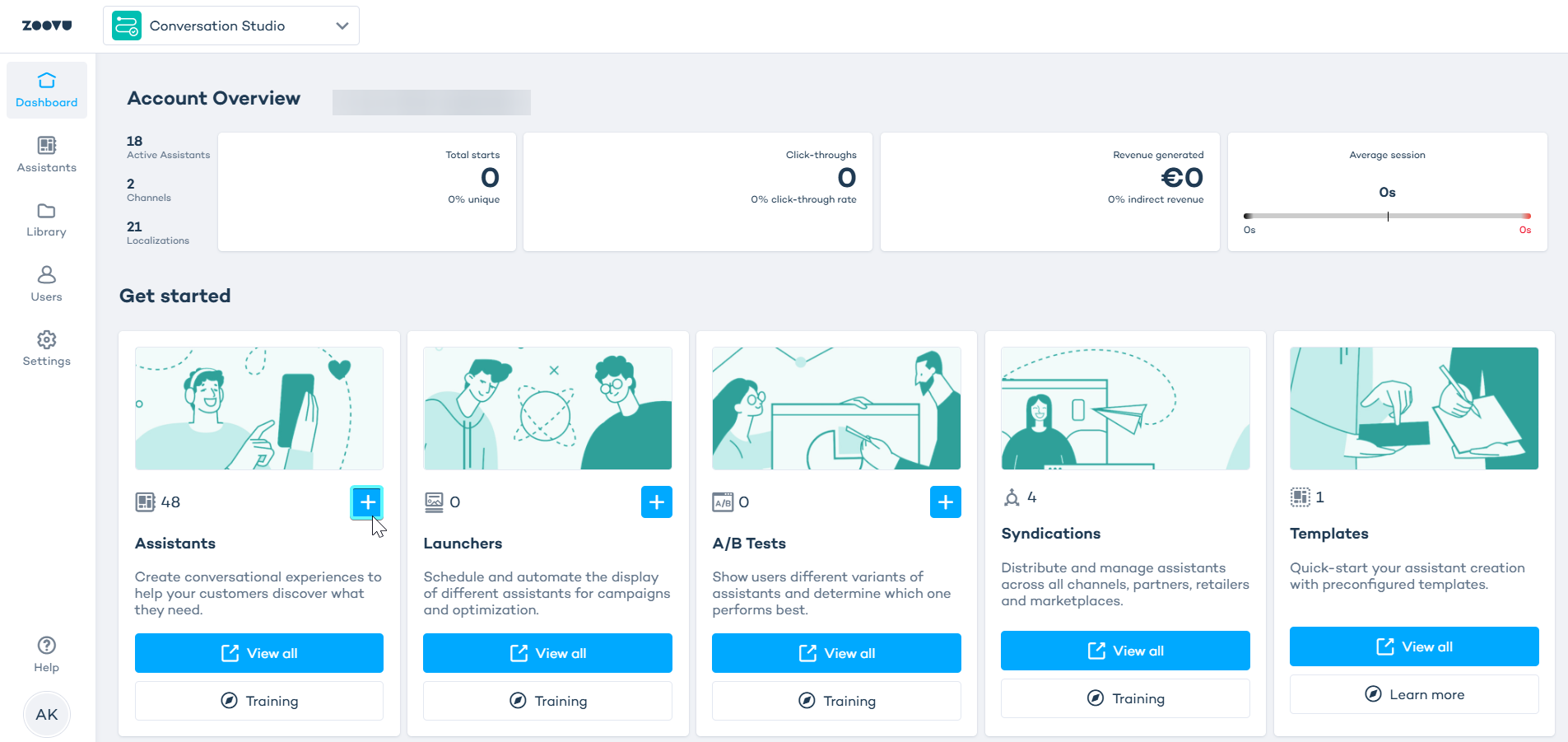
In Conversation Studio's dashboard, click the plus icon to create a new experience.
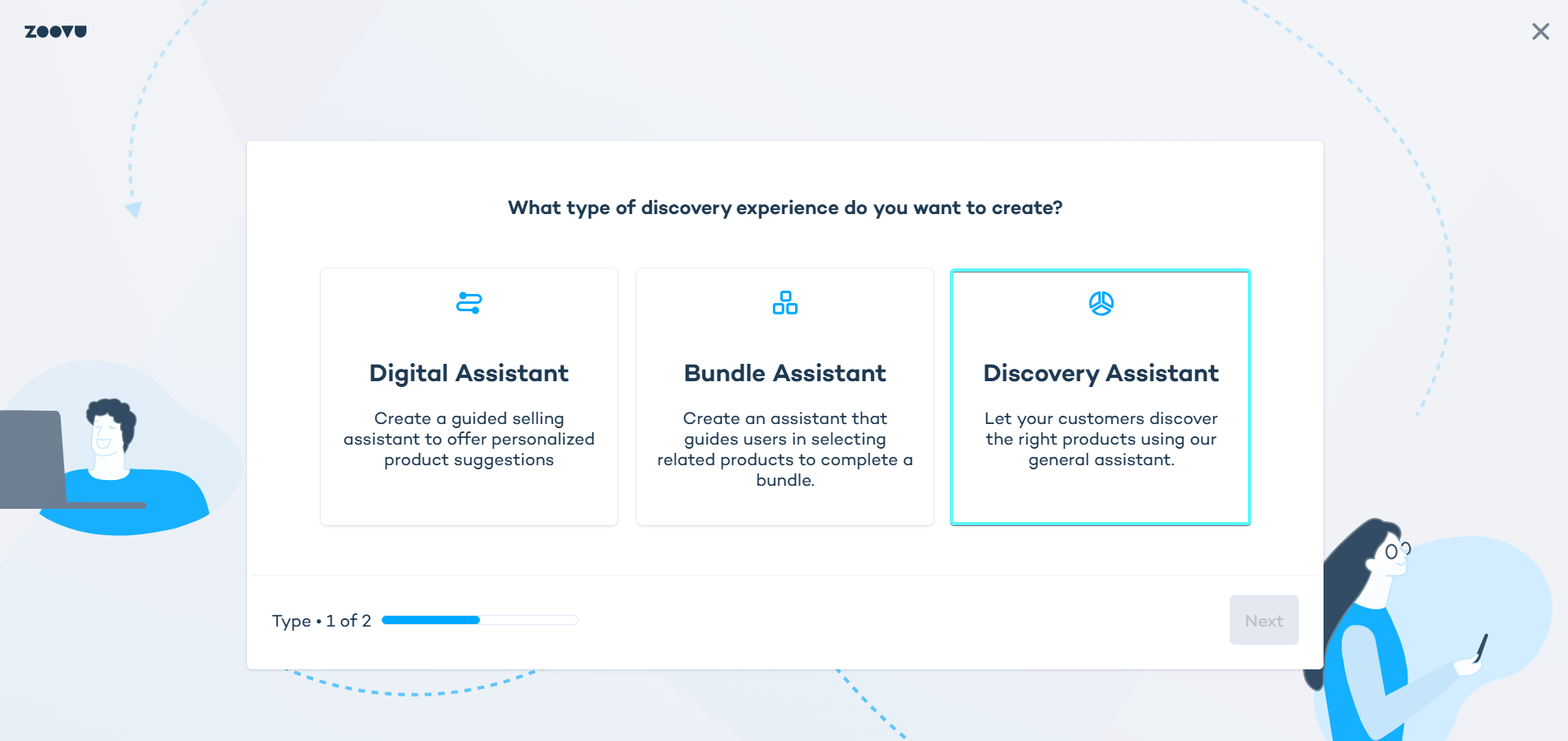
Select one of the following assistant types:
- Digital Assistant – for guided selling based on questions and product suggestions.
- Bundle Assistant – for recommending groups of related products.
- Discovery Assistant – for flexible combinations of guided selling, bundles, and search.
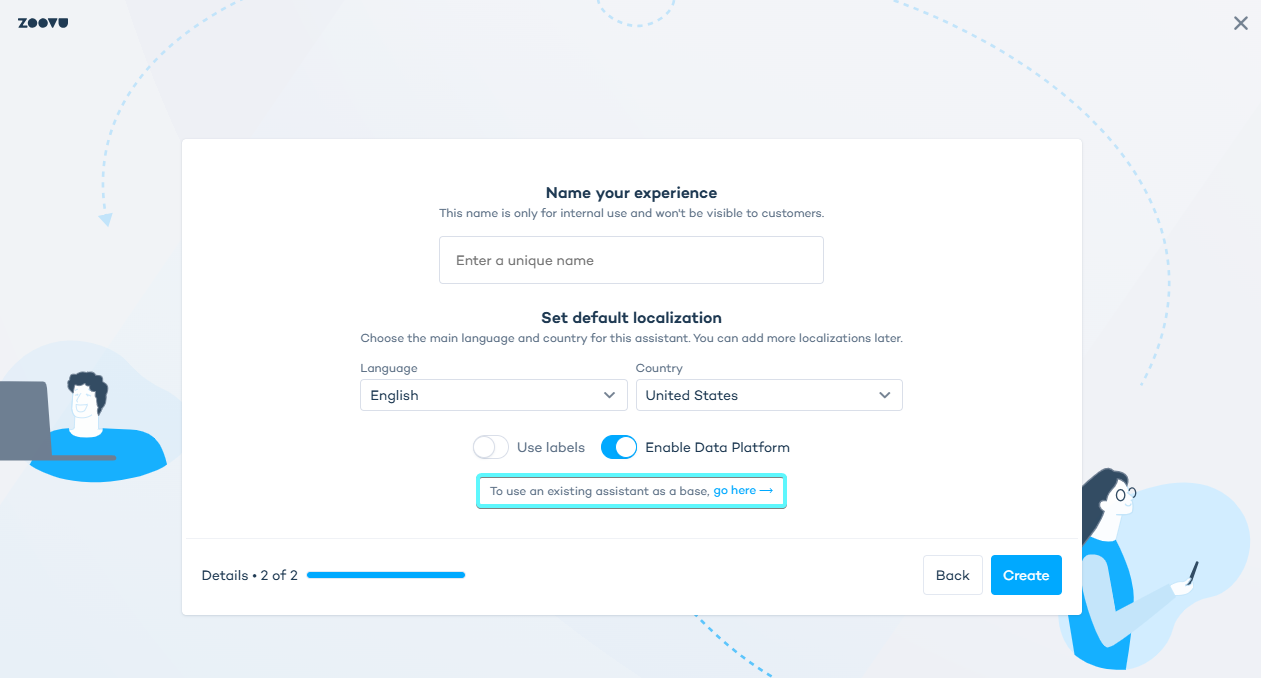
Then, name your assistant and set the default language and country.
You can reuse an existing assistant as a starting point. All questions, answers and product data will be duplicated into your new experience.
Connect catalogs
In the Catalog tab:
- link the relevant Project Folder and Project
- select one or more catalogs to use in the assistant
General Assistants can use multiple catalogs. You can show different products based on different answers and set routing logic between questions and results.
Build the question flow
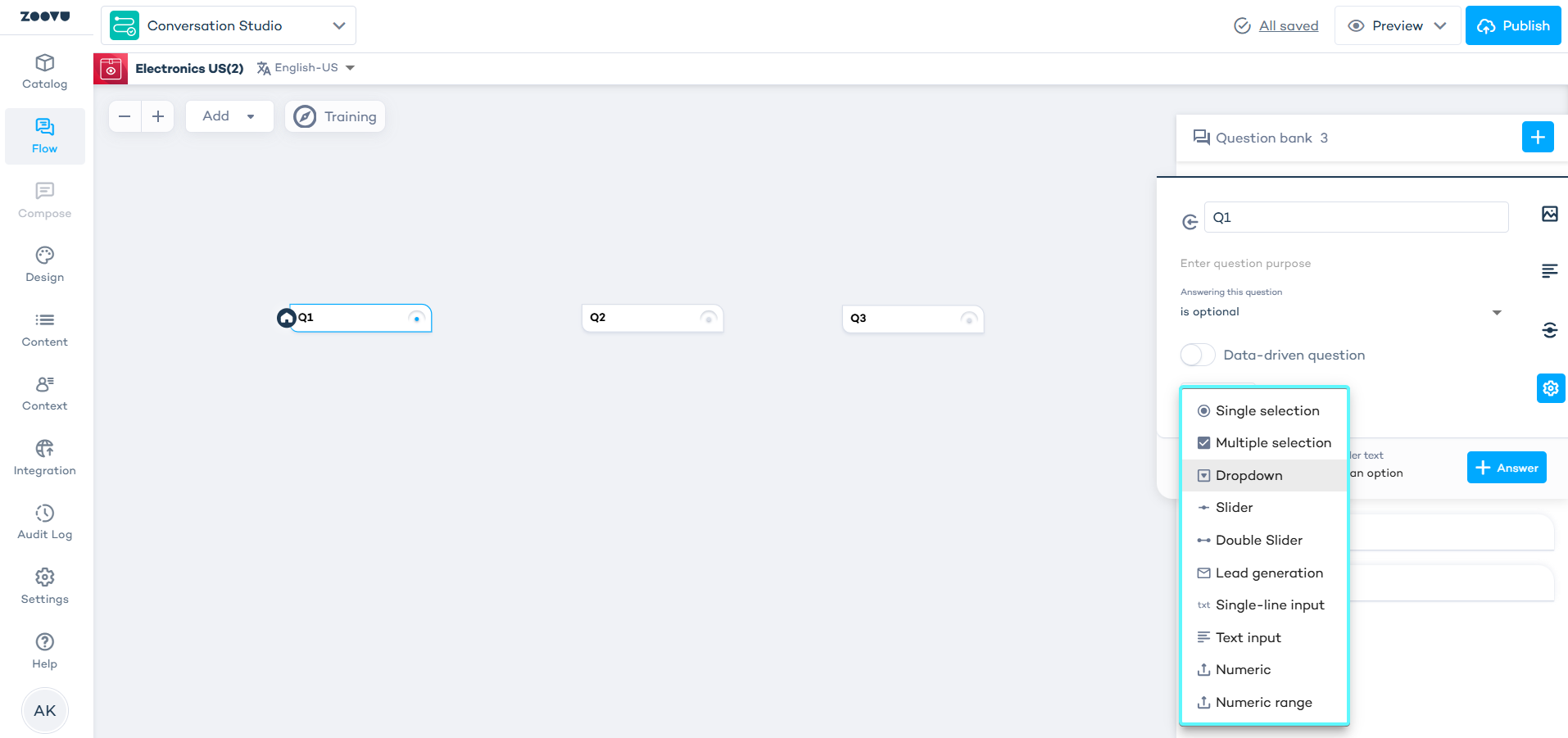
- Open the Flow tab.
- Add any question types you need.
- Set up recommendation logic for each question.
- Add a Results Page.
General Assistants support all question types, grouped questions, and data-driven questions (DDQs).
Set up progressive filters
Progressive filters let you hide or show answers based on the products available in selected catalogs. Filtering helps guide users to relevant choices as they answer questions.
- Select your asststant in Conversation Studio.
- Navigate to Settings > Filter the conversation flow.
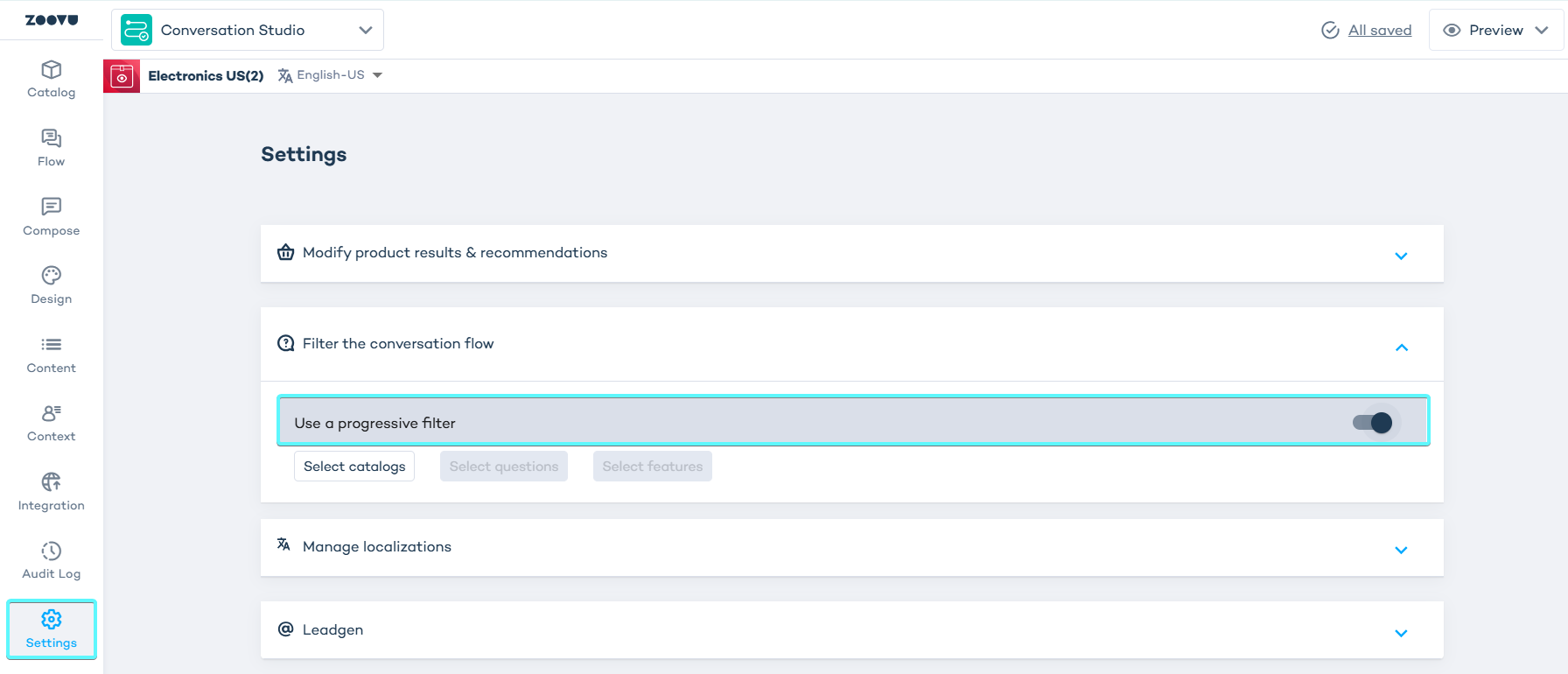
- Click "Select catalogs".
- Choose one or more catalogs linked to the assistant.
To use progressive filters, the assistant needs at least one linked catalog in Conversation Studio > Catalog.
- Click
Select questionsand choose which ones should use progressive filtering.
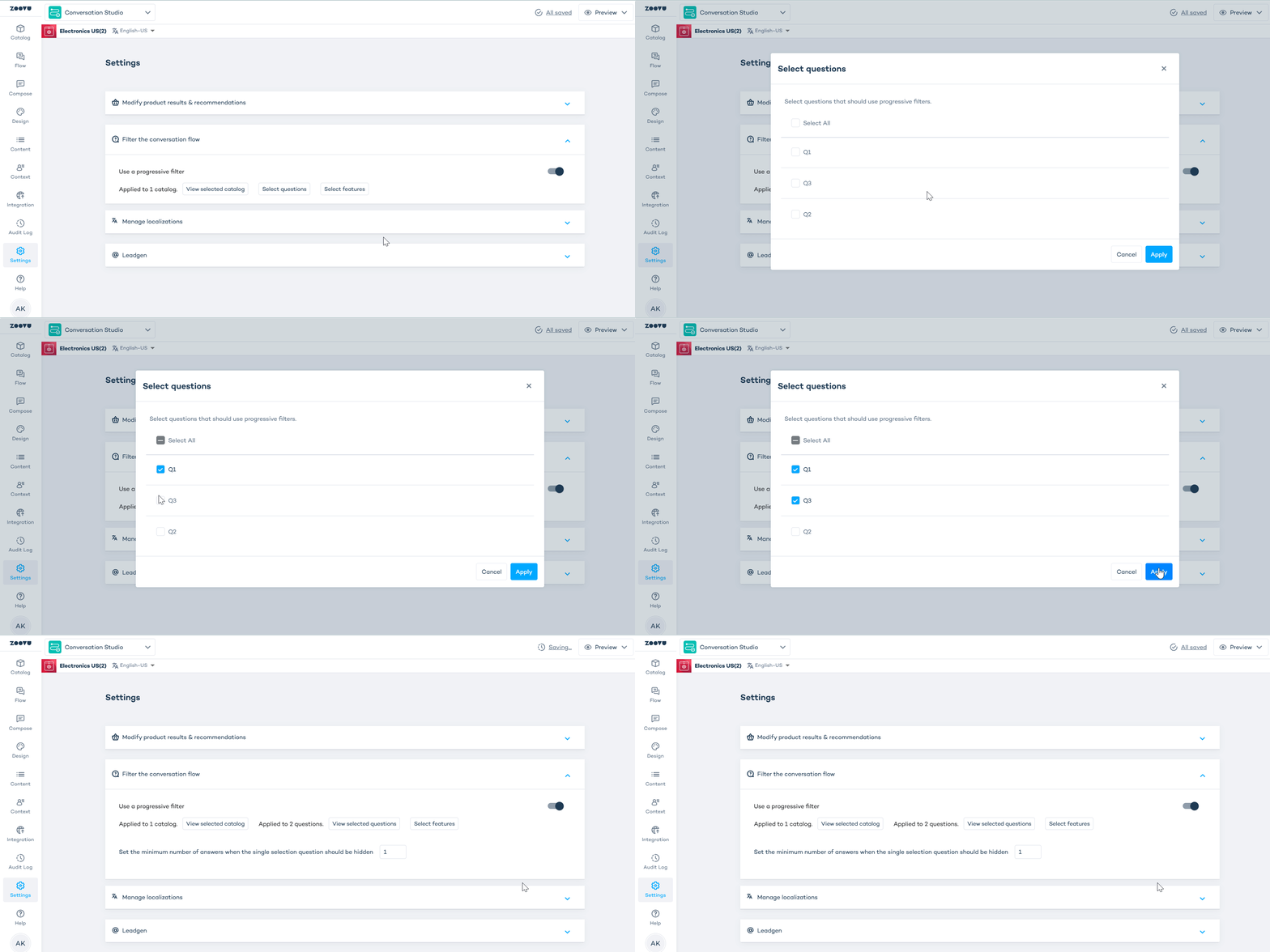
- To stop filtering certain questions, uncheck them in Select questions.
- To change or remove catalogs, go to Select catalogs and adjust your selection. (To remove all catalogs from the filtering settings, unselect all questions first.)
Progressive filters use the catalogs selected in their own settings, not the ones set on the Results page
- Once both a catalog and at least one question are selected, progressive filters are active.
The Features option works only if a Configurator Panel is added in Conversation Studio > Flow. Learn more.
Configure Results Pages
In the Flow tab, add a Results Page to the canvas.
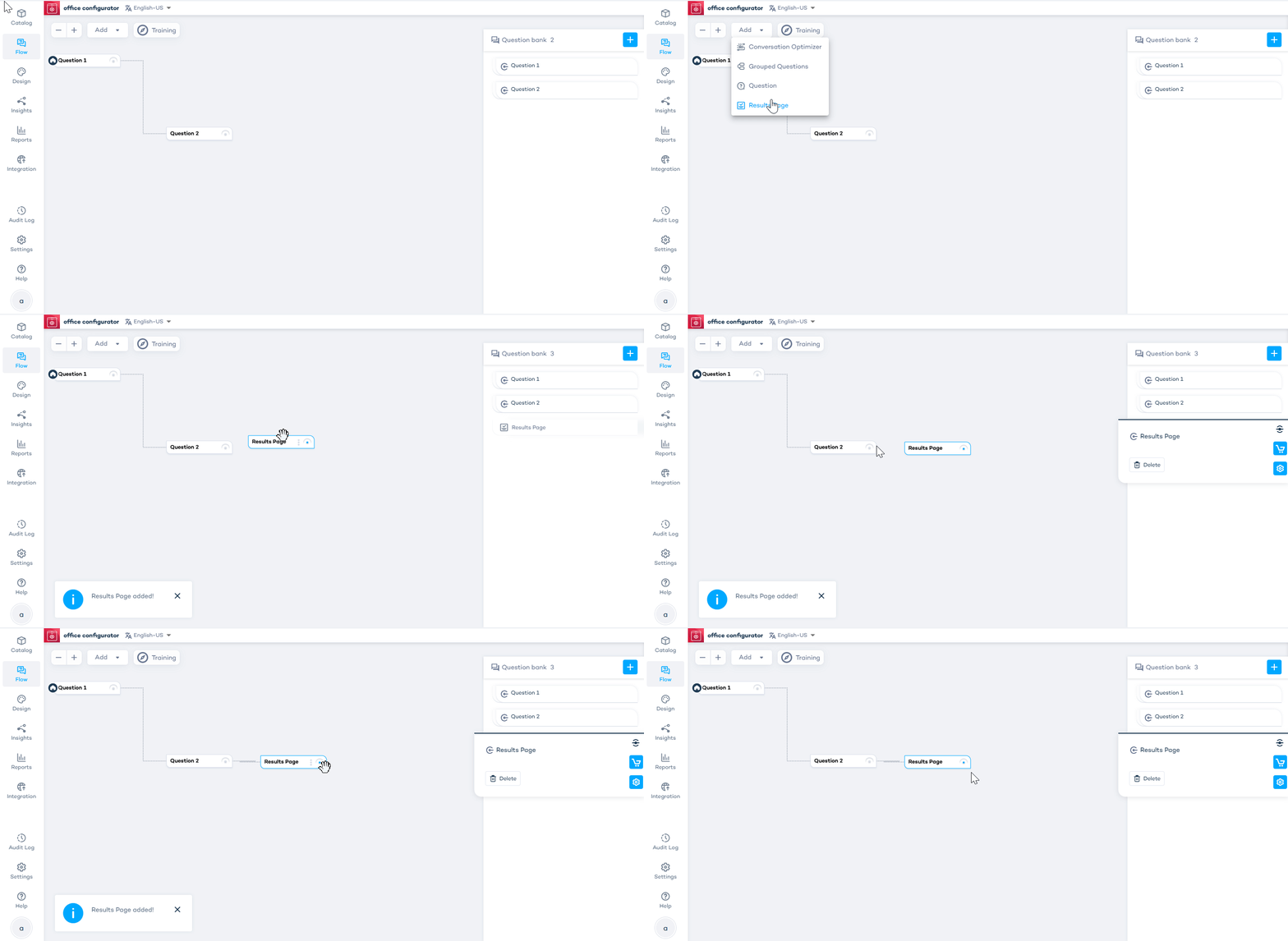
Use Results Pages to define what appears at the end of the assistant flow:
- Top product and recommendations – based on flow answers and catalog
- Bundle recommendations – matched using catalog relationships
- Advanced recommendations – full search results configured in Search Studio
Apply visual styling
- Open the Design tab in Conversation Studio.
- Click “Open Experience Designer”.
Your assistant opens with the default Theme 6 (General) and the Configurator panel on the canvas. You can also switch to another theme.
Inside Experience Designer, you can:
- adjust layout and visuals,
- add or remove components like advanced search,
- preview the assistant look and feel.
You can style the following components on the Results Page:
- Top Product
- Recommendations
- Bundle
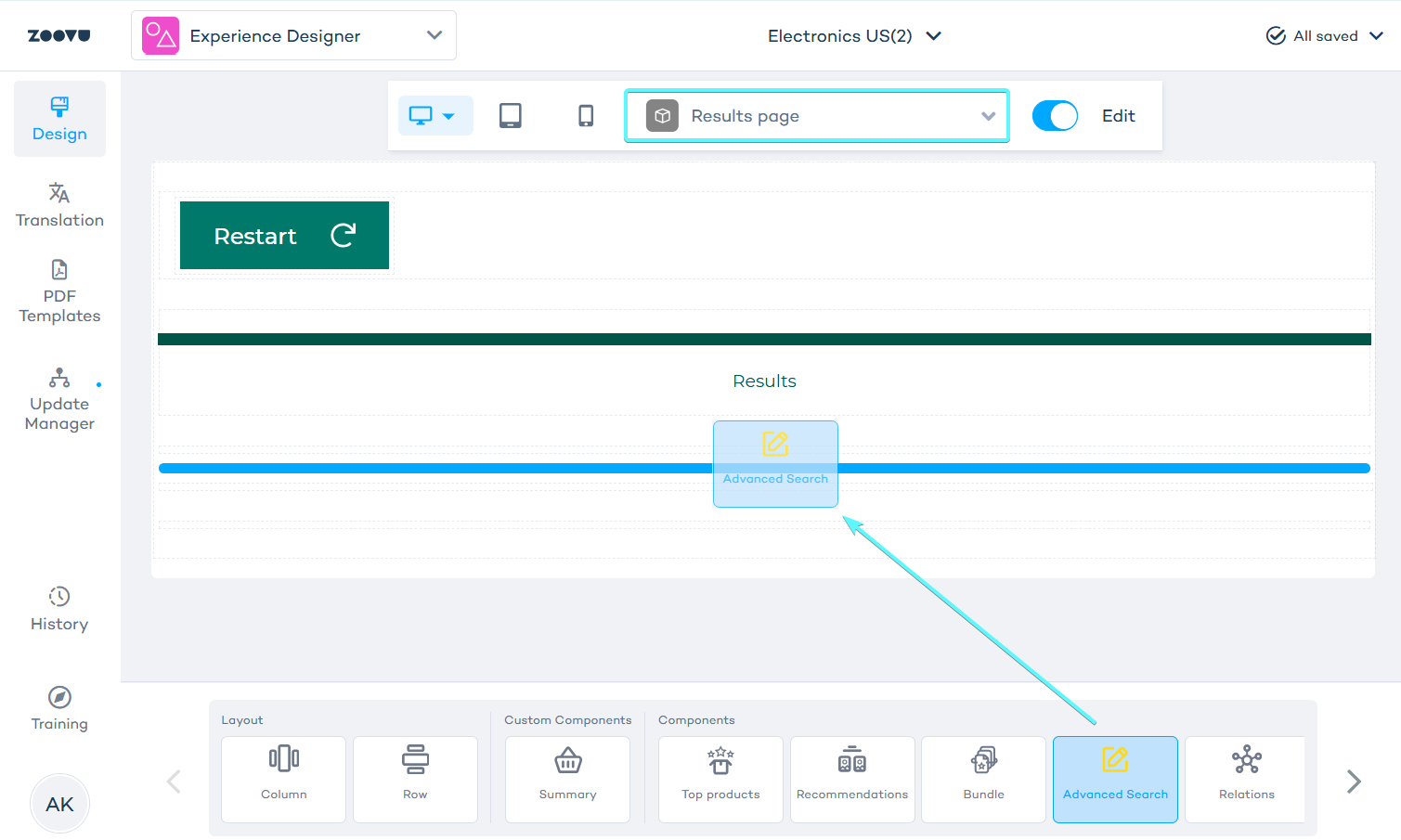
If your assistant includes search results, drag the Advanced Search component into the canvas in Experience Designer. This will connect your Search Studio configuration with the assistant.
What's coming next
The following features are planned or in progress. Stay tuned for updates!
- Enhanced ranking strategies for results pages and configurator sections
- Progressive filtering for Configurators
- Advanced configurator features