Results pages
Assistants support multiple results types - top product, product list, bundles, or advanced search - so you can pick what fits your use case best.
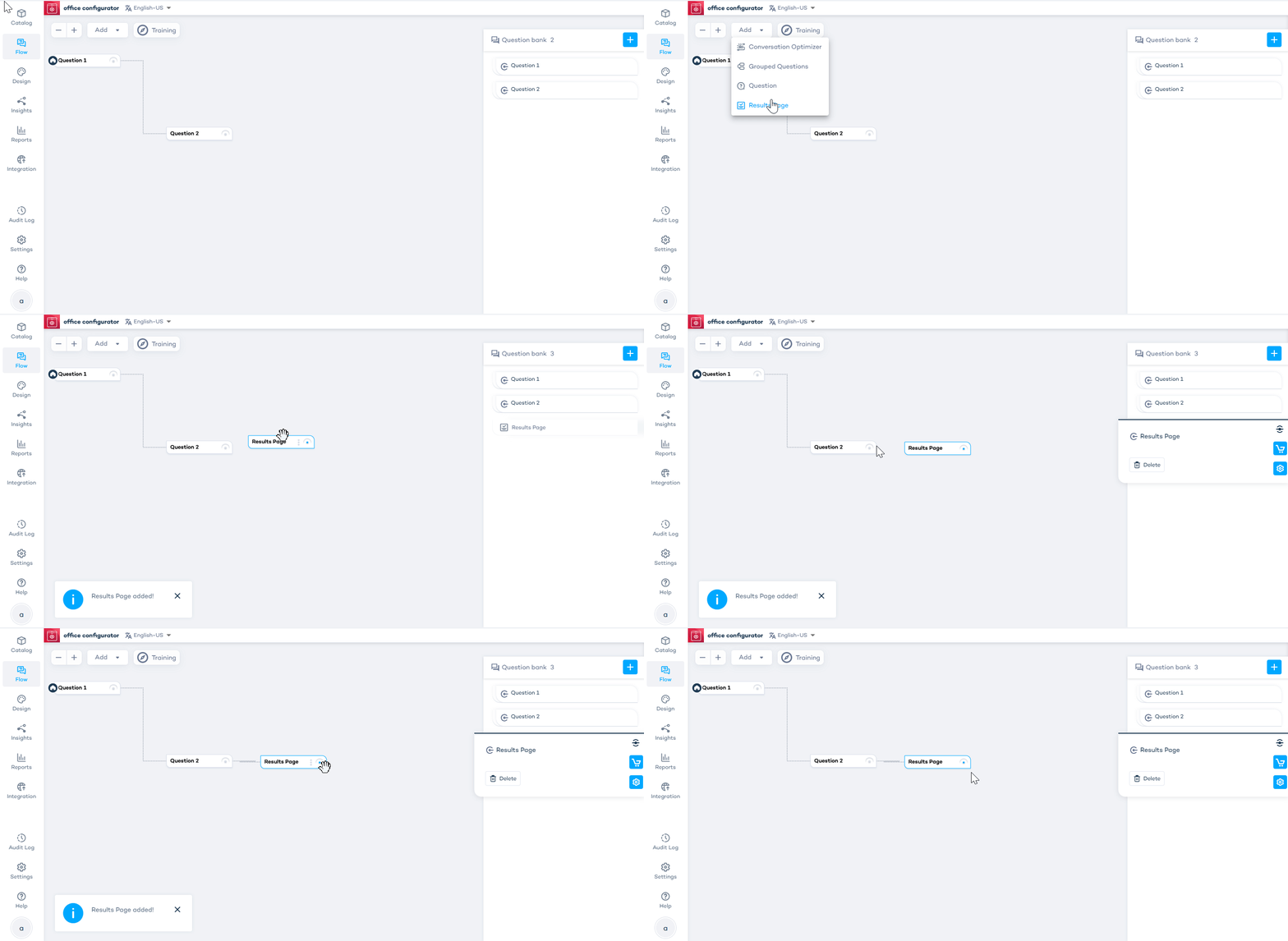
Add a results page
In the Flow tab, insert a results page after your questions or configurator.
Edit a results page
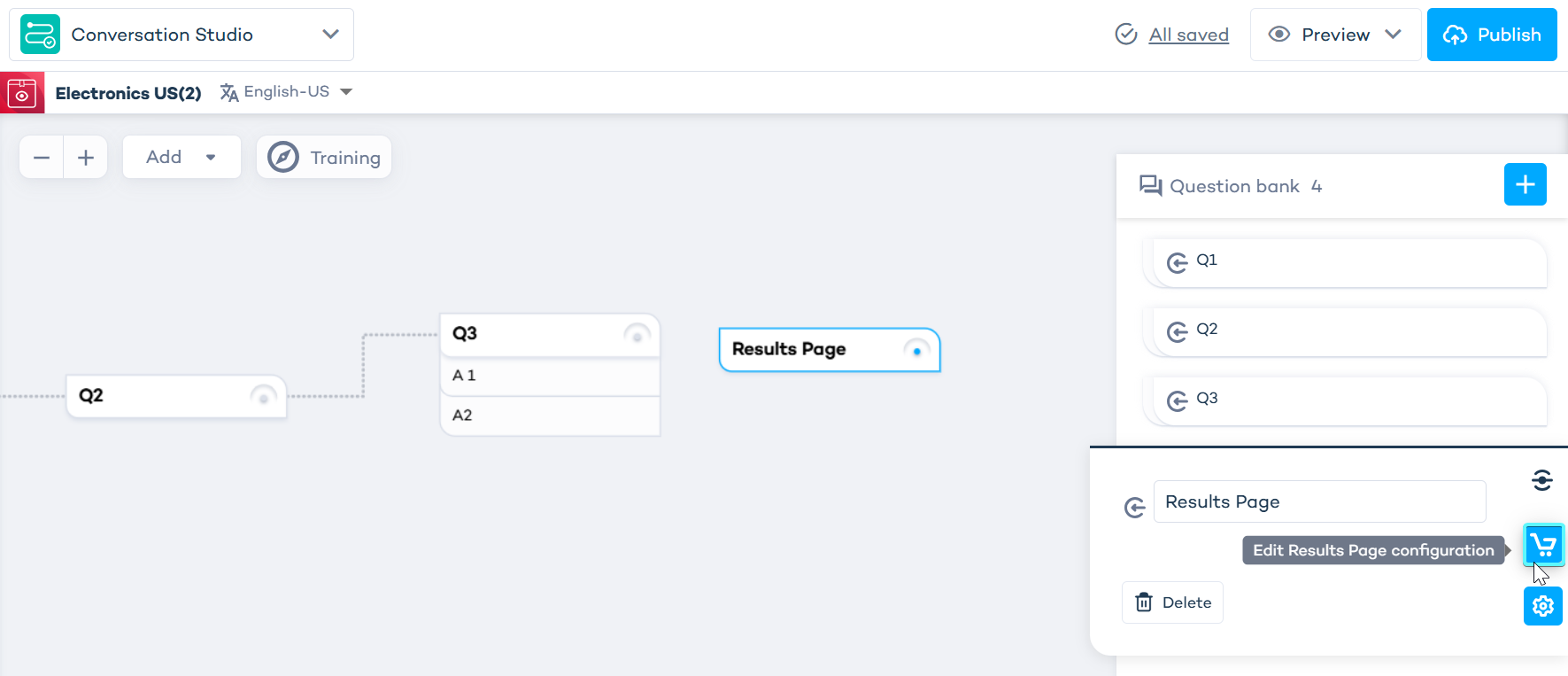
To customize a results page:
- click on the results page node on the canvas in the Flow tab.
- click the shopping cart icon to open the results page configuration panel.
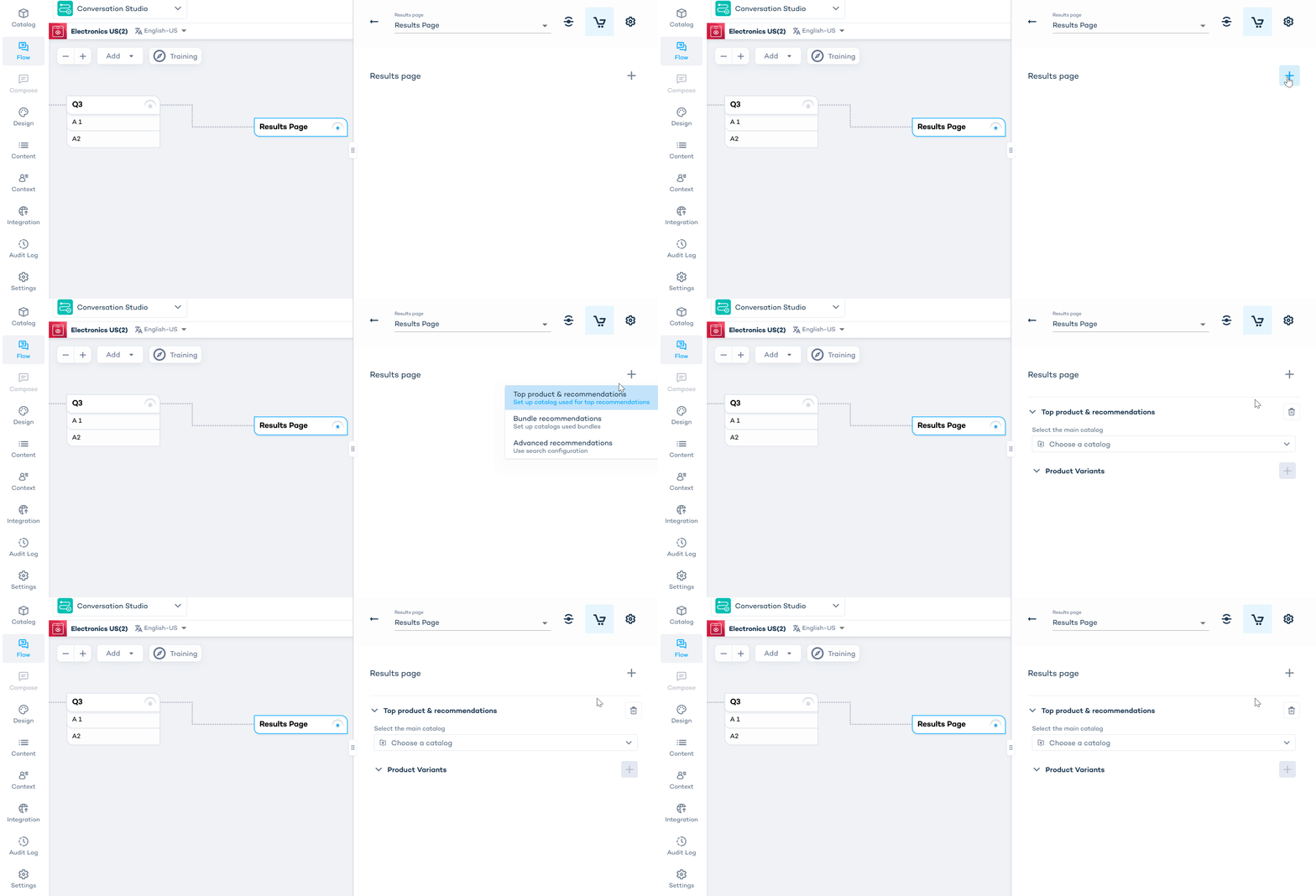
- In the configuration panel, click the plus (+) icon to add components to your page:
- Top Products
- Bundles
- or Search results (if Search is activated in Search Studio)
Configure the results page
Go to the results page and click “Edit results page configuration.” Choose the components you want to include:
Top product & recommendations
- Select a catalog to use as the data source.
This catalog is also used for the Search Filters component.
Bundle recommendations
- Select multiple catalogs: one as the highlighted (main) catalog and others as regular ones.
- Use the relations section to configure connections between catalogs.
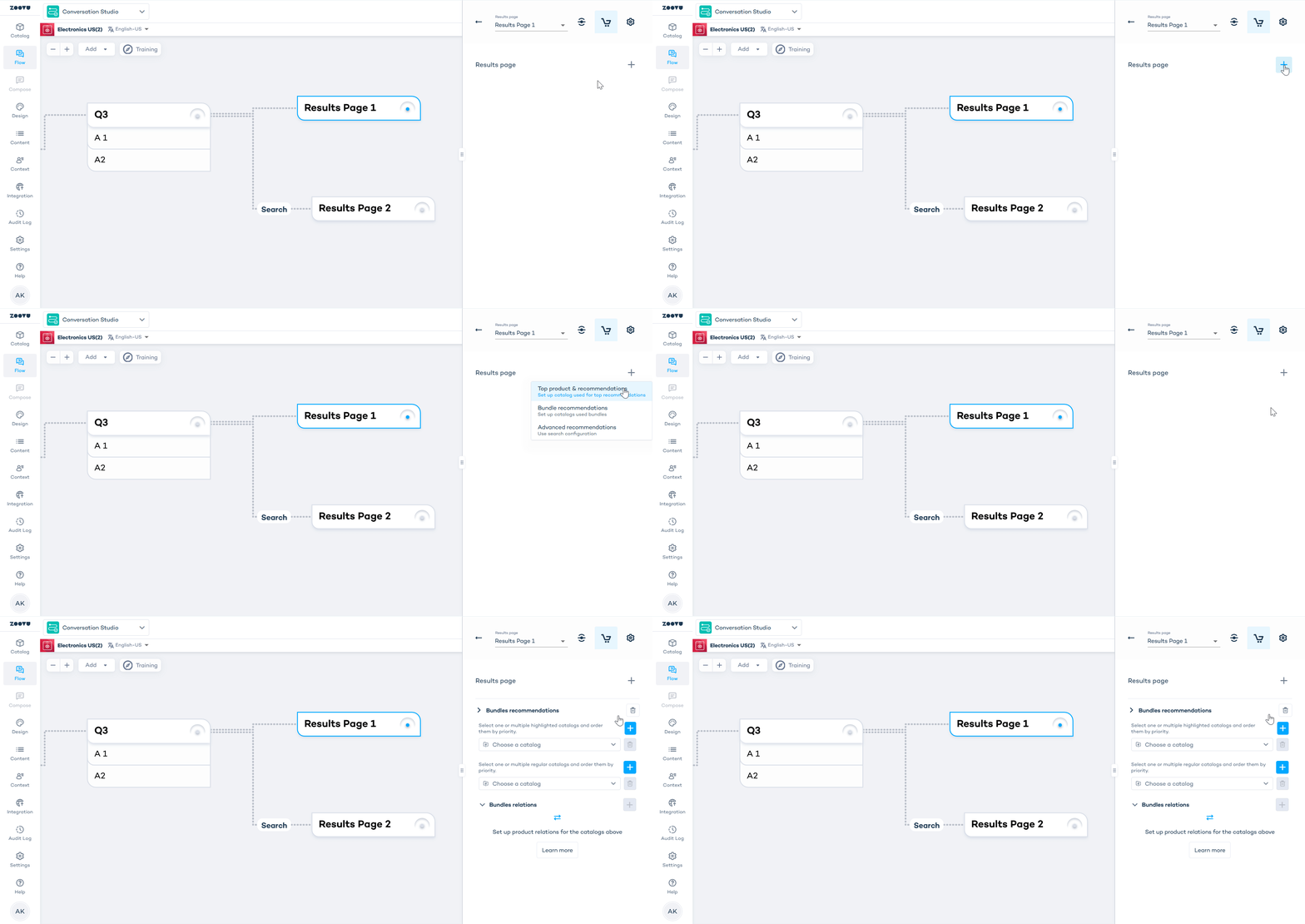
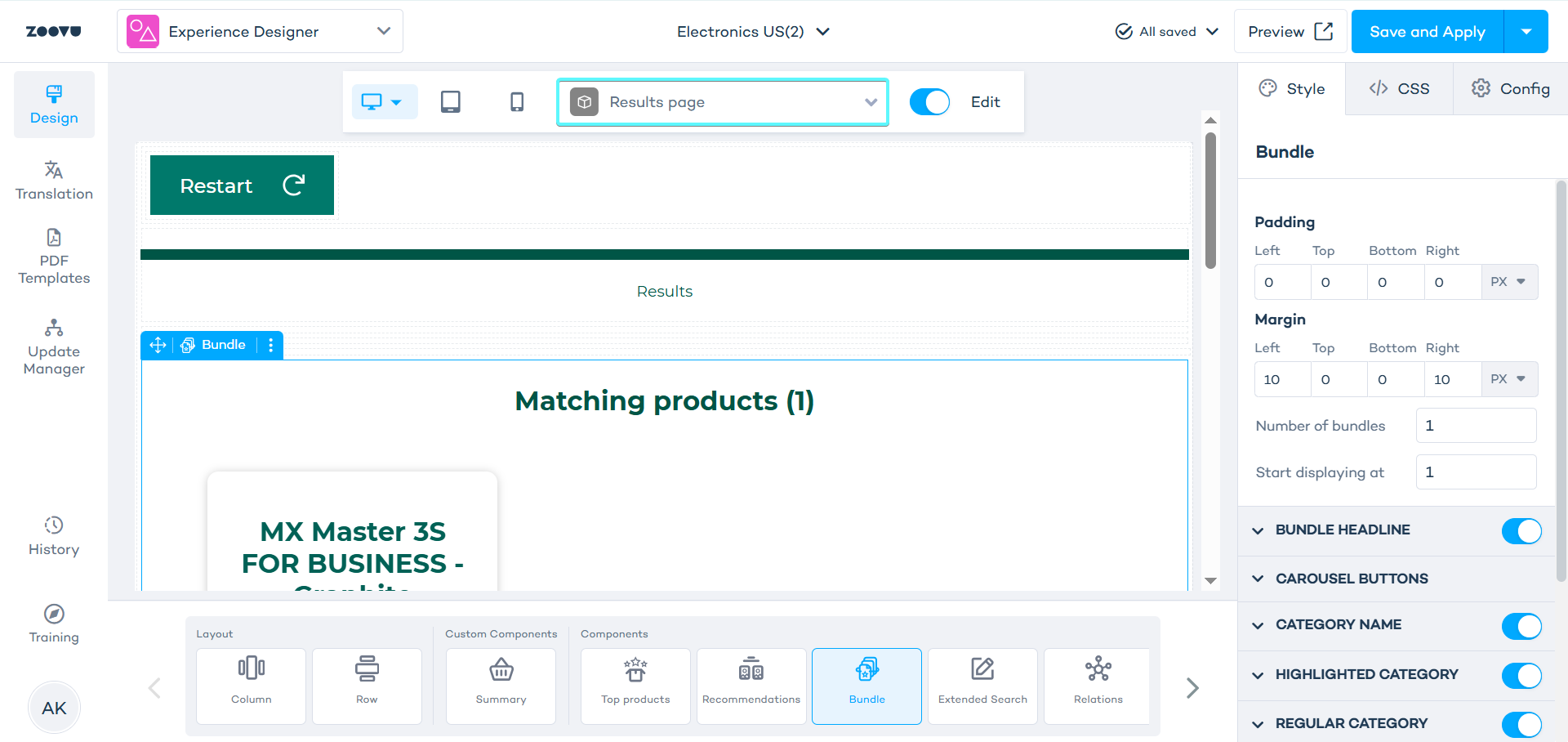
These settings are used in the Bundle component in Experience Designer.
Advanced recommendations
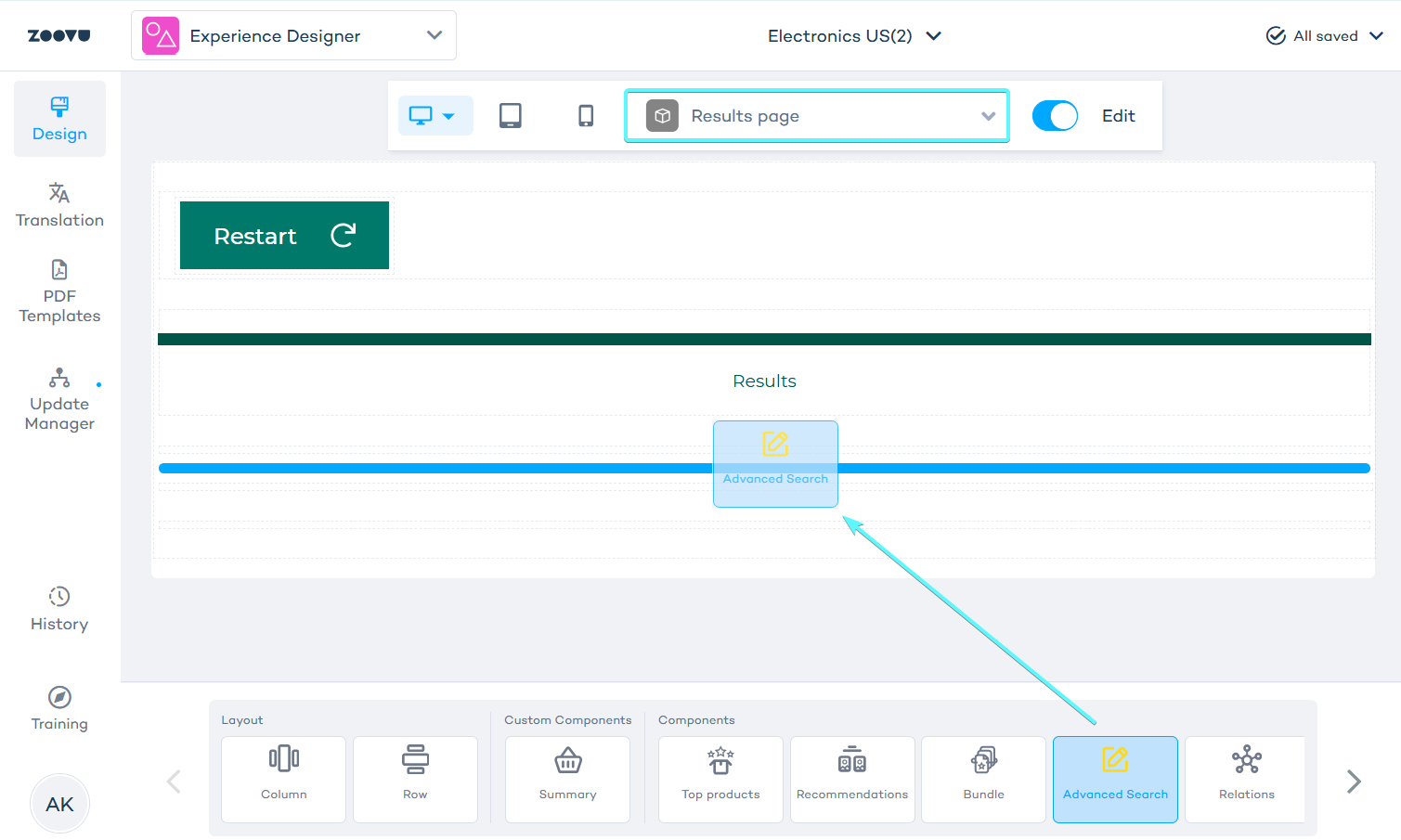
- Choose a catalog and an existing search configuration from Search Studio.
- In Experience Designer, drag and drop the Advanced Search component onto your results page.
Routing
Each results page can be connected to specific questions in your flow to create custom customer journeys based on their answers.
Create a route connection
To connect a question to a results page:
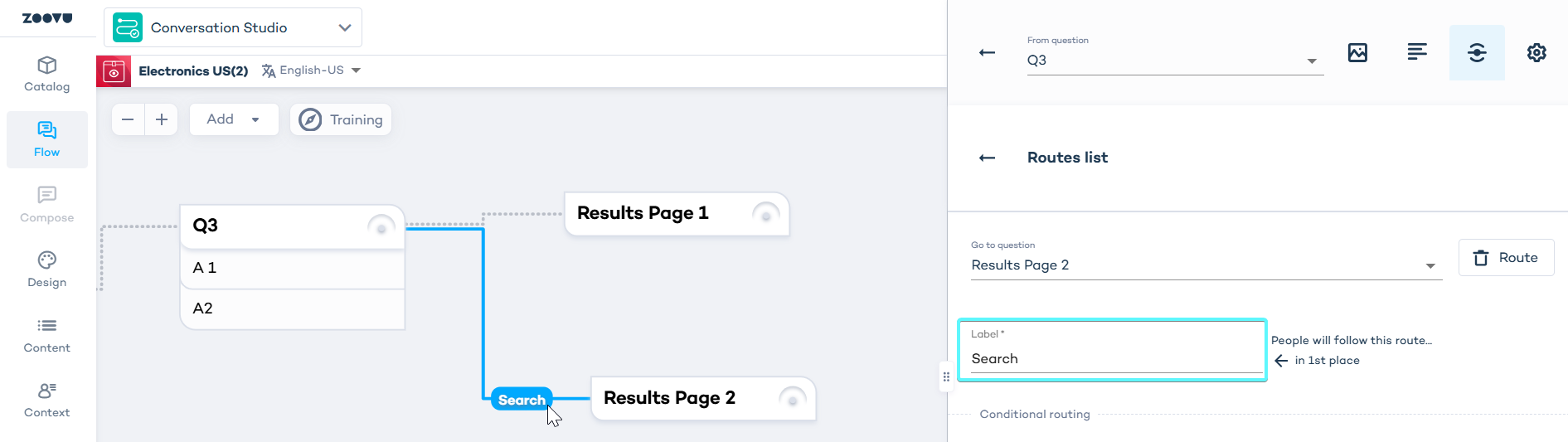
- In the Flow tab, locate the question you want to route from.
- Click the dot in the top right corner of the question node.
- Drag the connection line to your results page.
- Give your route a descriptive label (e.g. "Search", "Budget Options", "Premium Products").
Set up your routing logic
Once you've made the connection, it's time to decide what triggers it:
- Click on your question node to open its settings.
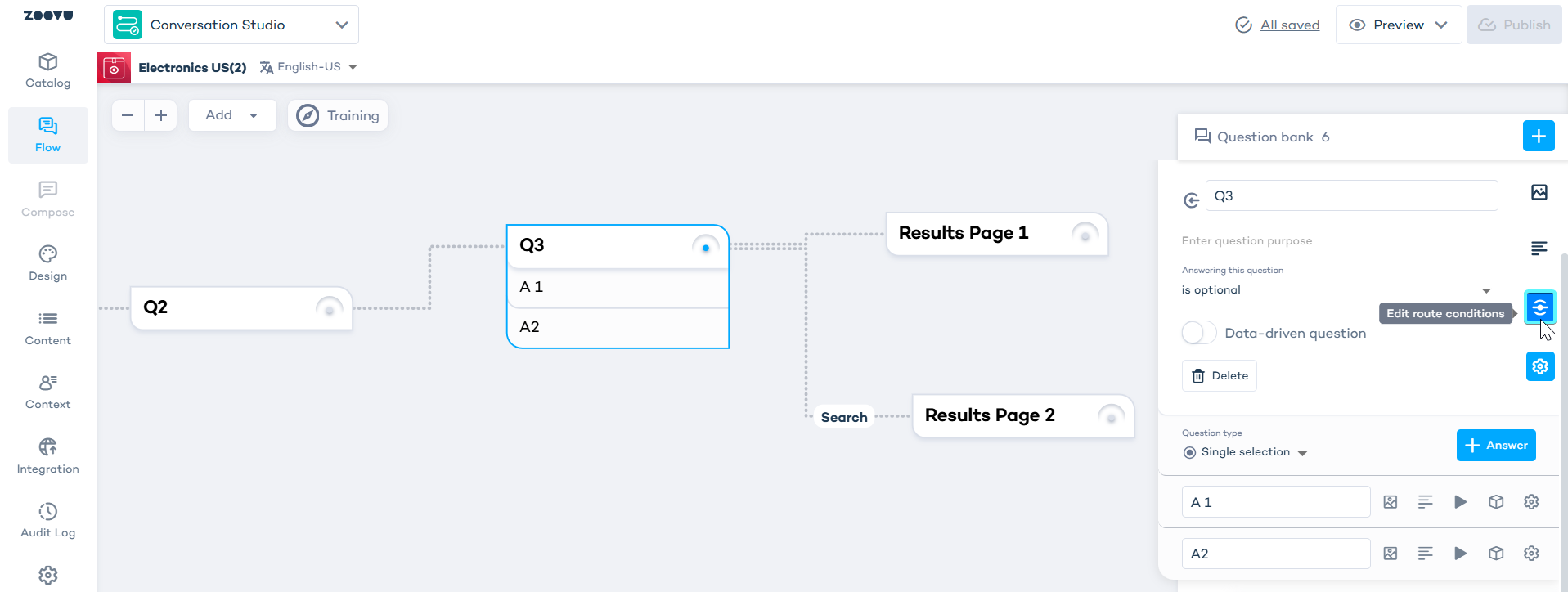
- Set up conditions for each route.
- In route settings, choose what customer action should lead to this results page:
- Simple answer routing: "If they pick Answer B, send them here".
- Multiple conditions: Create rules under "Conditional routing". You can combine answers from different questions by adding several rules.
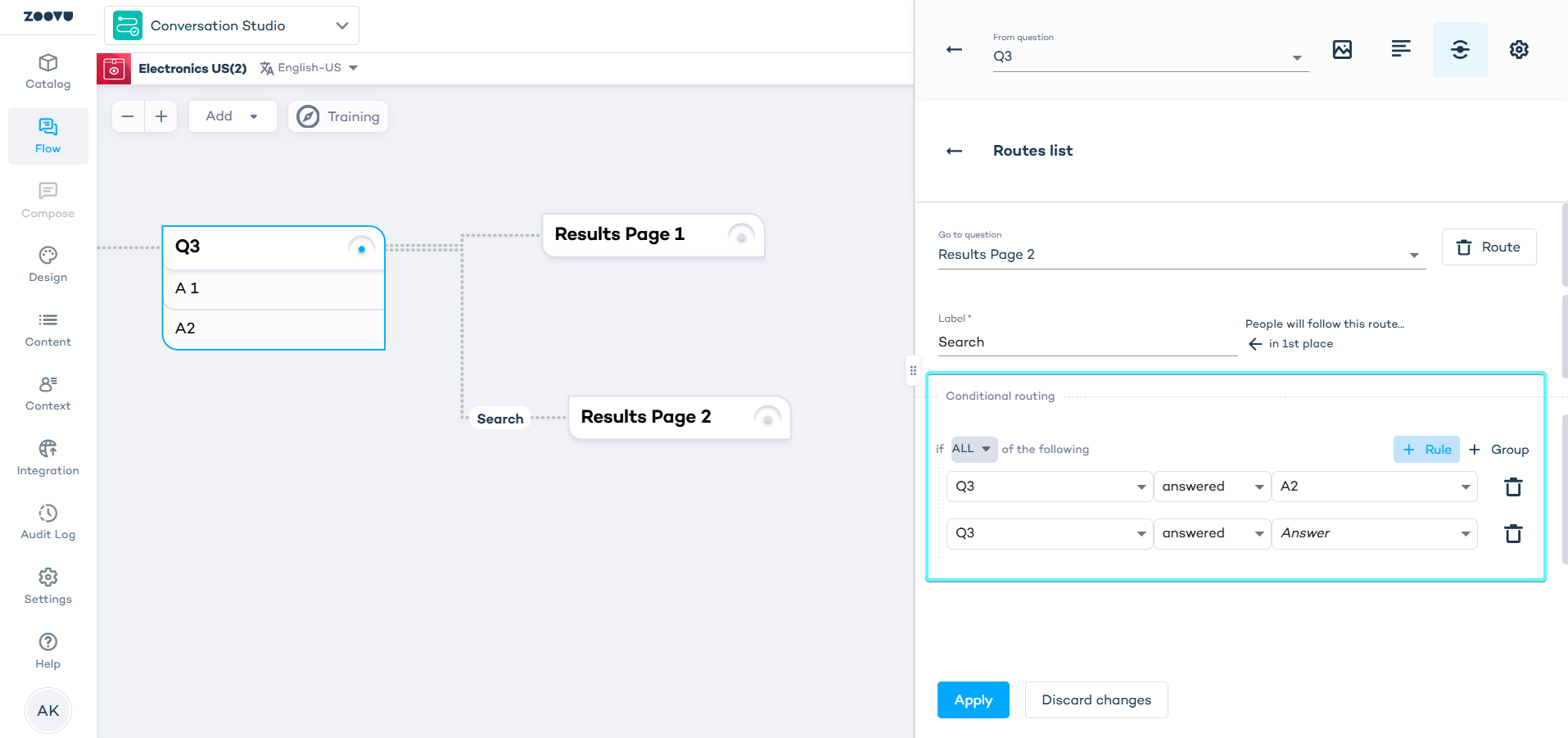
Real-world routing examples
Here are some ways our customers use routing to create better experiences:
- When customers give vague answers or seem unsure, route them to a search-enabled results page where they can explore on their own terms.
- Send price-focused customers to your "Great Value" results page, while routing feature-seekers to your "Premium Options" page.
- After asking about intended use, route the answer to a configurator.
Style in Experience Designer
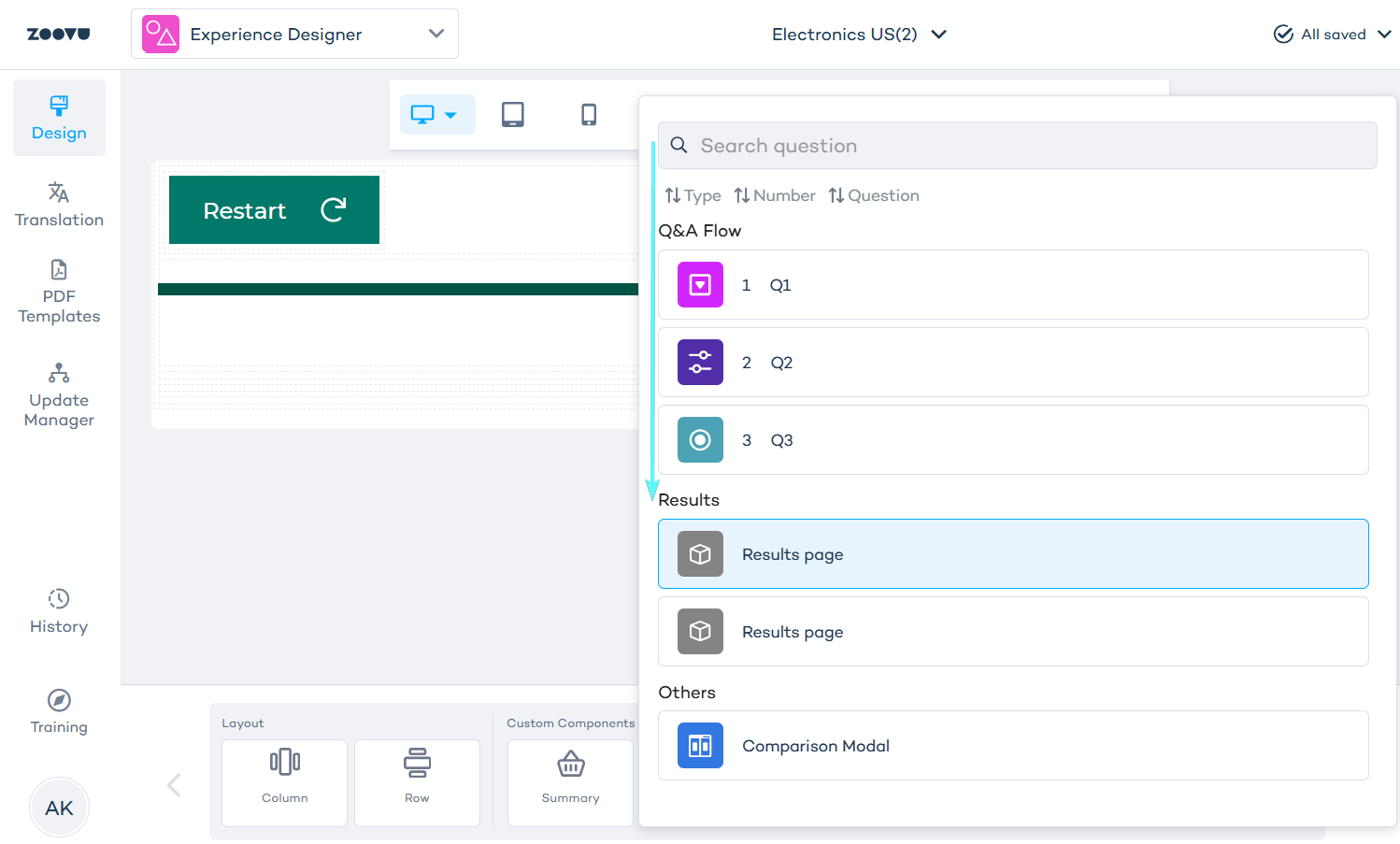
Open Experience Designer to edit the layout of your results pages.
- Use the page selector above the canvas to select the results page.
- Use the components bar underneath the canvas to drag and drop additional components.