Create a Bundle Assistant
Use bundle logic when your assistant needs to recommend groups of products across different catalogs, like a main product plus accessories.
Step 1: Create your assistant
- In Conversation Studio, click the plus icon and choose "Assistant".
- Give it a name, choose default language and region, and start your setup.
- In Conversation Studio > Catalog, link your project and select catalogs to recommend products from.
You can recommend products from different catalogs in a single bundle.
Step 2: Build the question flow
In the Flow tab:
- Add product questions.
- Configure recommendation logic for each question.
- Add a results page. Learn more.
Step 3: Configure the results page for bundling
Use the results page to show bundles, upsell, and help users combine compatible products.
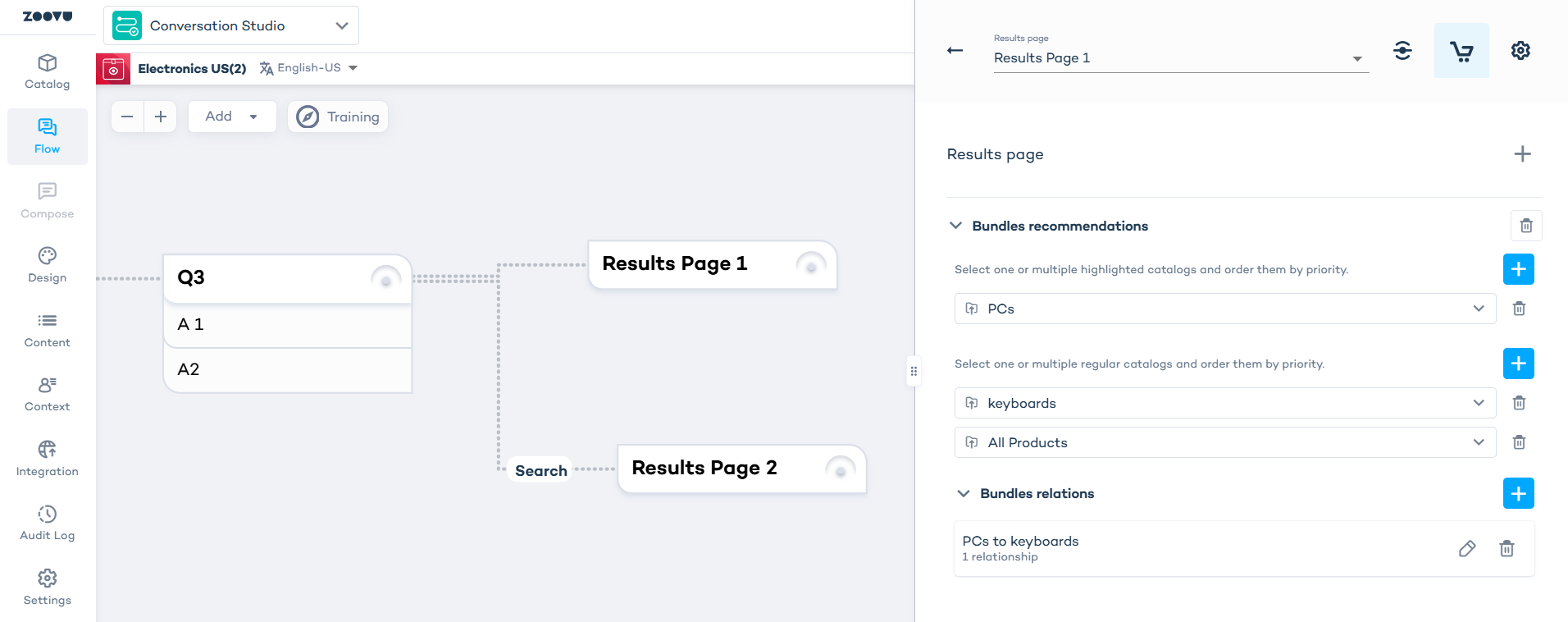
- Add only the "Bundle recommendations" component to your Results Page.
- Select the catalogs you want to recommend from.
- (Optional) Configure Relations to make sure that recommended products are compatible (for example, matching accessories to a main product).
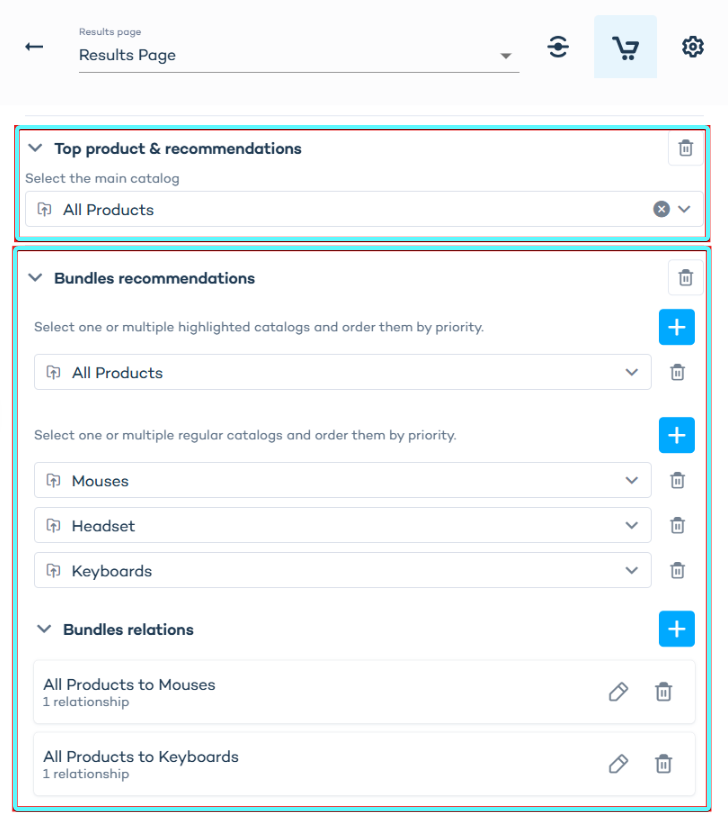
You can add both "Top product & recommendations" and "Bundle recommendations" components to your Results Page. This setup allows you to recommend a main product and then suggest additional items as a bundle.
Step 4: Apply visual styling
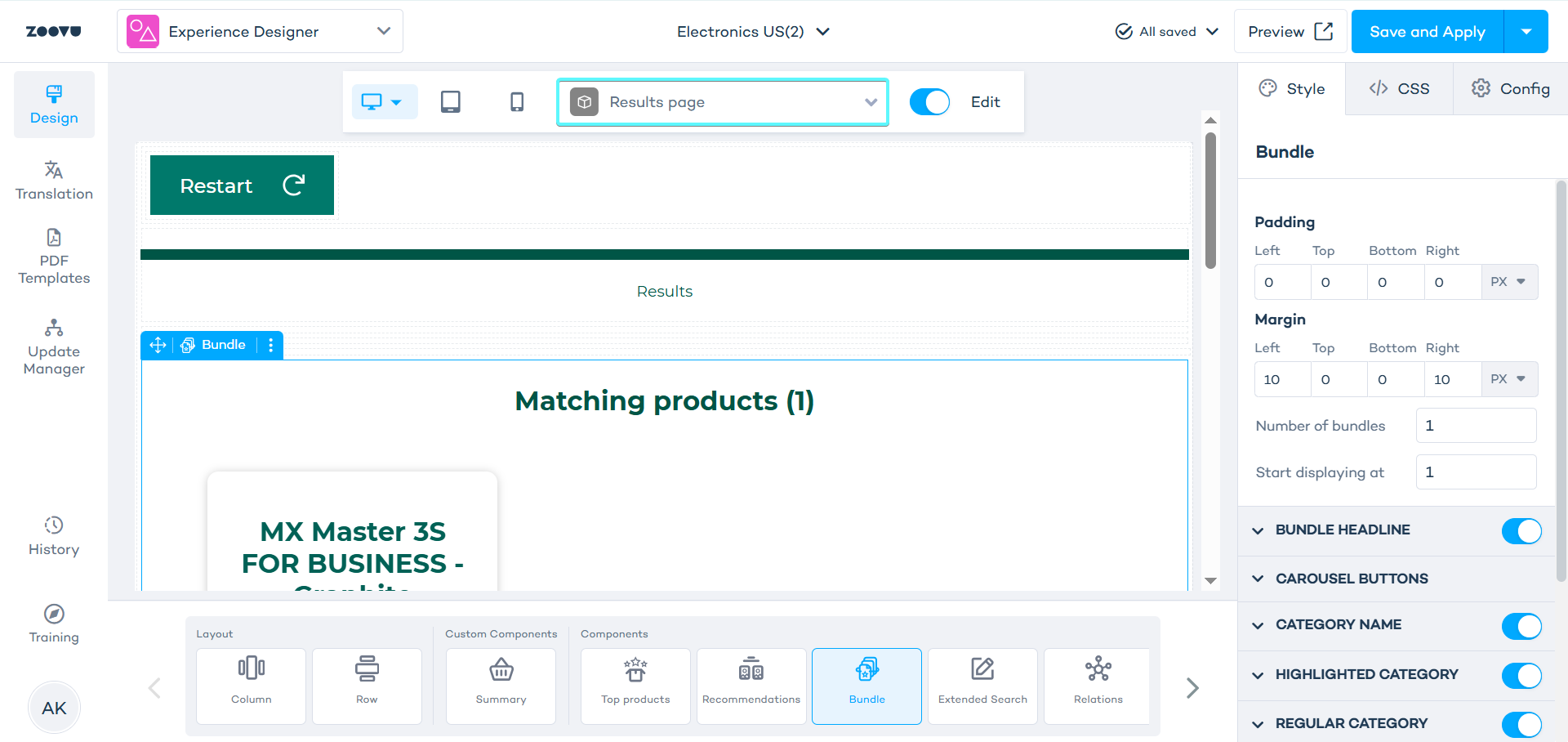
- Open the Design tab in Conversation Studio.
- Open Experience Designer.
- Select the results page.
- Drag and drop the Bundles component onto the canvas.
- Adjust layout and visuals to match your brand (colors, fonts, layout).