Visible attributes
Use this setting to decide which product attributes appear in assistant recommendations and product lists.
If you do not configure any visible attributes, the assistant continues to show all of them:
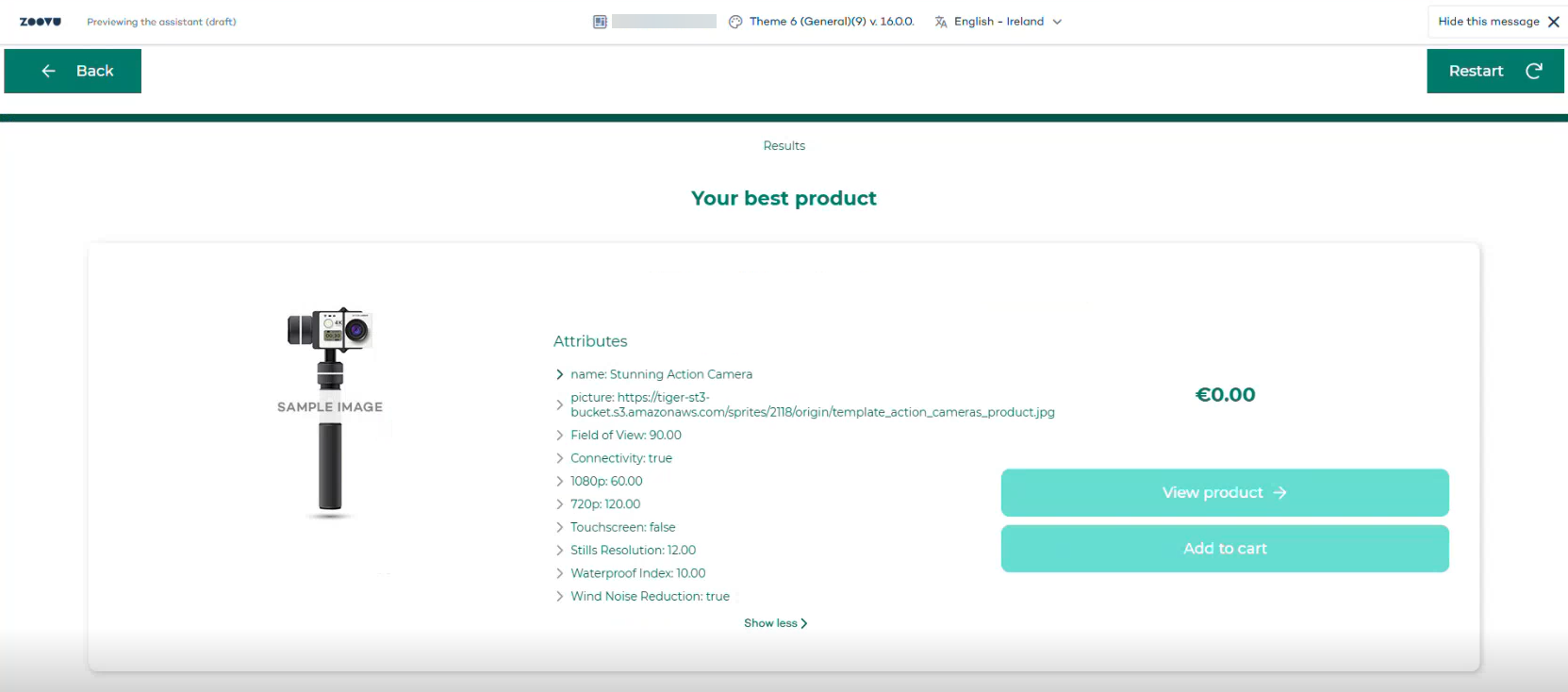
Here's how to set up the attributes correctly to keep the experience focused and avoid showing unnecessary catalog data.
Configure visible attributes
You can configure visible attributes in two places, depending on where you want them to appear.
Option 1: Results page
Go to Assistant > Result page settings > Recommendations configuration.
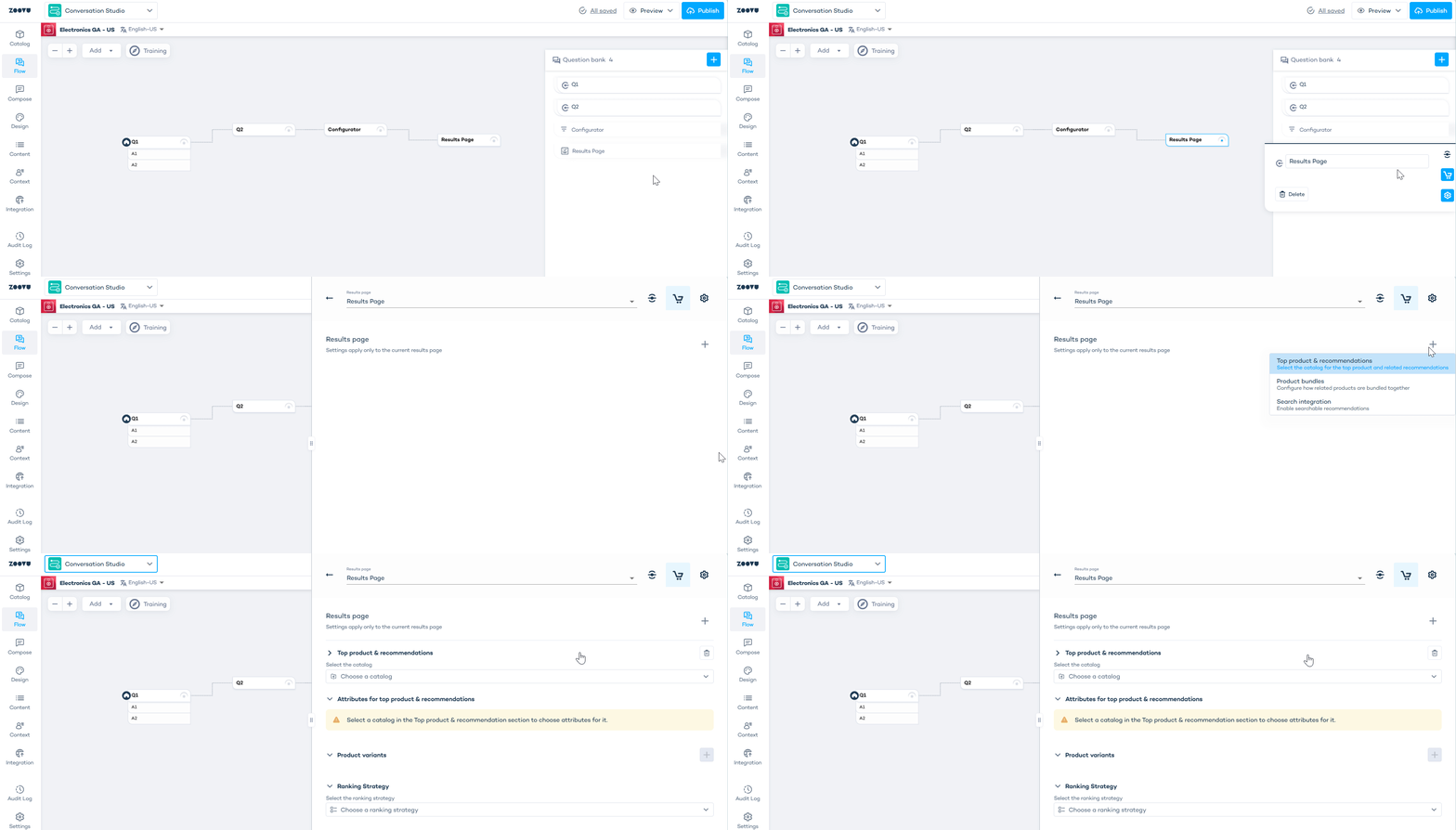
Click "Add attributes".
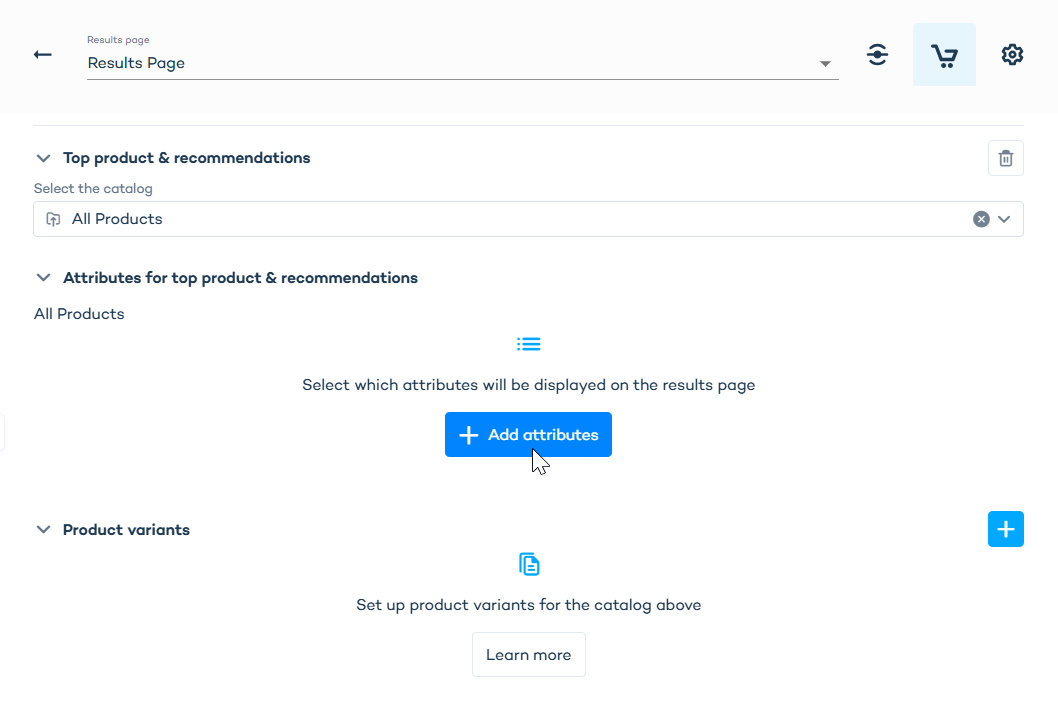
Choose visible attributes for:
- Top product, using one set of attributes for the main recommendation
- Product bundles, using a separate set of attributes for each bundle
Option 2: Configurator section
Go to Assistant > Compose tab > Section > Product list configuration > Attributes.
Here, you can choose which attributes appear in the Product list and Selection summary for that section. The same visible attributes setting applies to the entire section.
When you select visible attributes in Conversation Studio, the assistant automatically syncs them to the appropriate Attribute Group in Data Platform.
The system chooses the target group in this order:
- an Attribute Group with the Assistant use case
- if none exists, the first Attribute Group with the Search Results use case
- if neither exists, a new Attribute Group with the Assistant use case is created automatically
If there are multiple Attribute Groups with the same use case, the system checks all of them before adding an attribute. Any missing attributes are added to the first matching group.
Hide all attributes
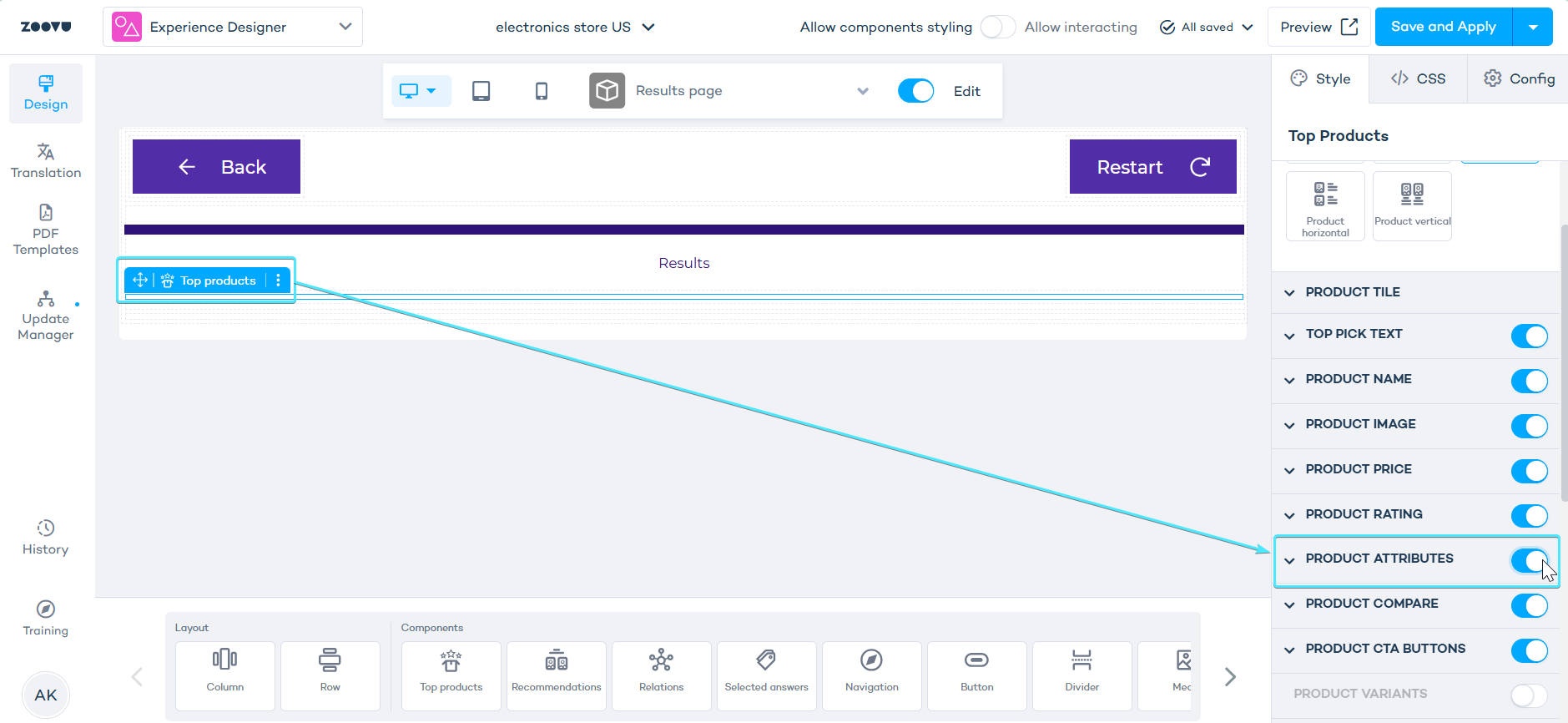
If you prefer not to show product attributes at all, turn off the Product Attributes switch for the Top products component in Experience Designer: