Configure Zoe
This guide walks you through the settings that control how Zoe works, from the products it knows about to the words it uses.
To open the settings, go to Advisor Studio > Zoe, open your Zoe and go to Editor.
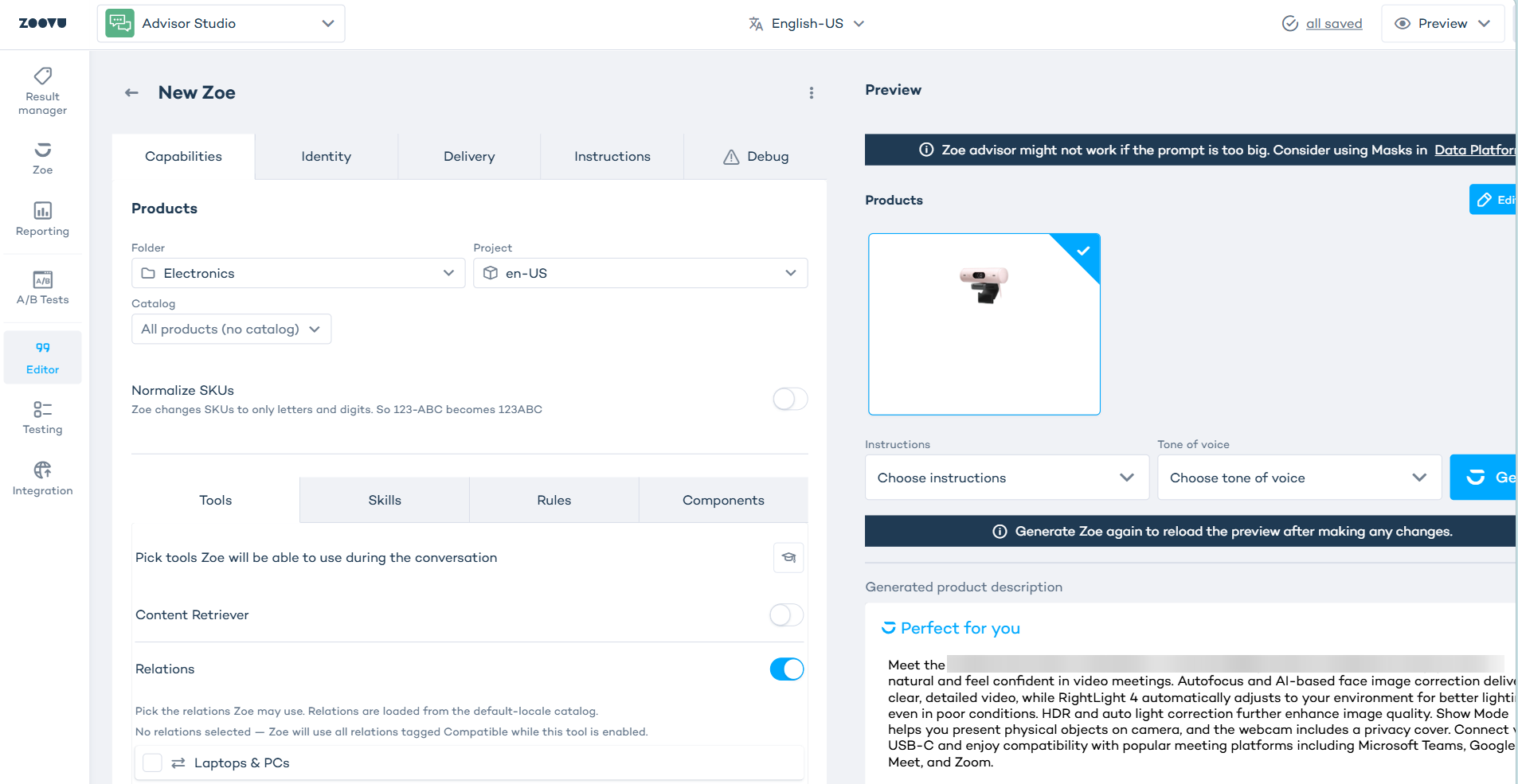
The settings are grouped into tabs that follow the order you'd usually set Zoe up in:
- Capabilities: connect your product data and choose what Zoe can do in a conversation.
- Identity: describe your brand and how Zoe should sound.
- Delivery: decide how answers appear and adapt the texts around the chat.
- Instructions: set the rules Zoe follows in every conversation.
- Debug: check your setup for problems before you publish.
You don't need to fill in everything at once. Start with your products and a short company description, test Zoe in preview, then refine the rest.
Capabilities
Products
Choose the product data Zoe uses:
- Folder and Project: where your product data lives
- Catalog: limit Zoe to one catalog, or keep All products (no catalog)
Turn on Normalize SKUs if SKUs in your data and on your site are written differently. Zoe then keeps only letters and digits, so 123-ABC becomes 123ABC.
Tools, Skills, Rules and Components
Below Products, four tabs define what Zoe can do during a conversation:
- Tools: what Zoe can look up, such as product information, variants, related products or your content. See Zoe tools.
- Skills: the interactive elements Zoe can offer, such as suggested questions, comparisons or alternatives. See Zoe skills.
- Rules
- Components
Turn on only what your experience needs. Each extra tool or skill gives Zoe more to choose from.
Identity
The Identity tab gives Zoe brand context and a voice. It has two parts:
- Company Info tells Zoe who your brand is
- Tone of Voice tells Zoe how to speak for that brand
Company Info
Company Info gives Zoe one consistent source of brand context for both product descriptions and chat.
Include:
- what your company does and sells
- how you position yourself
- what matters to your brand
- wording Zoe should use consistently
Keep it short and reusable. Describe the brand, not individual products, and avoid long marketing copy or repeated slogans.
We are a consumer electronics brand focused on practical innovation, everyday reliability, and clear product guidance. We help customers choose confidently by explaining products in a straightforward, useful way. Our brand voice should feel knowledgeable, helpful, and trustworthy.
Tone of Voice
Each tone has a Name and a Description. Zoe starts with one tone called default. Select + to add more.
Describe the tone in a few concrete words that cover formality, expertise and overall demeanor:
default: clear, helpful, and conversationalexpert: confident, informed, and precisefriendly: warm, approachable, and simple
Start with one tone. Add more only when Zoe appears in contexts that really need a different voice, for example a more technical tone for expert categories.
Avoid vague words like "good" or "nice", and tones that overlap. If two tones would produce almost the same answer, keep one.
Delivery
The Delivery tab controls how Zoe's answers reach the shopper and what the interface around them says.
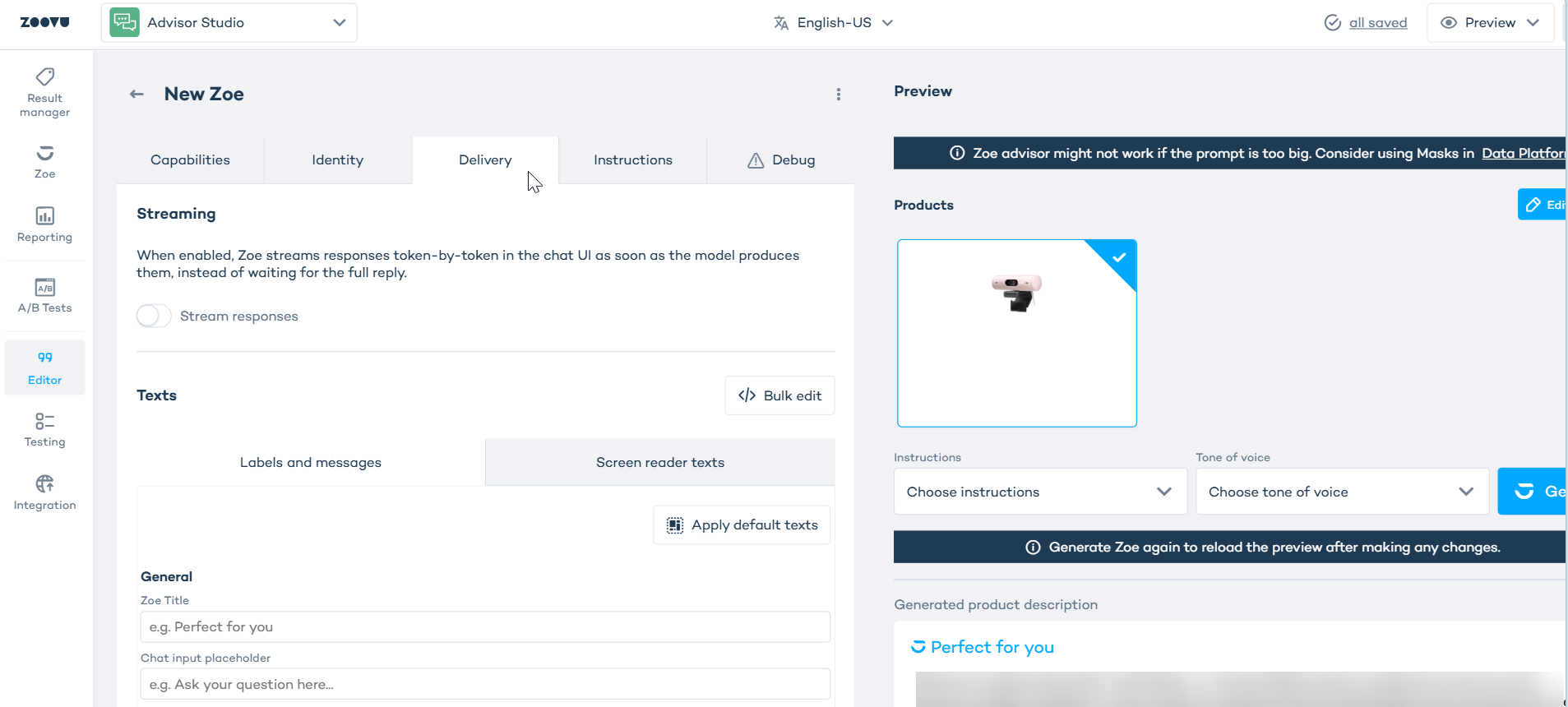
Texts
The Texts section lets you adapt the copy shown around Zoe's responses. It has two tabs:
- Labels and messages for visible interface copy
- Screen reader texts for the labels read out by screen readers and other assistive technologies
Two buttons help you work faster:
- Apply default texts fills the fields with Zoovu's default copy. Use it as a starting point, then change only what needs to match your brand.
- Bulk edit opens all texts in a code view, so you can review, copy or paste them in one go.
To translate texts, see Localization.
Labels and messages
Fields are grouped by where they appear:
- General: the Zoe title, the chat input placeholder and the submit button. These are the first texts a shopper sees, so keep them short and inviting.
- Errors: messages shown when something goes wrong or a limit is reached. Tell the shopper what happened and what they can do next.
- Feedback: the "Was this helpful?" prompt, its answers and the thank-you message.
- Legal: see below.
- Comparison and Bundles: labels for comparisons and bundles, such as the total and the option counter.
- Other: labels for buttons and links around the chat, such as the popup button, the citation button, Compare and Show alternatives.
- Tool display names: the short status Zoe shows while it works on an answer, such as Searching or Finding products. Default indicator (other steps) is shown for any step without its own label.
Some fields use placeholders in double curly braces, such as {{productName}} or {{current}} of {{count}}. Zoe replaces them with real values. Keep the placeholders exactly as they are when you edit or translate the text.
Chat input placeholder questions and Chat loader text take several values. Type a value and press Enter to add it.
Legal texts
| Field | What it's for |
|---|---|
| Disclaimer | A short notice shown with the chat |
| Terms & Conditions | The terms the shopper agrees to by using the chat |
| Legal content message | The message asking the shopper to accept the terms before they can start chatting |
Consider using the Disclaimer to tell shoppers they are talking to an AI assistant and that answers can contain mistakes. In some regions, such as the EU, you may be required to make clear that shoppers are interacting with AI. Check the exact wording with your legal team.
This assistant uses AI to help you find products. Answers may not always be accurate, so please check product details and prices before you buy.
Screen reader texts
These are the texts read out to shoppers who use screen readers, such as labels for buttons and icons that have no visible text. Update and translate them along with the visible labels, so the experience works the same for everyone.
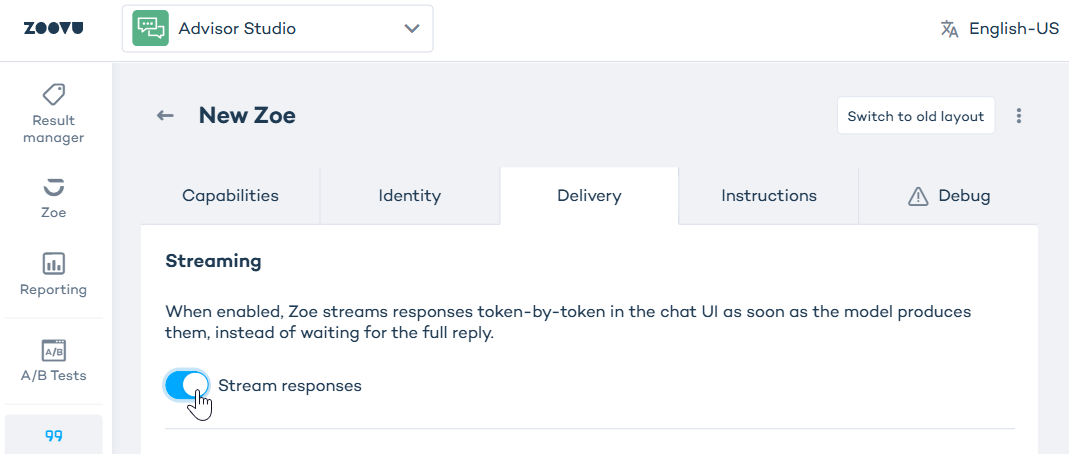
Streaming
Turn on Stream responses to show Zoe's answer word by word as the model generates it, instead of waiting for the full reply. Streaming makes Zoe feel faster, because shoppers start reading right away.
Instructions
The Instructions tab has two tabs: Instructions and Zoe Protector.
General instructions
Set the guidelines Zoe follows in every conversation, such as response style, topics to avoid and rules that always apply. Instructions are grouped into sections:
- Conversation
- Product comparisons in conversation
- Opening chat message
- Zoe generated suggested questions
- Zoe generated casual questions
- Search rules
Below them, Product cards controls the text Zoe shows on product cards.
For how to write instructions, see Instructions in Zoe.
Zoe Protector
Use Zoe Protector to set how Zoe handles sensitive or off-topic requests. To test how Zoe behaves in these situations before launch, see AI Protector.
Debug
The Debug tab shows problems in your setup. If the tab shows a warning icon, open it and fix the issues it lists before you publish.
Good practices
- Put each setting where it belongs. Brand and tone go in Identity, rules go in Instructions, and interface copy goes in Delivery. Overlap between them is a common cause of inconsistent answers.
- Test changes in preview with a few realistic questions. Small changes in wording can noticeably change Zoe's answers.
- Treat legal and error copy with extra care.