Add answers
The settings for answers or options depend on the type of question, feature, or filter they are linked to. This guide outlines the actions you can take for each answer or option and provides links to detailed instructions.
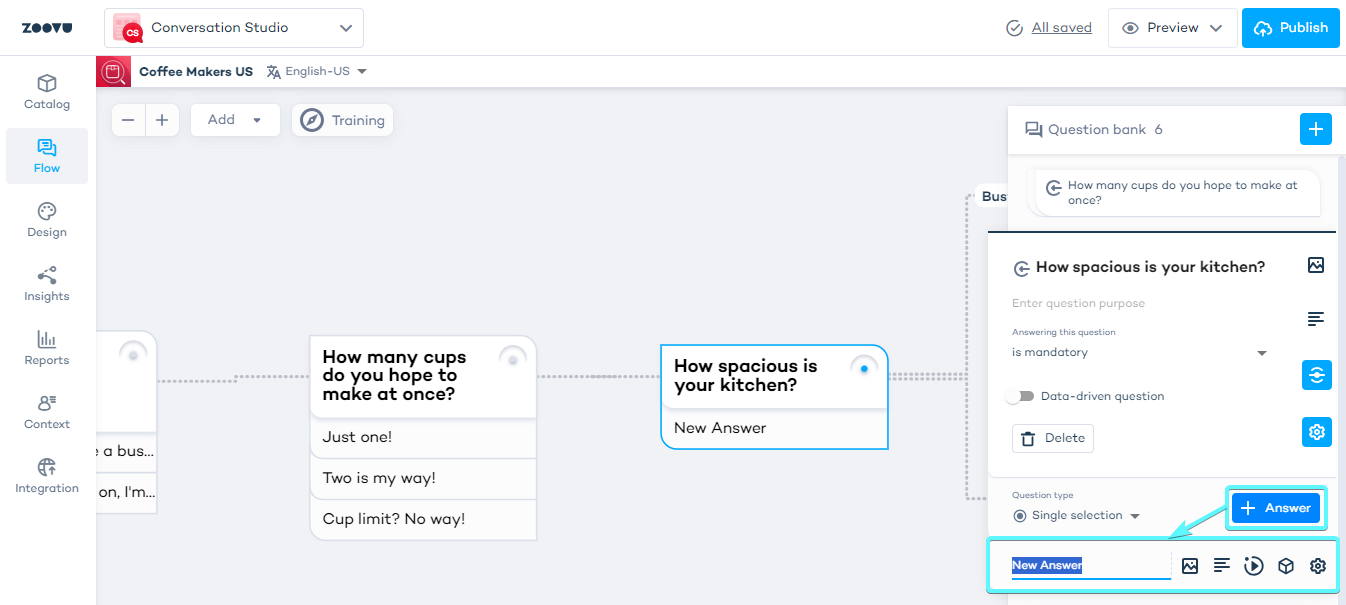
Add images to answers
You can include images with answers or options to make them more visually appealing.
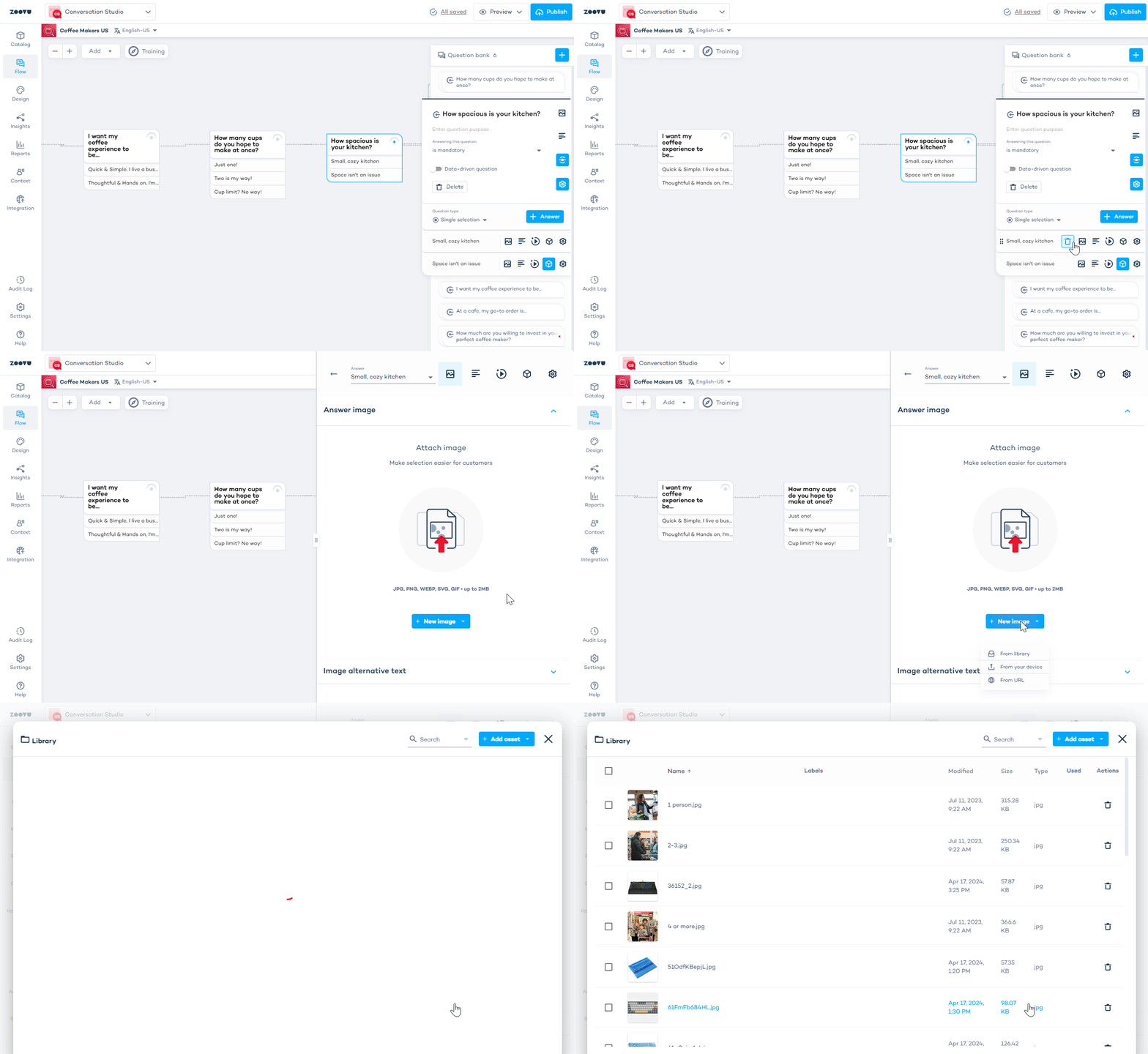
Upload images to Conversation Studio's library or your own content management system.
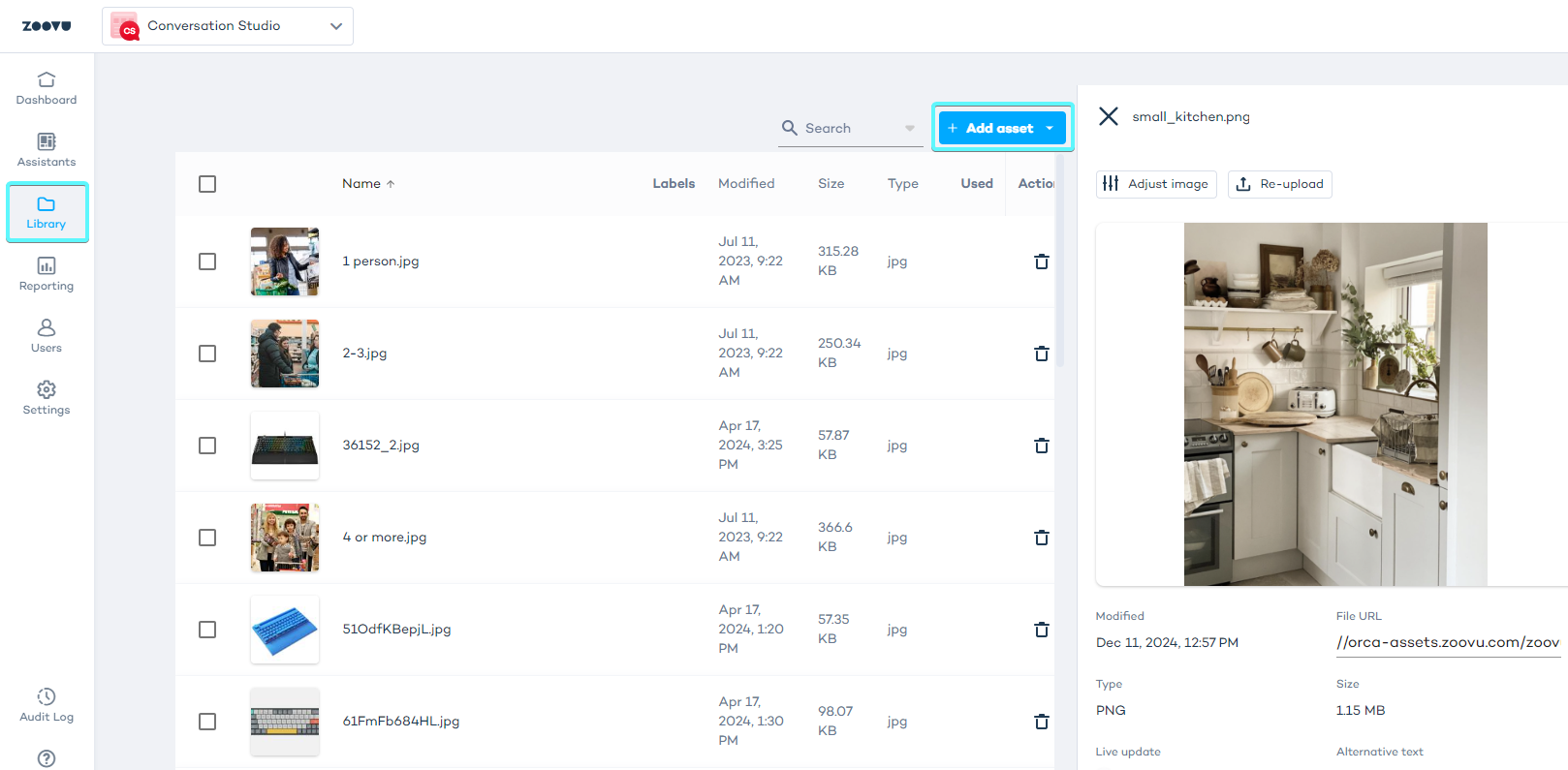
Click on the image icon next to the answer to add a picture to it.
Here's an example of a Digital Assistant's question and answers:
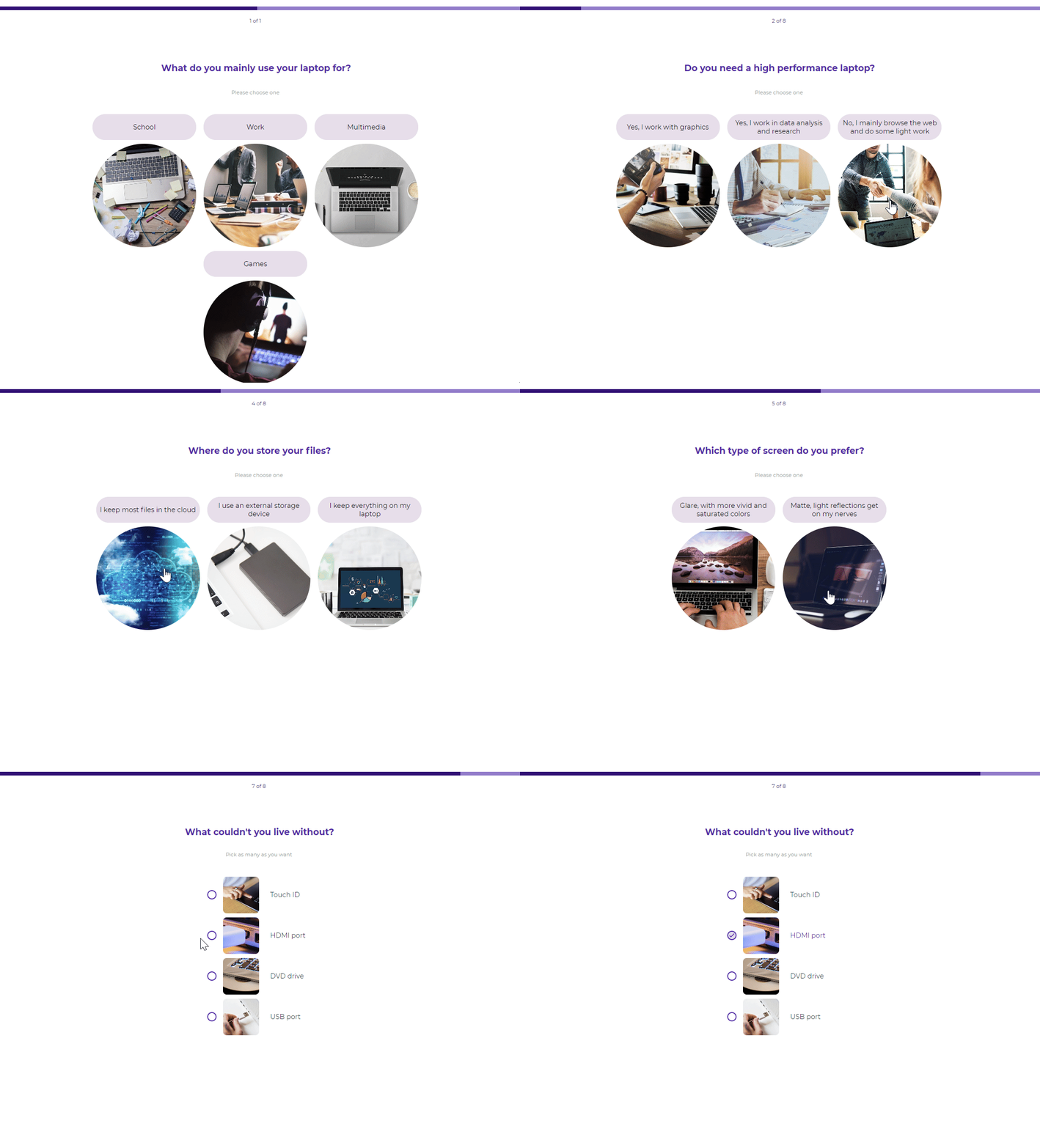
Image requirements for answers:
- Format - .jpg, .png, .svg, .gif
- Size - Maximum file size is 2MB, but under 100KB is recommended for faster performance.
- Dimensions - The longest side should be at least 500px, with a recommended size of 700px.
- Resizing - Answer images are scaled based on screen size and the number of images per row.
- Layout - Use square images for square layouts. Avoid wide rectangular images if there are more than three images per row.
- Padding - Keep the main subject centered and leave 15% padding on the edges to prevent details from being cropped.
Define recommendation logic
Recommendation logic determines which products are shown to customers and in what order.
Select a question and click on the cube icon to edit recommendation logic:
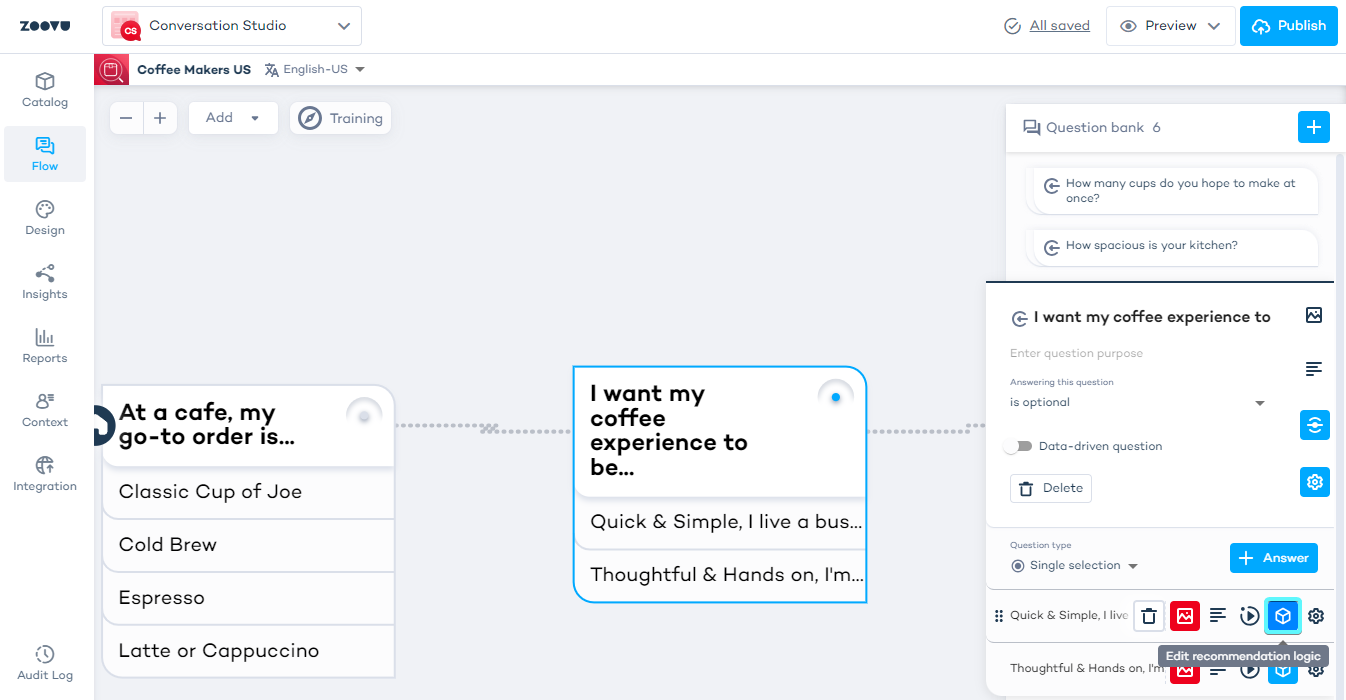
There are three main components to recommendation logic:
- Mapping rules - Match answers to products. For example, customers selecting "pink" will be shown pink items.
- Answer-based sorting rules - Prioritize products based on the customer's answer. Products matching the selected answer are displayed first.
- Bias rules - Assign ranking to products based on the customer's answer. Higher-ranked products appear at the top, followed by those sorted using answer-based and default sorting rules.
Recommendation logic
Recommendation logic lets you control which products are shown based on how a shopper answers your questions. Each answer can carry one or more rules that filter or influence the result set.
IF → THEN
IF a shopper selects a specific answer (or combination of answers), THEN apply a filter or rule to the product results.
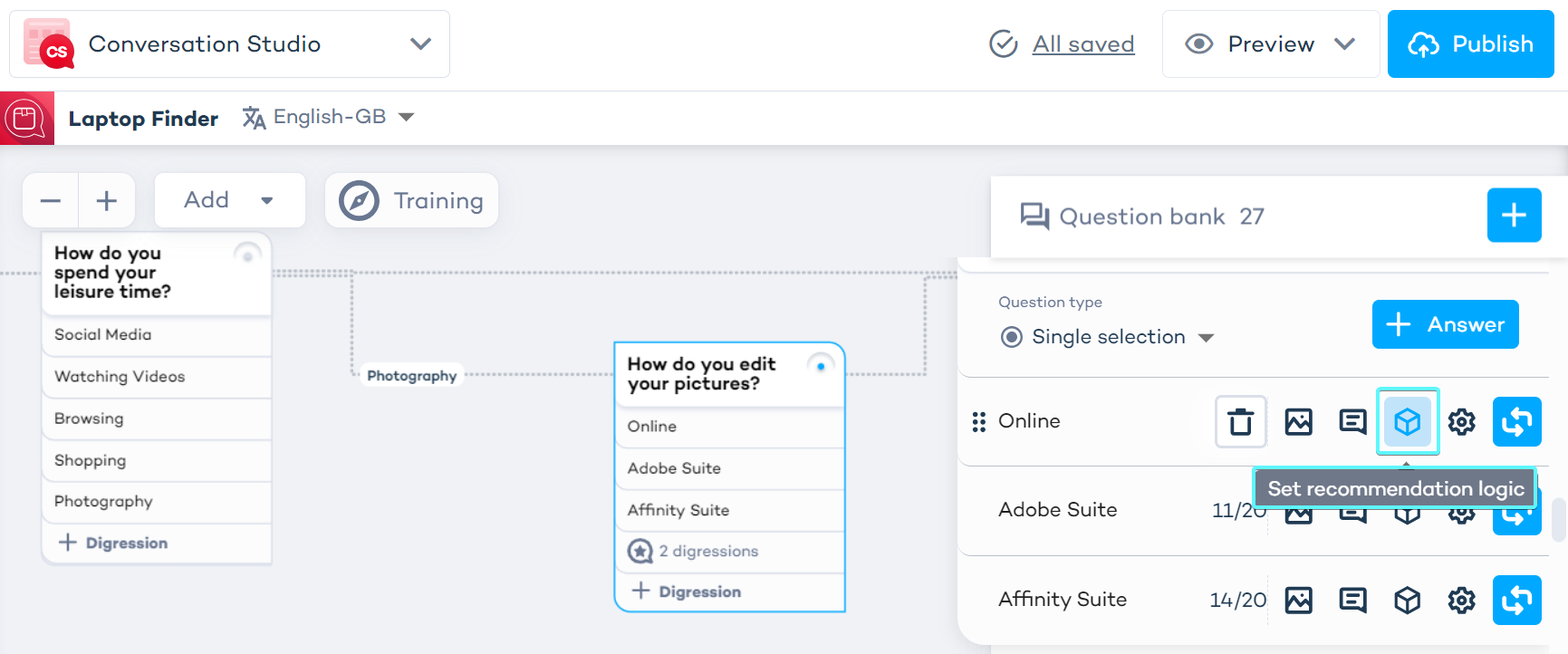
Each answer in your flow has a "Set recommendation logic" option (the icon next to the answer in the Flow Canvas). Clicking it opens the rule editor where you define what happens when that answer is selected.
Rule types you can apply:
| Type | What it does | When to use |
|---|---|---|
| Filter (Strict) | Hard-filters results - only products matching the rule appear | When an answer definitively excludes product types |
| Bias / Rank | Pushes matching products higher in results without excluding others | When an answer indicates a preference, not a hard requirement |
| Sort | Reorders results based on the answer | When answer order matters for display priority |
Example: Pillow height recommendation
A pillow advisor asks two questions: Shoulder width and Mattress type. Together, the answers determine the ideal pillow height (loft). Rather than mapping each answer independently, you combine both conditions into a single rule per outcome.
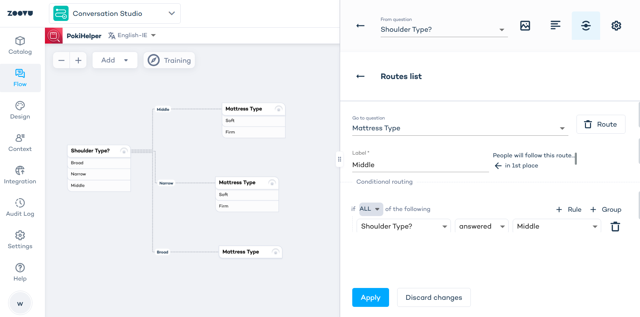
How the rules are configured:
| Rule | Condition (IF) | Action (THEN Match) |
|---|---|---|
| Rule 1 | Shoulders: Narrow + Mattress: Soft | Filter by: Extra Low |
| Rule 2 | Shoulders: Narrow + Mattress: Firm | Filter by: Medium-Low |
| Rule 3 | Shoulders: Average + Mattress: Soft | Filter by: Medium-Low |
| Rule 4 | Shoulders: Average + Mattress: Firm | Filter by: Medium-High |
| Rule 5 | Shoulders: Broad + Mattress: Soft | Filter by: Medium-High |
| Rule 6 | Shoulders: Broad + Mattress: Firm | Filter by: High / Firm |
You can set recommendation logic individually for each path:
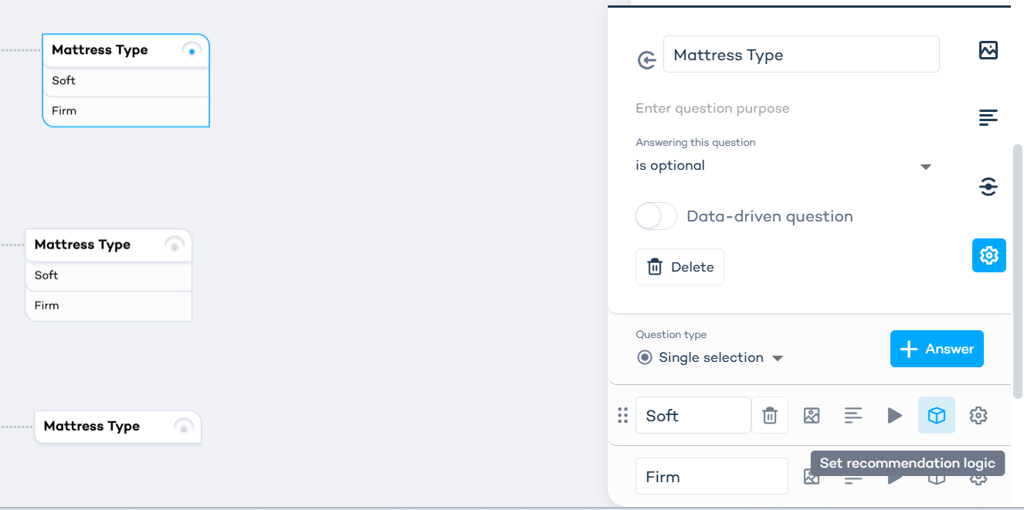
In this setup, the "Set recommendation logic" icon is used on each answer (e.g. "Soft" under Mattress Type) to define the filter that applies when that answer is selected in combination with a shoulder-width answer.
When two conditions must both be true to trigger a result, use AND logic — both answers must be selected for the filter to apply. If either condition alone is enough, use ANY.
How to set it up
- Open your flow in Conversation Studio.
- Select the question whose answers should drive recommendations.
- Click the "Set recommendation logic" icon next to an answer.
- Choose the attribute to filter on and set its value (e.g., Pillow Height = Extra Low).
- Repeat for each answer or combination.
- Use AND to require multiple conditions; use ANY if one condition is sufficient.
Map combined conditions (like shoulder + mattress type) from the answer that completes the combination — typically the last question in the sequence. This keeps your logic clean and easy to audit.